Tag: Chrome

  • How to Use WhatsApp on your PC Using Chrome

    How to Use WhatsApp on your PC Using Chrome

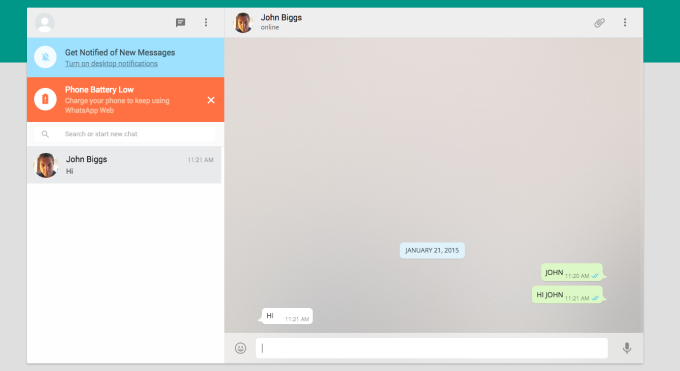
    WhatsApp Web new feature launched by the company which is not a replacement for mobile client as you still need. The official mobile app must be installed on your phone to make use of it as.

    In a recent blog post they said “Today, for the first time, millions of you will have the ability to use WhatsApp on your web browser.”

    The web client will mirror conversations and messages from the mobile device.

    whatsapp-webHow to access Whatsapp in web browser?

    WhatsApp can be connected by https://web.whatsapp.com in a Google Chrome browser (more browser coming soon).

    You must have updated version of WhatsApp app on your phone.

    Choose WhatsApp Web from the menu.

    You will see a QR code, scan the code inside of WhatsApp, and you’re ready to go. Your mobile app and web client are now connected.

    Your phone needs to stay connected to the internet for our web client to work. (WiFi recommended)

    This service is currently available to Android, Windows and Blackberry users. (Sadly not available on iOS)

    Also Read: How To Make Your Smartphone Work For You

  • Google Chrome : Now with 64-bit version

    Google Chrome : Now with 64-bit version

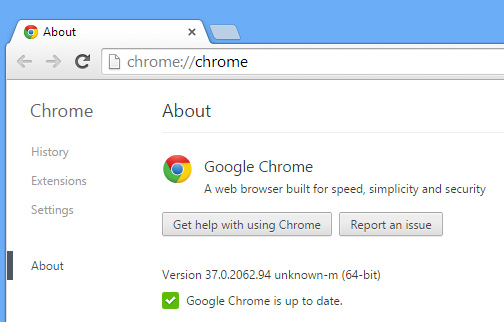
    Finally Google has released a stable 64-bit version of Chrome for Windows.

    According to Google, 64-bit Chrome for Windows has three major advantages over its 32-bit cousin:

    • It’s faster,
    • more secure,
    • more stable.

    about-chrome-37-64-bit-windows

    Even the tasks like HD video on YouTube, are 15% faster under the 64-bit version of Chrome. the most major plug-ins, including Silverlight, Java, and Flash have all been updated to 64-bit. That’s a small price to pay for increased speed, security, and (according to Google) twice the stability of 32-bit Chrome, though.

    Also Read: Awesome Firefox Tricks You Might Not Know

    Three months of testing later, and the 64-bit build of Chrome has passed muster and percolated down to the latest stable version: Chrome 37.

    According to Google, 64 bits Chrome will provide a marked improvement in rendering speed and Google also says it sees an average improvement of 25% in graphics and multimedia content. The main focused advantage is VP9 video decoding (i.e. surfing YouTube) is 15% faster. It suspects the 64-bit version of Chrome will feel a bit faster in everyday use.

    The concern to security and stability are much less nebulous but Moving to a 64-bit process allows Chrome to use features such as High Entropy ASLR (address space layout randomization) and improve defenses against JIT spraying

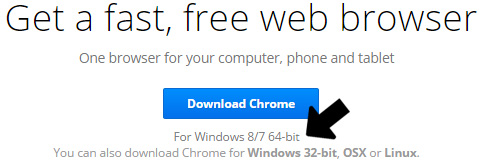
    The official download Google chrome 64 Bit

    chrome-64-bit-windows

    Remarkably Chrome’s 64-bit renderer process will be almost twice as stable as the 32-bit version!!


  • Google Chrome Offline installer (Standalone) download

    Google Chrome Offline installer (Standalone) download

    The online process for downloading Google chrome is not preferred and even most of you might not. To download Google chrome, you will need to download a small online installer first and then you will need to run the installer, after which the installer will download and install Chrome from Google’s servers. It can be a time consuming process if you have a slow internet connection.Google-chrome-offline

    Along with many other benefits, following are the two main benefits of using the Google Chrome offline installer when installed on Windows PC. Foremost is the fact that you may download the complete package altogether and then use it anytime you want to. In case you are installing the Firefox with online installer, then disconnection of internet connection means that the installation will be stopped. When you will resume the internet connection, you will have to start the installation process all over again.

    Like most other programs, its always better to install programs from a Full standalone offline installer. Once you download a offline installer, you can easily save it, share it or use it for installing the program once again in the future..

    Features of Google chrome:

    Chrome is designed to be fast in every possible way. It’s quick to start up from your desktop, loads web pages in a snap, and runs complex web applications lightning fast.

    Chrome’s browser window is streamlined, clean and simple. For example, you can search and navigate from the same box and arrange tabs however you wish — quickly and easily.

    Chrome is designed to keep you safer and more secure on the web with built-in malware and phishing protection, auto-updates to make sure you have all the latest security fixes, and more.

    Chrome puts you in control of your private information while helping protect the information you share when you’re online.

    There are tons of ways to customize Chrome and make it yours. It’s easy to tweak your settings and add apps, extensions, and themes from the Chrome Web Store.

    Mozilla Firefox Offline Installer (standalone) download

    Download Link for Chrome Offline installer (for single user account)

    Download Link for Chrome Offline installer (for all user accounts)

    After downloading Full standalone offline installer for Google chrome, you can save it on your computer and use later to install Google Chrome without an internet access.

  • How to Block Websites in Mozilla Firefox or Chrome

    How to Block Websites in Mozilla Firefox or Chrome

    Block websites on chromePerhaps you’re disciplined and want to block a website from yourself. Maybe you’ve the proud owner of a child who surfs the web for less than appropriate material. Whatever the This action will require you to edit your Host file. Your host file is a computer file used to store information on where to find a node on a computer network.

    Method 1 : How to Block websites using hosts file

    1. Open Windows Explorer and type in C:/Windows/System32/drivers/etc. If Windows isn’t installed on the C: drive, substitute the C: for the appropriate drive letter.

    2. Double-click on hosts and open the document using Notepad when Windows prompts you. The hosts file tells the system what it should do when specific domains or IP addresses are accessed. This is the file that you are going to edit.

    If Windows automatically redirects you, or if hosts opens in another program, simply open Notepad (Start -> All Programs -> Accessories -> Notepad) and then go to hosts by clicking File -> Open inside Notepad.

    3. Locate the line “127.0.0.1 localhost” or “::1 localhost.” Put your cursor at the end of whichever line is lowest down.
    Press “Enter” to create a new line.
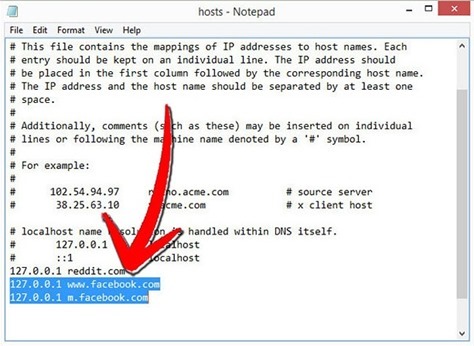
    Block-website-using-host-file

    4. Type in whichever website or websites you wish to block. You can add any site, but you’ll will need to preface it with “127.0.0.1”.

    To block the website facebook.com for example, just type in “127.0.0.1” followed by a single space, followed by “facebook.com”. Add all of the site’s domains, especially mobile domains, on new lines. Your computer might block “www.facebook.com”, but not “m.facebook.com” if you’re not careful. This is an easy workaround for the experienced computer user.

    5. Click “File -> Save” in order to save the hosts file. If a prompt comes up saying that you cannot save the file because you are not an administrator, you’ll need to change the administrator permissions to include you. To do this:

    Right click on the hosts’ file, choose Properties -> Security and make sure all the boxes are checked in your user account. This should allow you to save the file as an admin.

              Also check -> How to turn off Images and Javascript in Firefox

    Method 2: How to block site using addons(as Block Site, Fox Filter)

    1. Open Firefox, click “Tools” then “Add-ons.” Click “Get Add-ons” and then “Browse All Add-ons.” Type “blocksite” in the search bar after the Mozilla Firefox add-ons website opens and hit “Enter.”Block-site
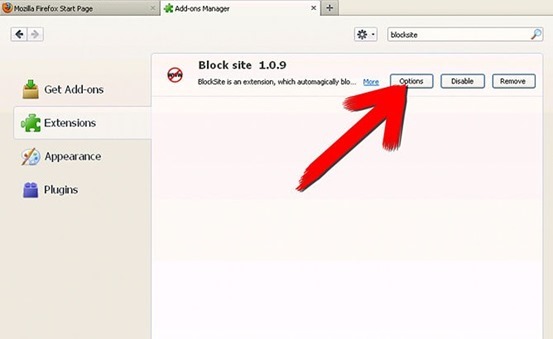
    2. Click the “Add to Firefox” button next to the entry for BlockSite. Allow the add-on to load (usually fewer than 5 seconds), then click the “Install Now” button. Restart Firefox when prompted.

    3. Go to “Tools,” then “Add-ons,” then click the BlockSite “Preferences” button after Firefox restarts. Make sure the “Blacklist” radio button is ticked, as well as “Enable BlockSite,” “Enable warning messages” and “Enable link removal.”

    4. Check “Enable authentication,” then enter a password if you would like to keep other users from deleting blocked websites or changing the settings in BlockSite without your permission.

    5. Click the “Add” button, enter the URL of the website you would like to block, then click “OK.” Repeat to add more sites, or click the “Clear” button to delete the list. Once the list of blocked sites is complete, click “OK” and restart Firefox.

    There are many other addons available.