WhatsApp Web new feature launched by the company which is not a replacement for mobile client as you still need. The official mobile app must be installed on your phone to make use of it as.
In a recent blog post they said “Today, for the first time, millions of you will have the ability to use WhatsApp on your web browser.”
The web client will mirror conversations and messages from the mobile device.
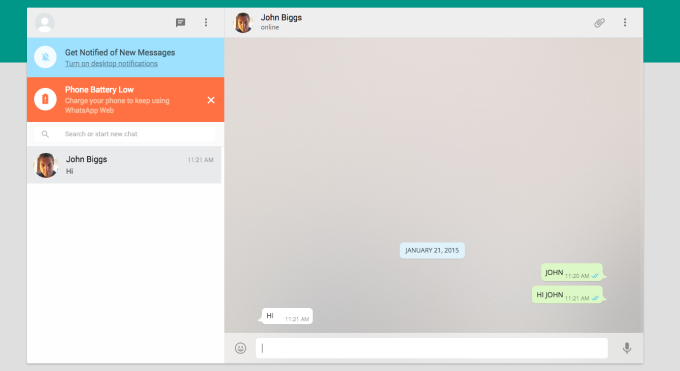 How to access Whatsapp in web browser?
WhatsApp can be connected by https://web.whatsapp.com in a Google Chrome browser (more browser coming soon).
You must have updated version of WhatsApp app on your phone.
Choose WhatsApp Web from the menu.
You will see a QR code, scan the code inside of WhatsApp, and you’re ready to go. Your mobile app and web client are now connected.
Your phone needs to stay connected to the internet for our web client to work. (WiFi recommended)
This service is currently available to Android, Windows and Blackberry users. (Sadly not available on iOS)
Also Read: How To Make Your Smartphone Work For You
 Whatsapp is one of the most famous messaging app available for smartphones, so people who don’t own a smartphone like to use it via their laptops or computers. Now if you are one of those people who want to install Whatsapp on their phone without installing Bluestacks or any other App Player or Simulator.
 Wassapp application basically allows any user to chat with his WhatsApp contacts from a computer (using a phone number that has been previously registered in WhatsApp, using a smartphone or any other method).