Category: How To

  • How to Determine the Quality of Your Mobile Signal

    How to Determine the Quality of Your Mobile Signal

    In the today’s interconnected world, a cell phone reception affects text messaging, email, internet, social media, applications, and other services. This is to say that we constantly need a reliable 3G or 4G LTE signal, however, providers are not always able to deliver it. Hence, it is not uncommon for users to realize the shabbiness of connection only after signing the contract. What you need to do is gain a realistic picture of the signal strength and then decide on further steps in becoming a full-fledged digital citizen.

    cell phone

    Mixed signals

    Bad reception is the worst nightmare of those who are used to being in tune with the digital world on the go. Moreover, high cellphone bills should really allow us to smoothly access the internet with a few taps of the finger. Now, it can be difficult to objectively evaluate the strength of the signal due to the fact that it tends to change all the time. Sometimes, even moving a few feet can improve the connection.

    Carriers reconfigure the infrastructure, the urban landscape shifts, and the weather has its mood swings. Your phone can also undermine the reception, but if the trouble started upon moving to the new area, then it is likely you’ve managed to find a black hole of coverage. Obstacles and obstructions between your device and the tower emitting the signal usually cause the interference: Those who are close to the cell phone tower location should have the best signal.

    People busting their head with signal difficulties often invite a friend with the same service provider over to their house in order to see how their signal holds up, or ask around the neighborhood to find out what’s people’s favorite carrier. Furthermore, there is a possibility to access a Coverage map on the carrier’s website and type your city, state and zip code. Of course, this still does not give you concrete numbers, but we shall get into that now.

    Hard science

    Those who want to check the actual signal strength should not settle for the fluffy bars. This indicator is not overly dependable because the cell phone signal is measured in decibels (dB). They are basically radio waves, with the standard frequency of -50 (full signal strength) to -110 (a dead zone). There is no industry standard that links dB values to the number of bars — it is subjective across the carriers. On the other hand, a dB figure is just the type of hard evidence you need.

    Mobile signal
    The dB readings are usually available in the Settings menu, and you want to see the number which is as close as possible to the -50 dB. Also, iPhone users can dial *3001#12345#* and enter a Field Test mode — a dB scan result should be in the left-hand corner. As for Android platforms, they should navigate to the Network or Status under About Phone option in General Settings. At last, one of the most effective ways to handle the signal issues is to conduct a mobile internet speed test.

    Once you obtain the value, wander around your house to discover the dead zones, as well as the places with the best signal. Just bear in mind that connecting to the tower drains the juice from your phone and make sure you are not blocking the internal antenna in your device. The problem on the carrier’s side means that you can probably terminate the contract and switch to the new provider. Finally, in case the DIY research does not produce the expected results, call the carrier and get to the bottom of the situation together.

    Cover all the bases

    There are a few things as frustrating as waiting for progress bar to reach its end. Lousy signal turns your phone into something like a glorified calculator, which is unacceptable, since we should all get exactly what we pay for. So, inspect the signal strength using one of the aforementioned methods. This helps you make a decision about whether to jump ship and find a new carrier. In high-tech information age, problems in this department cost you precious time, money and nerves.

  • How to Root Moto X (1st Gen.) on Android Lollipop 5.1

    How to Root Moto X (1st Gen.) on Android Lollipop 5.1

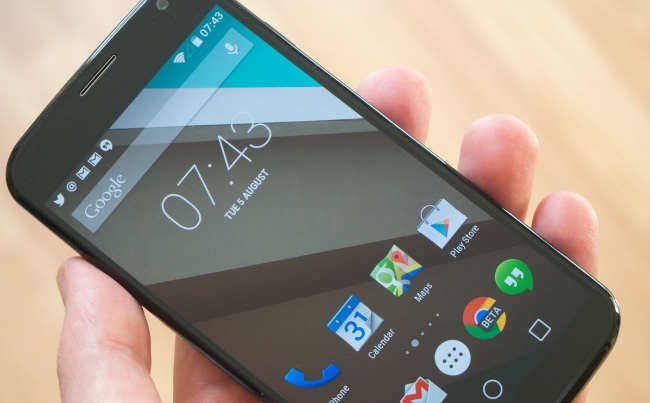
    moto-x-android-l

    Finally the long awaited lollipop update for 1st gen Moto X is here and most of you have done it already. Now, to take up power of your device you need to have access ! Here’s a quick tutorial for rooting your Moto X 2013. To begin, you first have a your bootloader unlocked.

    Also Read- 7 Reasons to Root Your Android Device

    Unlocking the bootloader

    For ALL Developer Editions (GSM and VZW) Moto X, and some carrier editions (Like T-Mobile, Sprint, Rogers and others), Motorola freely gives away the bootloader Unlock codes when requested On Motorola’s Website. In the case of the Non-Developer Editions, the warranty is void after you unlock the bootloader. Now to unlock your bootloader, you can go to Motorola’s website. Follow the instructions and you will do it.

    Requirements

    How to start Fastboot AP/Bootloader mode on Moto X

    • Unplug phone
    • Power down phone.
    • Hold Volume Down and Power
    • After a few seconds release Power, you should be in Fastboot AP menu on phone

    How to root Moto X 2013 (1st Gen) on Lollipop 5.1

    NOTE: Replace TWRP.IMG in the below steps, with the name of the file you downloaded! (Example: twrp-2.8.6.0-ghost.img )
    NOTE: Failure to perform these steps EXACTLY as written can result in the appearance of the Android in distress (logo with Exclamation mark) with the caption “No Command” and the inability to enter recovery, OR it will enter STOCK recovery even though you have flashed TWRP!

    1. Start the phone in Fastboot AP mode.
    2. Connect your phone to PC via MicroUSB cable.
    3. Open a command prompt and change to the folder you downloaded your TWRP.IMG file.
    4. Type the following, pressing enter after each command, and wait for it to finish before going onto the next.
      mfastboot flash recovery TWRP.img
      mfastboot reboot-bootloader
    5. Use the VOL DOWN Key to SCROLL to Recovery and VOL UP Key to select
    6. The device should enter TWRP.
    7. If your device is not rooted, TWRP may prompt you to root now or install SuperSU. Do it.
    8. Use the menu options to Reboot to system.
    9. You will likely be prompted to UPDATE SuperSU. Please update it, and reboot.
    10. Done. You now have a rooted Moto X.

    If TWRP doesn’t prompt you to root/install SuperSU

    1. With your phone booted normally, connect it via USB cable to your PC.

    2. Drag/Drop the SuperSU.zip you downloaded onto the phone’s internal storage

    3. Reboot the phone into TWRP

    4. Use the menu option to install zip, navigate to and select the SuperSU zip.

    5. Boot to System.

    Disclaimer – Your warranty is now void. We are not responsible for bricked devices, dead SD cards, thermonuclear war, or you getting fired because the alarm app failed. YOU are choosing to make these modifications, and only you are responsible for it.

    This guide follows posts from xda-developers. Thanks to user KidJoe. If you have queries you can follow this thread.

  • How to Stay Safe When Using Torrent Sites

    How to Stay Safe When Using Torrent Sites

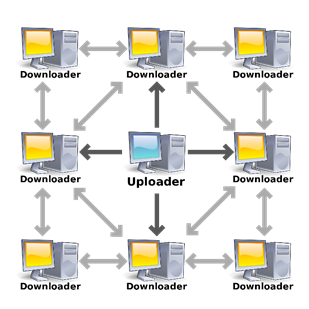
    Using a torrent site can be one of the best (or only) ways to get the content you need to listen to or watch. In addition, it is a very efficient way to transfer data between people instead of dealing with some slower or more difficult to work with options.

    torrentvpn

    However, torrent sites can also be very dangerous for your internet safety, because there is a lot of malware and other nefarious content waiting within the lists of files that you can download. While you may be eager to just speed through or otherwise take some risks to get the data faster, you should keep your own safety and security as your primary concern.

    clip_image002

    Here are a few things that you should know before you press go on the address bar:

    You Should Use a VPN

    The first thing that you should consider getting if you know you are going to be torrenting frequently is to get a Virtual Private Network. Effectively, it connects your computer over a network to a secure server and will get the data for you and send it to you. This means that your computer will only be seen by outside onlookers at best to be using a VPN, and they cannot see your torrenting.

    Also of note, using a VPN might help you should you be downloading copyrighted materials, as a VPN will veil your use to the government and outside interested parties. The potential cost of such trouble greatly outweighs the relatively minor cost of a VPN service, which often isn’t much more than a Netflix subscription.

    Also note that if you are going to be travelling while you are torrenting, my recommendation changes from “you should get one” to “you absolutely have to have one.” A VPN will allow you to stay safe in public networks as well as bypass government censorship and regional restrictions on your internet. It will also allow you to leave less of a trail for people to track or monitor your internet use on the road.

    If you are looking for a good VPN for torrenting, you should take a look at http://securethoughts.com/3-best-vpns-torrents/

    Look Before You Click

    Not all files are the same, and the best torrenting websites will give you a better look at the file you are going to download before you download it. If a torrenting site effectively asks you to trust them, you shouldn’t trust them.

    One thing you should look at first is the file type of whatever you are downloading. If you are downloading an audio file, does the file come in an audio format? If you are downloading pictures, are you getting one of the common picture formats? If you are unsure, you can always look it up in a new tab, and the few extra seconds spent will be absolutely worth it.

    Another thing to look at is the file name. You want a clean-sounding name and nothing that looks like it was hastily considered or misspelled. A lot of hackers or cyber-criminals just won’t put the time in to make their bad software look like it fits, so as to create more volume. Try to find something with the exact name of the data you are looking for.

    Don’t Give Out Anything

    If you have to give out anything more than an email address, you shouldn’t be using that torrenting website. Also, you should have a separate email address for torrenting purposes that you won’t mind losing. Under no circumstances should you give out an address or any financial data whatsoever. I reiterate: if you are asked for financial data at any time you should run away and never look back.

    This data, should you give it to them, can be used to track you down for either legal purposes (whether you have knowingly committed any crimes or not), or used to steal your identity, which can be a nightmare in itself that will take days, if not weeks, to recover from.

    This guideline also goes out for sharing things on torrenting websites. While it may be considered the polite or fair thing to do, that doesn’t mean you necessarily have to do it. There is little advantage to sharing, and you are only opening yourself up to trackers and hackers looking to make your day miserable. This is a situation where it is ok to be selfish.

    Do Research Beforehand on the Service

    On the internet, what kind of reputation does the particular website you are thinking of using have? It is known for being an insecure place relative to other websites? Does it have a reputation of something that will be shut down soon? Be sure to read reviews or forum posts about the service you are thinking of, and then try to find a website that is a good fit for you. The best ones will also have some sort of rating system (that is actually used) on the files so you know what to expect.

    Have Protection

    You should have one regardless, but if you are going to be using a torrent website you absolutely have to have an anti-virus program and an anti-malware program. There is no way you can be 100% accurate with everything you download, and you should be scanning things as they come in, so your computer isn’t ruined two hours later.

    Also, you need to make sure that your programs are updated every time before you start torrenting. Internet security changes every day, and only the latest patched and updates can protect you from everything that is out there. Hackers are not going to try older methods of getting to you that they know there are protections against. They are going to try new things, which you haven’t downloaded the fixes to yet.

    clip_image004

    I hope that these tips will help you in your search for a good torrenting website and staying safe after you have found it. Remember that no piece of data is worth ruining your computer and identity over, or risking legal action. Thank you for reading.

  • How to Find A Great Laptop

    How to Find A Great Laptop

    buying-laptop

    When you’re ready to buy a new laptop, your selection deserves plenty of careful thought. You need to consider a ton of information. Fortunately, the article below was written to help you with that. Read more to find some tips you can use.

    Read through testimonials and reviews prior to buying a laptop. You may think that a budget computer is your best option, but later on you may wish you had chosen a different computer. That is why you need to see what real buyers are saying.

    To save money, buy a laptop that does not have word processing software already installed. Preloaded software can be more expensive, whereas buying it separately and installing it yourself is usually much cheaper. Instead, shop online for a discount vendor for your software. You will end up saving a large percentage.

    Consider buying a laptop on the Internet. Check there before buying at a store. You can get great Internet deals using online coupons that are not found offline. Look online before buying one in the store.

    Before purchasing a laptop, consider the type of work you will be doing on it. That should dictate your budget. If you’re basically a web surfer, then a super pricy laptop with uber-powerful chipset is not necessary at all. When you’re trying to figure out what the laptop will be doing for you, it will allow you to get yourself a machine with the right price.

    Once you decide on a budget for a laptop, consider bumping it up just a bit. Technology is always changing and a simple laptop will become outdated quickly. Just a small spec bump can make a difference between the laptop that only lasts one year and one that will last more.

    Buy-Laptop

    Be gentle with your laptop when you are traveling with it. Get a sturdy, firm bag that does not bang or bump into you when you walk. This can cause damage to the components on your computer.

    Think about a tablet for mainly entertainment applications. Tablets have apps that allow for easy software downloads. You can even connect the tablet to a keyboard so that you can write emails or take class notes.

    When you’re going to be purchasing a laptop, try to shop smartly. Check out traditional stores and play with the laptops a bit. Play around with different ones so that you can find one that you’re comfortable with. Once you’ve figure out which model you enjoy, you can get on the Internet to see if there are any deals.

    When you’re going laptop shopping, don’t decide on a laptop just because of the brand. Lesser known companies often have great deals. Understand the hardware inside the laptop, so you can determine if the less expensive models offer the same level of technology. It is often easy to find a comparable product with a less recognized company.

    There are many things to consider prior to buying a laptop. Whether you’re buying a new machine, or upgrading it, you needed some basic information and that has now been provided to you. Use the helpful information you received in the above article to assist you in making the right purchase.

  • How to improve the experience of loyal users

    How to improve the experience of loyal users

    I am definitely a fan of the undisputed minimalist design. So, whenever the opportunity presents itself to reduce the information presented on the screen, I do it with great pleasure. But people

    realized very quickly based on experience, that there are certain actions that users learned through repeated execution of tasks. That’s why very often we resort to the use of labels, tool tips, etc. From there, users know what to do and where to go. However, this can often lead to some confusion and visual clutter, especially when we spend time on our mobile device or on applications with a ton of logos and ugly design.

    A study by Nielsen Norman Group, shows that the best approach to bypass this problem would be to go slowly: start with the original logo at baseline and implement changes step by step. In addition, it is recommended, and more efficient to test your changes through user testing, instead of just throwing what you consider to be a decent job and will be accepted by all. This way, you will avoid forcing your users to join your view of design, you can even lose them.

    One of the most recommended implementation methods of NNG, is to use the method of: Progressive Reduction (PR), the idea is that users become familiar over time with changes in the application.

    The secret of it all

    To understand why the “Progressive Reduction” is a good idea, you must understand where it comes from. Basically, the culture of the reduction has its roots in Flat Design where we remov everything unnecessary and cumbersome for the user, in order to achieve a design that would be characterized as “honest”.

    The problem is that designers spend a lot of time on the development of a global design, and over time they always end up reaching a pro user oriented design. Therefore, it always turns to UI design without much superfluous.

    However, keep in mind that the trends of users change frequently. To remedy this problem, we can use PR to achieve the minimal UI we want, and keep the maximum convenience for our users. In addition, we can go further in terms of putting UX explanations to least used features and remove these explanations for the most used features.user-experience-design-uxd

    How to improve the experience of loyal users

    The best way is to start with a minimal interface, and build from there. However, if you are on a large complex project, you must first ensure you simplify complexity before attacking the PR component, otherwise, the contribution of PR is really minimal.

    Regardless of where you begin your project, once you have your “base”, identify the key features of your application, the ones you want to cut, and assign levels to these characteristics.

    Then, the most important is to control the use of your users about the new design, and compare your results with the previous design phase. From there, the best practice would be to develop a competency profile for each user. With this profile, you will be able to customize your application’s user interface to reduce aid to use.

    One last thing to remember is the concept of loss of experience (Experience Decay). In other words, the jurisdiction of a user in the use of any product deteriorates over time in the absence of use. To account for this, steps should be taken to enable the interface to remain understandable, even after some time of inactivity. This can be easily achieved through the seen previously system level. If a user’s use frequency down, then the level of simplification of the interface will follow. The regression is necessary to balance the progression. Without it, you lose the ability to fully meet the dynamic changes in user behavior.

    About the author –

    Stephen Karsch is a technology geek, he loves everything about tech, high tech, computers and programming, more about him you can find on his social profiles on Pinterest and Vimeo.

  • How to Root Moto G (2nd Gen 2014 Edition)

    How to Root Moto G (2nd Gen 2014 Edition)

    MotoG_new

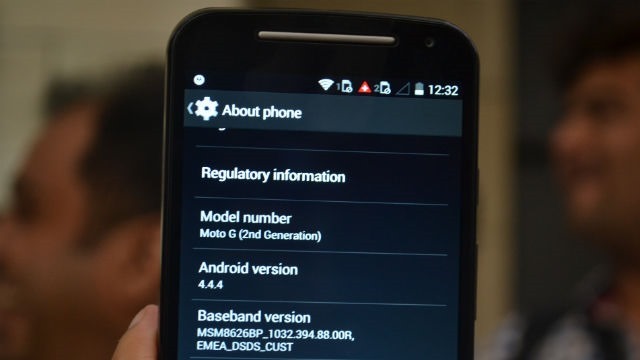
    Ok, now you got your new Moto G 2nd Gen but no android phone is complete without root access ! This handy tutorial will help you to root Moto G 2nd gen and install custom recovery.

    Requirements:

    Step by Step: How to Root Moto G (2nd Gen)

    • First you have to unlock your BootLoader. Just go here and follow the instructions.
    • Download the SuperSU file from here and copy it to internal SD card.
    • Power OFF your device.
    • Now, you need to Boot into Bootloader mode (Hold power+Vol down and release).
    • Connect your device to your PC.
    • Flash TWRP recovery using through fastboot mode. Go to adb+fastboot folder and type the following in command prompt.

    fastboot flash recovery TWRP2.7.1.1-titan-motog-2014.img

    • Flash SuperSU zip from recovery. (Press power and volume down together after switching off to get into recovery)
    • Reboot and now your Moto G is successfully rooted with Custom TWRP recovery installed.

    A small bug in this method is you can’t backup data to your Internal SD card which will be fixed soon.

    Thanks to XDA for this guide.

    Also Read: Everything Apple announced that you care about

    You can ask any doubts in comments. If you have any problems, feel free to ask.

    Note: This procedure is very technical and should be performed by a person with sound knowledge of rooting (or manual software installation) Android devices. If the step-by-step installation process is not followed properly, there are chances of the smartphone getting bricked or being permanently irreparable.We cannot be held responsible for any damage or claims from readers if the procedure does not yield the required results or if the smartphone is bricked. Hence, users are advised to proceed with caution.

  • Firefox: How to get playback speed options in YouTube?

    Firefox: How to get playback speed options in YouTube?

    Recently I was asked a question on Quora –

    Why does the option to play YouTube videos at 2x speed appear in Chrome and not Firefox?

    So I started to investigate the reasons why didn’t such an option exist while playing YouTube videos in Firefox.

    Soon I came to the conclusion that it was just because of the difference in HTML5 developement on part of Firefox and Chrome.

    Opera and Firefox do not include H.264 video support in their HTML5 implementation. They are throwing their support in for Ogg Theora. Youtube currently does not have Ogg Theora encoded videos, and may never. Apple is backing H.264 to be the standard for HTML5 video, and Google is backing both.

    So here’s how you can get the playback speed options while playing YouTube videos in Firefox

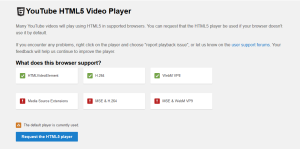
    Go to YouTube/html5 and “Request the HTML5 player.”
    youtube

    This should help you change the playback speed for most of the supported videos!
  • Have a Nexus 5 or 7 ? – Install ‘Android L’ Right Now

    Have a Nexus 5 or 7 ? – Install ‘Android L’ Right Now

    Android-L-images.jpg

    Google just released its first ever developer preview of the upcoming version of Android. But If you can’t wait for official release, then there is a chance to install Android L on your Nexus 5 or Nexus 7 (2013). You can download the relevant OS file from Google servers and install them on your device. These versions are meant for developers.

    Requirements

    google-nexus-5-011

    An Unlocked Nexus 5 or Nexus 7 (2013-Wifi)

    Android L OS file (Download)

    ADB and Fastboot installed on computer (Install Now)

    Must Read: Google IO 2014: Everything Google Announced

    How to turn on USB Debugging ON

    Open developer options on your Nexus device. These options are hidden by default. You have to go to Settings > About Phone and then tap on the build number 7 times. After doing that you can access the developers options. Now make sure to enable USB Debugging.

    NOTE: Installing Android L will erase all your data on the phone, so first have a backup of photos, music, files or any other data before proceeding.


    How to install Android L Developer Preview on Nexus 5 or Nexus 7

    Step 1: Download the Android L OS file for your device from the above link.

    Step 2: Unzip/Extract the downloaded file.

    Step 3: Connect your device to your computer via USB cable and turn on USB debugging ON (see above).

    Step 4: On your computer, Open up a command line/terminal for ADB.

    Step 5: Type the following command to access your device’s bootloader.

    adb reboot bootloader

    Step 6: Go to the folder containing the Android L OS file.

    Step 7: Now, Enter following command to run the installation script.

    flash-all

    Step 8: Now just wait for the process to complete. If you have done everything right, Android L Developer Preview will be installed on your phone. It may take upto 10-15 minutes. Have a snack !

    Warning: Installation of this may void your warranty.Also, if something goes wrong during the installation process, we are not responsible. This process is tested and worked fine.

    Instructions from google (https://developers.google.com/android/nexus/images#instructions).

  • Awesome Firefox Tricks You Might Not Know

    Awesome Firefox Tricks You Might Not Know

    firefox-banner

    Yes, we know you love firefox. It’s the most customizable browser ever. You can add great extensions available out there. But we are going to give you some cool tricks that will make you love even more.

    Use Firefox as Notepad

    Open new tab, type the following (without quotes) in address bar :

    "data:text/html, <html contenteditable>"

    And the best thing is you can even customize it using html styles. Come, on where’s your geeky mind ! Here’s one example for you.

    data:text/html, <title>I love Firefox!</title><style>html,body{margin: 0; padding: 0;}</style><textarea style="font-size: 1.5em; line-height: 1.5em; background: %23000; color: %233a3; width: 100%; height: 100%; border: none; outline: none; margin: 0; padding: 90px;" autofocus placeholder="Say Hi..." />

    pic53

    Go on, copy and paste the above code in a new tab. (It works in other modern browsers as well)

    Now, you can use the page as a quick notepad to carry your notes while browsing.


    Add ‘Search Keywords’ For Your Favorite Websites In Just A Few Clicks

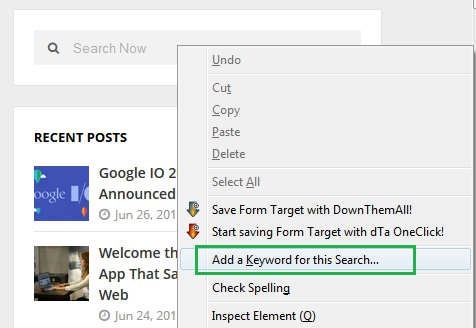
    This a tip most of you might not be knowing, you can add any search box on any website to the Firefox URL address bar in a very handy way. Just go to the any Search Box and simply right-click on it, then click “add a keyword for this search”.

    pic_11


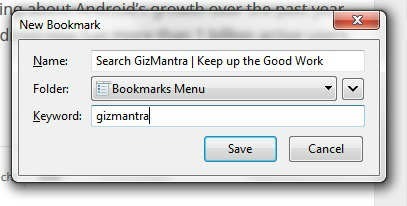
    Then you’ll get a prompt, just name the bookmark, then type in a simple short keyword you can remember.

    pic_1


    Now you can search your favorite site of choice anytime by typing the keyword, followed by what you want to search in the Navigation Bar.

    pic2


    It can save up lots of your time.


    Switch tabs with Keyboard shortcuts

    Instead of moving the mouse and select different tabs that you have open, use the keyboard. use these simple shortcuts:

    • Ctrl+Tab (rotate forward among tabs)
    • Ctrl+Shift+Tab (rotate to the previous tab)
    • Ctrl+1-9 (choose a number to jump to a specific tab)


    Quickly Delete Items from Address Bar History

    When you start typing in the address bar, firefox automatically show previous URLs you’ve visited as drop-down list. But if you want to quickly delete them (You know why?), Go to the address bar, start typing an address, and the drop-down menu will appear with the URLs of pages you’ve visited. Use the down-arrow key to go down to an address you want to delete, and press the Delete key to make it disappear.


    Auto Complete URL

    Most of you as geeks might know this one. Oh ! yeah.  Go to the address bar (Ctrl+L) and type the name of the website without the “www” or the “.com”. Then hit Ctrl+Enter, and it will automatically fill in the “www” and the “.com”. similarly for “.net” addresses, press Shift+Enter, and for “.org” addresses, press Ctrl+Shift+Enter.


    Mouse shortcuts

    These are some simple but useful shortcuts

    • Middle click on link (opens in new tab)
    • Shift+scroll down (previous page)
    • Shift+scroll up (next page)
    • Ctrl+scroll up (decrease text size)
    • Ctrl+scroll down (increase text size)
    • Middle click on a tab (closes tab) [Really useful]


    Open Previously Closed Tab

    If you have closed a tab by mistake, don’t panic! Hit Ctrl+Shift+T. This will open up the last tab you closed. If you keep clicking the shortcut, all your recently closed tabs will open.

    That’s it for now. We’ll keep adding more.

  • How to turn off Images and Javascript in Firefox 23 and above

    How to turn off Images and Javascript in Firefox 23 and above

    firefox-no-imagesFirefox made an update to their desktop browser few months ago and the new versions had some previously visible options removed.

    One of the major functionalities that were disabled are the options to Disable Javascript and also Turn off images. There are a couple of reasons why you might want to turn off your javascript or images such as poor load time due to slow internet speed.

    Disabling JavaScript and Images in Firefox wasn’t actually removed completely but was hidden and removed from the regular user interface. If you know the about:config options, you can find your way through it. (Be Careful !)

    How To Turn Off Images In Firefox Browser 23, 24, 25

    1. In your address bar, type in the word about:config and hit the Enter button.

    2. You’ll land on a page with lots of option in a tabular form. It has numerous rows and four columns of Preferences Name,  Status, Type and Value. In the search box above the table, type in permissions.default.image . The first row that shows up is what we need to edit in order to disable images.

    3. In the permissions.default.image row, the column with title as value has 1. Double click on one and dialogue box would pop up for you to make an entry, change the number 1 to 2 and hit OK.

    4. Hurray, your images would be disabled. To enable your images again, follow the same procedure as above, but change the value from 2 back to 1.

    Are you a Firefox Fan? – Mozilla Firefox : Different by Design 

    How To Disable Javascript In Firefox Browser 23, 24, 25

    1. Following the same method as for images, type about:config and hit the Enter button.

    2. In the search box provided above the table, type in javascript.enabled and the very first row is what we have to edit. In the value row, you’ll see true. Double click on true to change it to False.

    3. As long as the row remains in False, your javascript would be disabled. You can change it back to normal by double clicking to display true.

    There are addons that can help you achieve this, but since we could alter these options manually, its better use that.
    1. Quick Java
    2. Setting Sanity

    Feel free to ask any questions if need be and remember to share this tutorial with your friends.