Category: How To

  • How to Run Tizen web Application on Emulator

    How to Run Tizen web Application on Emulator

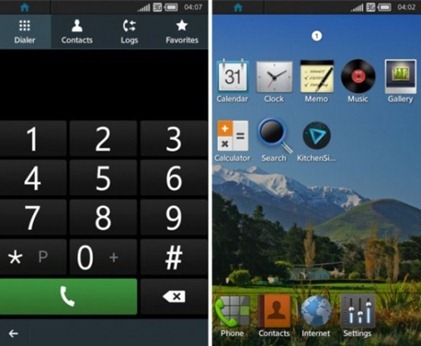
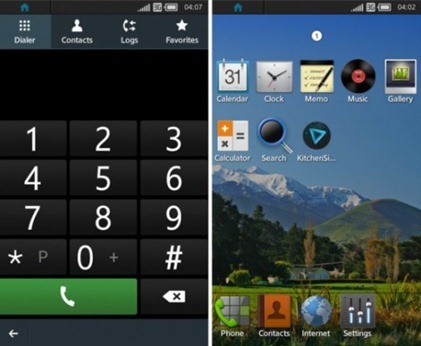
    tizen_smartphone_os-550x452

    Run the TIZEN Emulator.


    In Tizen IDE click of

    Window->Preferences->Tizen SDK->Security Profiles->Add->Enter Any Name as Profile Name.

    Edit Distributor Certificates and Change Password as your wish.

    Generate Author Certificate :

          1. Enter Key filename
          2. Alias
          3. Password (Note:- Distributor and Author password should not be same).
          4. Password confirmation
          5. Others are optional
          6. Click Ok.

    Right-Click on project name in Project Explorer in Tizen IDE.

    Run As -> Tizen Web Application.

  • How to install Tizen SDK

    How to install Tizen SDK

    Step 1 – From TIZEN site (https://developer.tizen.org/downloads/tizen-sdk) download Install Manager and SDK Image for your compatible Platform

    Prerequisites :-

    At least dual-core 2 GHz of CPU

    At least 2 GB of RAM memory

    At least 3 GB of free disk space

    Local administrator authority

    Step 2 – Download the JDK 6 or 7 installer executable for your Windows version

    Step 3 – Set Environmental variable for system path variable and modify path by adding this location path – C:\Windows\System32.

    Step 4 – Set Environmental variable for system path variable and modify path by adding this location path of your Java JDK bin folder in Program files.

    Step 4 – Now Run the Install Manager.

    Click on Advanced.

    In the Advanced Configuration windows, select the SDK Image radio button.

    Click the folder button, browse to the SDK image file, and click OK.

    Click Next.

    Accept the terms and conditions, and click Next.

    Select the components you want to install and click Next.

    Select the SDK home folder and click Install.


    How to Run Tizen web Application on Emulator

    For further details visit:-

    https://developer.tizen.org/downloads/sdk/installing-tizen-sdk

    https://developer.tizen.org/downloads/sdk/installing-sdk/prerequisites-tizen-sdk

  • How to manually Install/uninstall PunkBuster for any game

    How to manually Install/uninstall PunkBuster for any game

    punkbuster-logo

    These simple steps will solves your errors like “punkbuster not initialized” for games like COD 4 or Battlefield.

    The following method will uninstall, clean and reinstall punkbuster files:

    1) First of all, download pbsvc ( http://www.evenbalance.com/downloads/pbsvc/pbsvc.exe ), run it and select “un-install/remove punkbuster”.

    2) pbsvc is now uninstalling punkbuster and if everything is ok, you will have “OK ” in green at the end of every process pbsvc will do.

    3) Now, we’re going to clean the old punkbuster files by deleting the pb directory in your game directory. This way, they will have not any punkbuster files remaining on your computer
    delete the “PB” folder in your game directory
    example:
    Battlefield Bad Company 2 : C:\Program Files\EA Games\Battlefield Bad Company 2
    Call of Duty 4 Modern Warfare : C:\Program Files\Activision\Call of Duty 4 – Modern Warfare
    Call of Duty World at War : C:\Program Files\Activision\Call of Duty – World at War

    4) Now that your computer is clean, we’re going to install punkbuster by running pbsvc again by selecting this time “Install/Re-install Punkbuster service”. Click “Next”.

    5) everything should be ok, you will have “OK ” in green at the end of every process pbsvc will do. Just click “Next ” again.

    6) When it’s finished the following message appears “Tests completed successfully without error”. If you don’t get this message, go to your firewall settings and be sure to allow “pnkbstrA.exe ” and “pnkbstrB.exe ” ( Allowing these process in your firewall wil also solve problems like “PnkbstrB heartbeats stopped etc…”.

    7)Be sure to Restart your computer to finish the reinstallation process.

    Now if you are still having problem, just update manually your punkbuster:

    1) Download pbsetup.

    2) Extract pbsetup from the zip in a random folder( do it, psetup needs temporary files to work correctly )double-click pb setup, windows will probably ask you if you want to allow the program, just allow it and then click “I Agree” at the Punkbuster End user License Agreement.

    3) Click “Ok” at the update request.

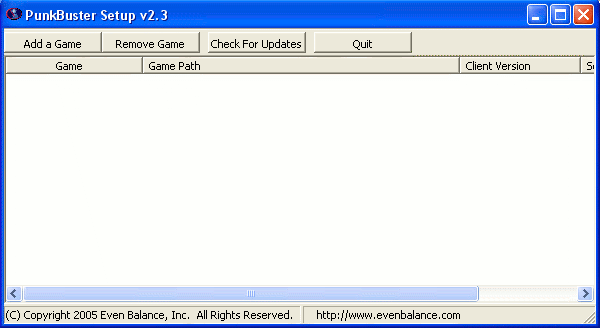
    4) The following windows appears:pbsetup1

    5) Click “Add a game “.

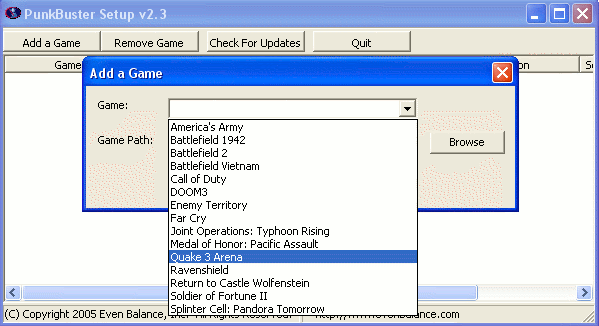
    6) Select a game in the games list ( Battlefield Bad Company 2 for example ), click “Browse ” to select the correct game path:pbsetup2

    7)Click “Add game “.

    8)Your game is now added to the list.

    9)Click “Check for updates”.

    10)PBsetup is now updating your punkbuster files, wait for a while, a windows will appear informing you that your punkbuster files are now updated.

    11)Click Ok, You can now close pbsetup.

  • How To Install Android On Your Laptop/Netbook

    How To Install Android On Your Laptop/Netbook

    Install Ice Cream Sandwich, the latest version of Android, on your netbook. Whether you want to play with Google’s mobile operating system or give new life to an otherwise discarded device, Android-x86 gives everyone a way to install Android on Intel netbooks.
    It’s fast. Even better: the latest version of Android-x86 comes with access to the Android Market, something almost impossible to set up on older Intel versions of the software. This means you can try out Android apps before you decide to buy an Android device.

    Heck, your netbook could end up becoming your Android device.

    I showed you how to install Chrome OS on unsupported computers, but some of you complained that it’s little more than a browser. Of course, that’s all Chrome OS is supposed to be, but I understand the disappointment. Android, I think, is a little more exciting. With access to thousands of apps it’s versatile, and its integration with the Google eco-system is much deeper than that of Chrome OS.

    It’s not terribly complicated to install, especially if you’ve installed some form of Linux in the past. Let’s walk through the process, then briefly explore Android on the netbook.


    Step One: Download Androidx86

    To get started, head to the Androidx86 project page. You’ll find the download here, but make sure you download the latest version: 4.0, better known as Ice Cream Sandwich.

    install android on netbook

    There are a few different versions of 4.0 offered. Grab the version that best fits your netbook. Not sure what this is? Google your computer’s model along with “Androidx86″ and see what other people have had luck with. If you own an EEE PC like me, however, you’re in luck: everything works perfectly with the “eeepc” ISO.

    Desktop users: it’s probably not worth trying.


    Step Two: Copy To A Flash Drive

    Now that you found the ISO file you need, it’s time to write it to a USB drive so you can boot from it. There are two main programs for doing this: UNetBootIn, which is cross platform, and Linux Live, which is only for Windows but very straightforward.

    Use whichever you prefer; just copy the contents of the ISO to a flash drive. It doesn’t need to be huge: 1 GB should do it.

    Step Three: Install

    Now that you’ve got your USB drive, it’s time to boot from it. You’ll see this boot screen:

    install android on netbook pc

    If you just want to try out Android, go ahead and select the LiveCD mode. You won’t be able to save any customizing you do, of course, but it’s a good way to see how well Android works on your system.

    If you’d rather get straight to installing Android, go ahead and pick the “Install” option. There’s not a lot of options for dual-botting built into the installer, so be warned: getting that working might take some skills on your part. See the Androidx86 installation instructions for more information. If you don’t care about losing your current OS, though, installation is straight-forward.


    Optional: Install to SD Card

    There’s another way, of course: you can install Android to an SD card. This won’t affect whatever operating system you typically use on your netbook but still lets you keep your apps and settings in place.

    You’ll need a flash drive and an SD card to do this: the flash drive to install Android from and the SD card to install Android onto.

    The process is simple: run the installer, but select your SD card to install to instead of your hard drive. This won’t affect your netbook’s primary drive, giving you a clean dual-boot environment.


    Android on Your Netbook

    So how does it work? Quite well. You can set up your home screen to look however you like, just like on a phone or tablet:

    install android on netbook pc

    You can also browse every app installed on your computer:

    install android on netbook

    Many Google staples are included, along with a number of other utilities and games. The best part: AndroidX86 now comes with access to the Android Market. Not everything will work, but I got my favorites apps working: Dropbox, Evernote, Wunderlist and Toggl. I even found a remote for XBMC that I’ll surely be writing about later. With some help from Google Voice I even got SMS messaging up and running!


    Conclusion

    Why try this? First of all: because it’s fun. Sure, it’s not the same as buying a new Android tablet, but breathing new life into an otherwise idle netbook is cool.

    I’d consider writing a manual about this, if there’s an audience. Would you guys be interested? If so, let me know in the comments below. Also feel free to let me know about any Android apps I should try out on my netbook.
  • How to Install Windows 7 From USB Drive

    How to Install Windows 7 From USB Drive

    Here is a easier way to install Windows 7 from a USB Flash drive. Unlike other methods where you have to write complicated commands, this method can be completed even by those who have very little computer background.

    The whole process takes only two steps, run UNetbootin/WIndows USB/DVD Tool, load the Windows 7 ISO file, and finally restart your computer.

    Before you begin, you will require the following:

    USB Flash Drive (4GB minimum)

    Windows 7 ISO Image file

    UNetbootin (Method 1) / Windows 7 USB/DVD Tool (Method 2)

    Step 1 – Creating Bootable USB:

    Method 1- Using UNetbootin:

    Now insert the USB drive, run UNetbootin, and select Disk Image as ISO. Browse your local drive for Windows 7 ISO that you downloaded and click Open. Now Select Type as USB and choose the drive. Once done, it will look like a bit similar to the screenshot shown below.


    Click OK and it will begin extracting all installation files to the USB drive. The whole process will take some time(10-15 minutes), so have patience.


    unetbootin installing windows 7 iso


    Method 2 – Using Windows 7 USB/DVD Tool:

    Download Microsoft’s official tool called Windows 7 USB/DVD Tool.

    Choose the ISO file, then choose the USB drive and then Begin.


    Final Step:

    Once the bootable disk is complete, reboot your computer. Now while your system is starting up press the appropriate button(usually F1, F2, F12, ESC, Backspace, or Escape) to bring up Bios Boot Menu. Change the startup order to boot USB by default, usually you will have to press F6 to move the selected USB device on top. Once done, save changes and restart the system.


    Wasn’t that easy? Enjoy!