Category: Tutorials

  • How to turn off Images and Javascript in Firefox 23 and above

    How to turn off Images and Javascript in Firefox 23 and above

    firefox-no-imagesFirefox made an update to their desktop browser few months ago and the new versions had some previously visible options removed.

    One of the major functionalities that were disabled are the options to Disable Javascript and also Turn off images. There are a couple of reasons why you might want to turn off your javascript or images such as poor load time due to slow internet speed.

    Disabling JavaScript and Images in Firefox wasn’t actually removed completely but was hidden and removed from the regular user interface. If you know the about:config options, you can find your way through it. (Be Careful !)

    How To Turn Off Images In Firefox Browser 23, 24, 25

    1. In your address bar, type in the word about:config and hit the Enter button.

    2. You’ll land on a page with lots of option in a tabular form. It has numerous rows and four columns of Preferences Name,  Status, Type and Value. In the search box above the table, type in permissions.default.image . The first row that shows up is what we need to edit in order to disable images.

    3. In the permissions.default.image row, the column with title as value has 1. Double click on one and dialogue box would pop up for you to make an entry, change the number 1 to 2 and hit OK.

    4. Hurray, your images would be disabled. To enable your images again, follow the same procedure as above, but change the value from 2 back to 1.

    Are you a Firefox Fan? – Mozilla Firefox : Different by Design 

    How To Disable Javascript In Firefox Browser 23, 24, 25

    1. Following the same method as for images, type about:config and hit the Enter button.

    2. In the search box provided above the table, type in javascript.enabled and the very first row is what we have to edit. In the value row, you’ll see true. Double click on true to change it to False.

    3. As long as the row remains in False, your javascript would be disabled. You can change it back to normal by double clicking to display true.

    There are addons that can help you achieve this, but since we could alter these options manually, its better use that.
    1. Quick Java
    2. Setting Sanity

    Feel free to ask any questions if need be and remember to share this tutorial with your friends.

  • How to Run Tizen web Application on Emulator

    How to Run Tizen web Application on Emulator

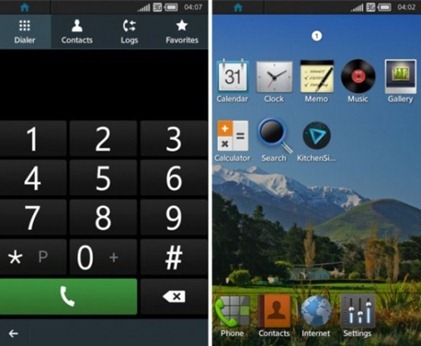
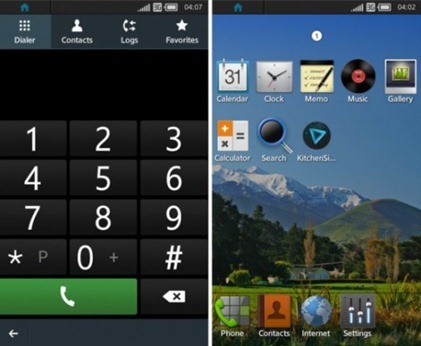
    tizen_smartphone_os-550x452

    Run the TIZEN Emulator.


    In Tizen IDE click of

    Window->Preferences->Tizen SDK->Security Profiles->Add->Enter Any Name as Profile Name.

    Edit Distributor Certificates and Change Password as your wish.

    Generate Author Certificate :

          1. Enter Key filename
          2. Alias
          3. Password (Note:- Distributor and Author password should not be same).
          4. Password confirmation
          5. Others are optional
          6. Click Ok.

    Right-Click on project name in Project Explorer in Tizen IDE.

    Run As -> Tizen Web Application.

  • How to install Tizen SDK

    How to install Tizen SDK

    Step 1 – From TIZEN site (https://developer.tizen.org/downloads/tizen-sdk) download Install Manager and SDK Image for your compatible Platform

    Prerequisites :-

    At least dual-core 2 GHz of CPU

    At least 2 GB of RAM memory

    At least 3 GB of free disk space

    Local administrator authority

    Step 2 – Download the JDK 6 or 7 installer executable for your Windows version

    Step 3 – Set Environmental variable for system path variable and modify path by adding this location path – C:\Windows\System32.

    Step 4 – Set Environmental variable for system path variable and modify path by adding this location path of your Java JDK bin folder in Program files.

    Step 4 – Now Run the Install Manager.

    Click on Advanced.

    In the Advanced Configuration windows, select the SDK Image radio button.

    Click the folder button, browse to the SDK image file, and click OK.

    Click Next.

    Accept the terms and conditions, and click Next.

    Select the components you want to install and click Next.

    Select the SDK home folder and click Install.


    How to Run Tizen web Application on Emulator

    For further details visit:-

    https://developer.tizen.org/downloads/sdk/installing-tizen-sdk

    https://developer.tizen.org/downloads/sdk/installing-sdk/prerequisites-tizen-sdk

  • How to manually Install/uninstall PunkBuster for any game

    How to manually Install/uninstall PunkBuster for any game

    punkbuster-logo

    These simple steps will solves your errors like “punkbuster not initialized” for games like COD 4 or Battlefield.

    The following method will uninstall, clean and reinstall punkbuster files:

    1) First of all, download pbsvc ( http://www.evenbalance.com/downloads/pbsvc/pbsvc.exe ), run it and select “un-install/remove punkbuster”.

    2) pbsvc is now uninstalling punkbuster and if everything is ok, you will have “OK ” in green at the end of every process pbsvc will do.

    3) Now, we’re going to clean the old punkbuster files by deleting the pb directory in your game directory. This way, they will have not any punkbuster files remaining on your computer
    delete the “PB” folder in your game directory
    example:
    Battlefield Bad Company 2 : C:\Program Files\EA Games\Battlefield Bad Company 2
    Call of Duty 4 Modern Warfare : C:\Program Files\Activision\Call of Duty 4 – Modern Warfare
    Call of Duty World at War : C:\Program Files\Activision\Call of Duty – World at War

    4) Now that your computer is clean, we’re going to install punkbuster by running pbsvc again by selecting this time “Install/Re-install Punkbuster service”. Click “Next”.

    5) everything should be ok, you will have “OK ” in green at the end of every process pbsvc will do. Just click “Next ” again.

    6) When it’s finished the following message appears “Tests completed successfully without error”. If you don’t get this message, go to your firewall settings and be sure to allow “pnkbstrA.exe ” and “pnkbstrB.exe ” ( Allowing these process in your firewall wil also solve problems like “PnkbstrB heartbeats stopped etc…”.

    7)Be sure to Restart your computer to finish the reinstallation process.

    Now if you are still having problem, just update manually your punkbuster:

    1) Download pbsetup.

    2) Extract pbsetup from the zip in a random folder( do it, psetup needs temporary files to work correctly )double-click pb setup, windows will probably ask you if you want to allow the program, just allow it and then click “I Agree” at the Punkbuster End user License Agreement.

    3) Click “Ok” at the update request.

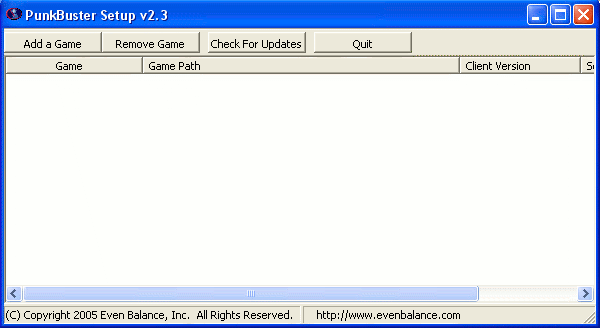
    4) The following windows appears:pbsetup1

    5) Click “Add a game “.

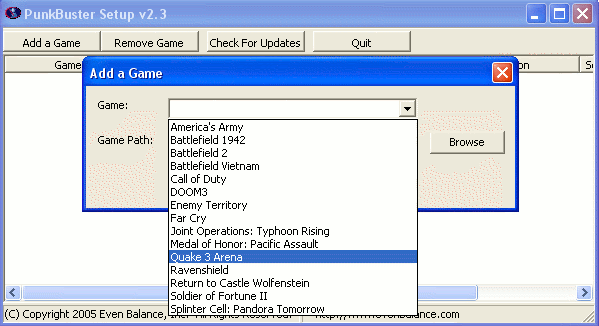
    6) Select a game in the games list ( Battlefield Bad Company 2 for example ), click “Browse ” to select the correct game path:pbsetup2

    7)Click “Add game “.

    8)Your game is now added to the list.

    9)Click “Check for updates”.

    10)PBsetup is now updating your punkbuster files, wait for a while, a windows will appear informing you that your punkbuster files are now updated.

    11)Click Ok, You can now close pbsetup.

  • Install Android 4.3 on your Galaxy S4

    Install Android 4.3 on your Galaxy S4

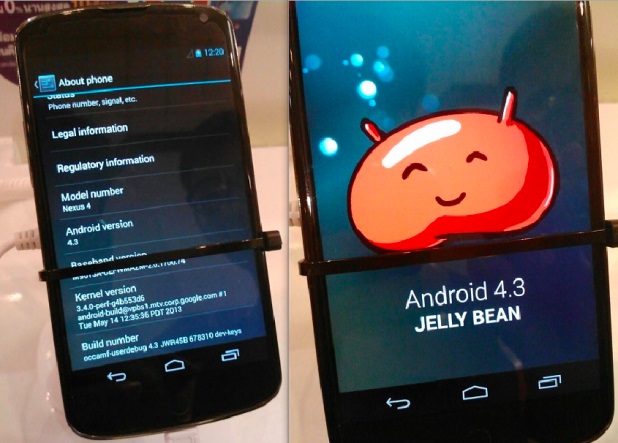
    android 4.3The leak stems from a Samsung insider with access to an early build of Android 4.3 (JWR66N) as the company adapts it to run on the phone’s hardware. This insider, who provided screenshots as proof, believes the phone will actually be updated with the latest “Jelly Bean” installment this July. That said, we’ll likely see the HTC One Google Play Edition get the same first-class Android 4.3 love next month along with the Nexus 4, Nexus 7 and Nexus 10.


    The same source that provided the screenshots and insider info may have provided the firmware to download and test as well. As seen on SamMobile, it’s the very one fitted for the Galaxy S4 Google Play Edition, but the site ported it to a standard Galaxy S4 and reportedly received some “outstanding” results. The port is working perfectly, the site claims; nothing is apparently broken. The build date was June 26, so this firmware is essentially fresh out of the oven.

    -> Android 5.0 “Key Lime Pie” UI Concepts Hitting the Web <-


    Android 4.3 test build firmware for the Google Play Edition Galaxy S4 (GT-I9505G).

    Android 4.3 port from the Google Play Edition Galaxy S4 is fully functional on the standard Snapdragon-powered Galaxy S4 (GT-I9505), there is not even a single thing which isn’t working. No changes to the port, so it’s 100% original with zero changes.

    Note:
    – This is not flashable through Odin.
    – This will void your warranty.
    – Don’t attempt this if you don’t have the skills to flash a custom ROM
    – You are doing this on your own risk

    System details:
    Android version: 4.3
    Build ID: JWR66N
    PDA: I9505GUEUBMFP
    CSC: I9505GXARBMFP
    Build Date: 26 June 2013
    Changelist: 968842

    Requirements:
    – Samsung Galaxy S4 (GT-I9505)
    – Custom Recovery

    Instructions:
    – Copy Google Play Edition ROM to your internal SD Card
    – Enter Recovery (Power + Volume Up + Home)
    – Do a Wipe/Factory Reset (Necessary due to new Android version)
    – Flash Google Play Edition ROM
    – Reboot your device!


    Download: (Choose either one)


    – Android-4.3-I9505GUEUBMFP-Odexed-I9505.zip
    MD5: 363ED9CC32A841A512E72372A19C7D05

    – Android-4.3-I9505GUEUBMFP-Deodexed-I9505.zip
    MD5: 74D241B64266220161018EB98A19F279


    Download and install at your own risk!

    Google hasn’t made Android 4.3 public yet, but it’s good to know that OEMs already have access to the source code. Early access will result in quick software updates and less Android fragmentation. Keep in mind, Android 4.3 is still in development phases and does not have all the features which are yet to be implemented.


    Read Original Thread here

  • 7 Reasons to Root Your Android Device

    7 Reasons to Root Your Android Device

    To root or not to root? That is the question. Rooting your Android device definitely pushes you up a level or two in your geekdom. It requires a certain level of commitment, at least a little savvy, and even a modicum of risk. So, why would you want to trouble?

    We have great reasons for ya.


    What is Rooting ?

    We discuss about rooting plenty around here, but here’s the high-level look for the few remaining uninitiated. Rooting signifies gaining root access to your device. When you take your phone out of the package, while there are plenty of settings you can tweak, you can only alter what the manufacturer allows you to. By gaining root access you can modify the device’s software on the very deepest level. It takes a bit of hacking (some devices more than others), it voids your warranty, and there’s a small chance that you could completely break your phone forever. But you know what? It’s still totally worth it for all the goodies you get access in order to.

    1. The Latest OS Updates

    This may be the most common complaint among Android users, less than half of whom have made it as far as Ice Cream Sandwich. Between the Google, the carriers, and the hardware manufacturers, there are a whole lot of shenanigans behind closed doors that determines when (or if) your phone gets an upgrade. Who has the patience?

    Android’s developer community, on the other hand, is a hardcore bunch. They’re often able to get the new OS onto a phone months before the carrier releases the update, often along with a few bonus features. Once you’re rooted, you just have to find the OS version you want (optimized for your specific device), and it’s generally extremely easy to install the latest and greatest.

    2. Apps Aplenty

    If you’ve spent much time in Google Play, you know you’re not exactly hard-up for good apps. But why settle for good when you can have great. Once you’re rooted not only can you get more apps, but the apps you have access to can get way down deeper into your phone’s brains. In some cases you’ll be able to do things that carriers, manufacturers, and/or Google may not want you to do. Some will allow you to do things of questionable legality. For example, Network Spoofer uses your device to set up a fake wireless network. When your houseguests sign in, you can make ever image they see inverted, or all of the text fuzzy. It’s a harmless prank, but of course it could (but shouldn’t!) also be used for stealing passwords and other nefarious things.

    Where do you find all these root-only gems? Amazingly enough, many of them are still in the Google Play app store. Google’s much more relaxed about rooting than Apple is about jailbreaking. Some apps, like Tasker, work for factory-shipped devices as well, but get expanded superpowers when you root.

    3. Speed/Battery Life Boosts

    9 Reasons to Root Your Android Device

    Phone starting to get laggy? Or maybe you’re having trouble making it through the day on a single charge? Rooting allows you to install customized kernels (the software that enables the OS to talk to the hardware, basically) that are optimized differently. Some are made for low-power consumption, and some are built for speed. You can also use an app like Set CPU, which enables you to overclock or underclock your phone’s processor, and set rules for usage.

    For example, you can set your processors to go into overdrive when you’re playing a graphically intensive game, but have them draw the bare minimum power when the screen is off.

    4. Extreme Customization

    Android is already the most customizable mobile OS out there, which is one of its big draws, but if you root your phone you can really go nuts. If you want a total change, you can download custom ROMs that look nothing like Android at all. Want your device to navigable entirely by gestures? No problem, just install GMD Gesture Control.Prefer a sliding keyboard when you’re in portait mode, but a tapping, predictive keyboard when you’re in landscape. Keyboard Manager will automatically switch between your keyboards of choice whenever you rotate your phone. You can also add features like widgets in your notification bar, or can change the way certain features look or behave, like the lock screen, or notification bar. The sky’s the limit.

    5. Infinite Features

    Beyond just customizing your phone’s existing features, rooting helps you pile on all kinds of wonderful new weirdness. You’ll love it.

    Want to hook up your PlayStation controller to your phone for better gaming? You can. Want to set rules for callers to decide who can and can’t call you when? Why not. Maybe your carrier has blocked certain apps, or an app isn’t available for the country you live in? There are Market Enabler apps that trick your phone (and Google) into thinking it’s on another carrier or in a far off land. Nervous about connecting to the public Wi-Fi? Wifi Protector will keep you safe from all kinds of ARP, DOS, and MITM attacks. Or, you could put the new Android 4.2 camera on your non-Jellybean phone. Accidentally deleted something you wish you hadn’t? Undelete might just save your bacon. The possibilities are virtually limitless.

    6. Better Backup

    9 Reasons to Root Your Android Device

    There are apps out there that kinda back up your phone, but generally it’s pretty surface level stuff (contacts, pictures, music, etc.). Once rooted you can go way, way deeper. Grab an app called Titanium Backup. Not only can it back up all of your apps, but it can back up all of the information stored in those apps. So if you’ve been doing great in Temple Run but you want to wipe your phone and start fresh, you can use Titanium to back up and then restore the game, and you’ll be right where you left off. It’s a nice security blanket if you’re going to be messing around deep in your phone’s brain.

    In spite of all these benefits, only you know whether rooting is right for you. For some people it’s just not worth the time and effort. For others, it’s a godsend that allows them to use their phones in a better way and for a longer time. If you decide to take the plunge, read up and make sure you follow instructions carefully. After that, go hog wild. It’s your phone, after all.

    7. Ditching the Skin

    Android enthusiasts rightly hate the software skins that hardware manufacturers use to brand their devices. They’re often bulky, ugly, unwieldy, or just downright not as clean and functional as stock Android. They’re also a big reason those OS updates take so long. You’re almost always better off without. So root! Once you do, you can download and install any number of custom-built ROMs (different versions of the Android firmware). Some of them are highly customized and tweaked to add features, and others are basically just stock Android. Cleaning off an ugly skin can be like a breath of fresh air.

    –>How To Install A Custom ROM On Your Android <–

  • How To Install Android On Your Laptop/Netbook

    How To Install Android On Your Laptop/Netbook

    Install Ice Cream Sandwich, the latest version of Android, on your netbook. Whether you want to play with Google’s mobile operating system or give new life to an otherwise discarded device, Android-x86 gives everyone a way to install Android on Intel netbooks.

    It’s fast. Even better: the latest version of Android-x86 comes with access to the Android Market, something almost impossible to set up on older Intel versions of the software. This means you can try out Android apps before you decide to buy an Android device.

    Heck, your netbook could end up becoming your Android device.

    I showed you how to install Chrome OS on unsupported computers, but some of you complained that it’s little more than a browser. Of course, that’s all Chrome OS is supposed to be, but I understand the disappointment. Android, I think, is a little more exciting. With access to thousands of apps it’s versatile, and its integration with the Google eco-system is much deeper than that of Chrome OS.

    It’s not terribly complicated to install, especially if you’ve installed some form of Linux in the past. Let’s walk through the process, then briefly explore Android on the netbook.


    Step One: Download Androidx86

    To get started, head to the Androidx86 project page. You’ll find the download here, but make sure you download the latest version: 4.0, better known as Ice Cream Sandwich.

    install android on netbook

    There are a few different versions of 4.0 offered. Grab the version that best fits your netbook. Not sure what this is? Google your computer’s model along with “Androidx86″ and see what other people have had luck with. If you own an EEE PC like me, however, you’re in luck: everything works perfectly with the “eeepc” ISO.

    Desktop users: it’s probably not worth trying.


    Step Two: Copy To A Flash Drive

    Now that you found the ISO file you need, it’s time to write it to a USB drive so you can boot from it. There are two main programs for doing this: UNetBootIn, which is cross platform, and Linux Live, which is only for Windows but very straightforward.

    Use whichever you prefer; just copy the contents of the ISO to a flash drive. It doesn’t need to be huge: 1 GB should do it.

    Step Three: Install

    Now that you’ve got your USB drive, it’s time to boot from it. You’ll see this boot screen:

    install android on netbook pc

    If you just want to try out Android, go ahead and select the LiveCD mode. You won’t be able to save any customizing you do, of course, but it’s a good way to see how well Android works on your system.

    If you’d rather get straight to installing Android, go ahead and pick the “Install” option. There’s not a lot of options for dual-botting built into the installer, so be warned: getting that working might take some skills on your part. See the Androidx86 installation instructions for more information. If you don’t care about losing your current OS, though, installation is straight-forward.


    Optional: Install to SD Card

    There’s another way, of course: you can install Android to an SD card. This won’t affect whatever operating system you typically use on your netbook but still lets you keep your apps and settings in place.

    You’ll need a flash drive and an SD card to do this: the flash drive to install Android from and the SD card to install Android onto.

    The process is simple: run the installer, but select your SD card to install to instead of your hard drive. This won’t affect your netbook’s primary drive, giving you a clean dual-boot environment.


    Android on Your Netbook

    So how does it work? Quite well. You can set up your home screen to look however you like, just like on a phone or tablet:

    install android on netbook pc

    You can also browse every app installed on your computer:

    install android on netbook

    Many Google staples are included, along with a number of other utilities and games. The best part: AndroidX86 now comes with access to the Android Market. Not everything will work, but I got my favorites apps working: Dropbox, Evernote, Wunderlist and Toggl. I even found a remote for XBMC that I’ll surely be writing about later. With some help from Google Voice I even got SMS messaging up and running!


    Conclusion

    Why try this? First of all: because it’s fun. Sure, it’s not the same as buying a new Android tablet, but breathing new life into an otherwise idle netbook is cool.

    I’d consider writing a manual about this, if there’s an audience. Would you guys be interested? If so, let me know in the comments below. Also feel free to let me know about any Android apps I should try out on my netbook.

  • MWC 2013 : Samsung Galaxy Note 8 Tablet

    Samsung has surprised everyone at MWC in Barcelona by unveiling an eight-inch version of its stylus-equipped Galaxy Note tablet.

    The new tablet is more than a smaller version of the Samsung Galaxy Note 10.1; there’s an uprated specification, and Samsung has also improved how the Note’s built-in stylus works. In Europe the Note 8 will have built-in 3G.

    Galaxy Note 8

    The Note 8 has a 1.6GHz quad-core processor, up from the 1.4GHz model in the Galaxy Note 10.1. As you’d expect, it’s significantly lighter, at 335g compared to 597g, so won’t be as much of a strain to carry around.

    Galaxy Note 8

    As with the Note 10.1, the Note 8’s S-Pen stylus is more than just a dumb pointing device. There are several stylus-specific functions built into the tablet’s Android 4.1 OS, such as pressure-sensitivity and windows that pop up over whatever app you’re currently using to help you take a quick note. Unlike on the Note 10.1, you can now use the S-Pen to tap the back and menu buttons under the Note 8’s screen.

    The Note 8 also improved on the Note 10.1’s Multiscreen support, where two apps sit side-by-side, so you can watch a YouTube video while taking notes, for example. While the larger tablet only supported Multiscreen in six apps, there are now 20 apps that can sit side by side. It’s a big step towards making a tablet as useful as a laptop for certain tasks.

    Galaxy Note 8

    There are no great surprises behind the Note 8’s display. It’s a 1,280×800-pixel model, which gives it a pixel density of 189ppi. This is nothing spectacular, but is slightly more than the iPad Mini’s 163ppi.

    The built-in 3G is a bonus for European users, especially for city dwellers with easy access to fast HSDPA networks. It also means it’s possible to use the Note 8 as a phone, but we’d recommend using a headset of some description rather than holding it to your head.

    Galaxy Note 8

    We liked the Galaxy Note 10.1’s stylus, but thought the tablet was overpriced compared to the competition. The Galaxy Note 8 is a useful smaller version, but, with no pricing information yet available, it remains to be seen whether Samsung will charge a large premium over the benchmark for tablets at this size: Google’s £159 Nexus 7.


  • How to stream your Windows Audio to an Android device

    How to stream your Windows Audio to an Android device

    I was wondering whether I could stream my PC’s audio to my tablet. After a lot of research I found that it is possible to stream your Windows PC’s audio to your Android based phone/tablet. So in this post I will tell you how you can actually stream your PC audio to your Android device within LAN.

    Now you might wonder, what are the benefits of this! Listed below are some benefits that you may enjoy after following this tutorial:

    • You can simply create a wireless music system within your home or at any other place.
    • You can connect your android device to large speakers and stream your Windows audio to rock a party.
    • Some large speakers might not fit into your PC desk, you can create a wireless speaker system that don’t needs to kept around your PC every time.

    Stream Windows Audio to Android device

    Things you’ll need: An internet connection, Windows PC, Android device.

    Step 1: Click here to go to Georgie Labs and download Soundwire. Choose your Windows version and download the setup file. After install Soundwire on your PC you need to install it on your Android device. You may search for “soundwire” on Google Play Store or you can simply click here.

    Note: When you run Soundwire on Windows, your firewall would prompt you to grant access for Internet and Network. Click on ‘Allow’ to run the software without any problems.

    Step 2: Run Soundwire Server on Windows. Under the “Input Select” menu choose the device you want to stream to your phone. Here I am using default multimedia device because it will let me stream all the audio including system sounds, log on sounds and etc. Note down the Server Address mentioned in the Soundwire window.


    Step 3: On your Android device, run the installed Soundwire app. In the text box enter Server Address you noted down in the previous step and now tap on the above large soundwire button and you would be successfully connected to your server.

    Note: To complete the above step your device and Windows PC needs to be connected to the same network.


    Now you will able to easily stream your Windows Audio to an Android device and you can connect the same device to external speakers to make your own wireless sound system.

  • How to Install Windows 7 From USB Drive

    How to Install Windows 7 From USB Drive

    Here is a easier way to install Windows 7 from a USB Flash drive. Unlike other methods where you have to write complicated commands, this method can be completed even by those who have very little computer background.

    The whole process takes only two steps, run UNetbootin/WIndows USB/DVD Tool, load the Windows 7 ISO file, and finally restart your computer.

    Before you begin, you will require the following:

    USB Flash Drive (4GB minimum)

    Windows 7 ISO Image file

    UNetbootin (Method 1) / Windows 7 USB/DVD Tool (Method 2)

    Step 1 – Creating Bootable USB:

    Method 1- Using UNetbootin:

    Now insert the USB drive, run UNetbootin, and select Disk Image as ISO. Browse your local drive for Windows 7 ISO that you downloaded and click Open. Now Select Type as USB and choose the drive. Once done, it will look like a bit similar to the screenshot shown below.


    Click OK and it will begin extracting all installation files to the USB drive. The whole process will take some time(10-15 minutes), so have patience.


    unetbootin installing windows 7 iso


    Method 2 – Using Windows 7 USB/DVD Tool:

    Download Microsoft’s official tool called Windows 7 USB/DVD Tool.

    Choose the ISO file, then choose the USB drive and then Begin.


    Final Step:

    Once the bootable disk is complete, reboot your computer. Now while your system is starting up press the appropriate button(usually F1, F2, F12, ESC, Backspace, or Escape) to bring up Bios Boot Menu. Change the startup order to boot USB by default, usually you will have to press F6 to move the selected USB device on top. Once done, save changes and restart the system.


    Wasn’t that easy? Enjoy!