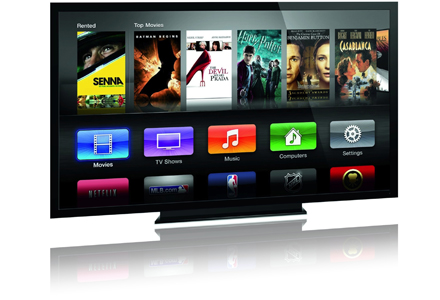

Stream video or music, whenever and wherever you want
Do you want to stream video or audio from U.S.-based on-demand Internet streaming media providers but can’t get in on the fun because you’re living outside the U.S.? Fear not, you have come to the right place. Tunlr lets you stream content from sites like Netflix, Hulu, MTV, CBS, ABC, Pandora and more to your Mac or PC. Want to watch Netflix or HuluPlus on your iPad, AppleTV or XBox 360 even though you’re not in the U.S.? Tunlr lets you do this.
It’s absolutely free
That’s right. Tunlr won’t cost you a dime! Our service is absolutely free and without any limitations (some restrictions apply). We also have a strict “no advertisment” policy.
Easy to setup
There’s no software to install. You don’t need to create an account with us. No password to remember. Setting up Tunlr is a breeze and you can start watching video or listening to music instantly.
Streaming in HD quality
Thanks to Tunlr you will be streaming data
in the best quality available. Since we don’t route multimedia content over an intermediary network, only the speed
of your internet connection is the limiting factor.
in the best quality available. Since we don’t route multimedia content over an intermediary network, only the speed
of your internet connection is the limiting factor.
Get started with Windows 7
Please read our FAQ regarding the limitations of our DNS server before you start.
- Open Network Connections by clicking the Start buttonÂ
 , clicking Control Panel, clicking Network and Internet, clicking Network and Sharing Center, and then clicking Manage network connections.
 - Right-click the connection that you want to change, and then click Properties. If you are prompted for an administrator password or confirmation, type the password or provide confirmation.
- Click the Networking tab. Under This connection uses the following items, click  Internet Protocol Version 4 (TCP/IPv4), and then click Properties.
- Click Use the following DNS server addresses, and then, in the preferred DNS server and alternate DNS server boxes, type the addresses of the primary and secondary DNS servers.
- The primary (preferred) DNS server is 184.82.222.5
- The secondary (alternate) DNS server is:Â 199.167.30.144
- Click OK
- Reboot your computer
- Visit the Tunlr status check page to see if Tunlr is activated.
Get started with a Mac
Please read our FAQ regarding the limitations of our DNS server before you start.
- Open System Preferences
- Open Network
- Choose your connected network (i.e. Wi-Fi or Ethernet) in the list on the left
- Press the Advanced… button in the lower right
- Select the DNS tab
- Add the Tunlr DNS IP address using the + button in the lower left
- The first Tunlr DNS IP address is 184.82.222.5
- The second Tunlr DNS IP address is 199.167.30.144
- Drag the Tunlr DNS IP addresses to the top of the list
- Click the OK button
- Click the Apply button
- Restart your computer
- Visit the Tunlr status check page to see if Tunlr is activated
 Tired of lengthy process of downloading files from FSN or file sharing networks like Rapidshare, Megaupload etc. Now no need to worry any more about downloading files from these file sharing networks. Your all worries will comes to end as you will complete reading this article. Today i will discuss about a revolutionary software called JDownloader.


