
Tag: firefox

  • Firefox 35 releases with improved cross-browser video chat ‘Hello’

    Firefox 35 releases with improved cross-browser video chat ‘Hello’

    Mozilla launched new Firefox 35 for all major platforms. Big additions to the browser include room-based Firefox Hello conversations, H.264 (MP4 files) playback on OS X, and integration with the Android download manager.

    Firefox Hello

    Firefox ‘Hello’ works across WebRTC-supported browsers including Google Chrome and Opera. To use it, you just have to click the Hello button on your toolbar and select ‘Start a conversation’ and then just copy and share the link with a contact to begin video chatting straight in your browser.
    Each conversation window has its own unique URL and you can easily create multiple conversations and name them for different topics. You don’t need any account for this to work.

    Firefox Marketplace for Desktop

    Mozilla has opened up the Firefox Marketplace for the desktop, currently in beta.

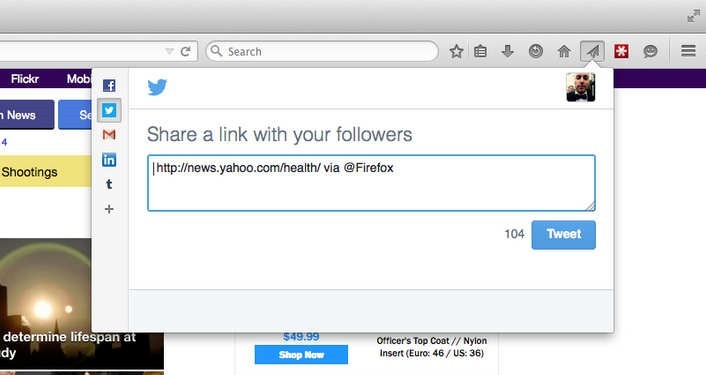
    Firefox Share

    Now you can share to your favorite social network any link straight from your browser.
    2015-01-13_0911

    Here’s the full Firefox 35 changelog:

    • New: Firefox Hello with new rooms-based conversations model.
    • New: New search UI improved and enabled for more locales.
    • New: Access the Firefox Marketplace from the Tools menu and optional toolbar button.
    • New: Built-in support for H264 (MP4) on Mac OS X Snow Leopard (10.6) and newer through native APIs.
    • New: Improved handling of dynamic styling changes to increase responsiveness.
    • New: Implemented HTTP Public Key Pinning Extension (for enhanced authentication of encrypted connections).
    • New: Use tiled rendering on OS X.
    • New: Improved high quality image resizing performance.
    • HTML5: Changed JavaScript ‘let’ semantics to match the ES6 specification.
    • HTML5: Resource Timing API implemented.
    • HTML5: CSS filters enabled by default.
    • HTML5: Added support for the CSS Font Loading API.
    • Developer: Support for inspecting ::before and ::after pseudo elements.
    • Developer: Computed view: Nodes matching the hovered selector are now highlighted.
    • Developer: Network Monitor: New request/response headers view (more info).
    • Developer: Added support for the EXT_blend_minmax WebGL extension.
    • Fixed: Show DOM Properties context menu item in inspector.
    • Fixed: Reduced resource usage for scaled images.
    • Fixed: PDF.js updated to version 1.0.907.
    • Fixed: Non-HTTP(S) XHR now returns correct status code.

    Download: Mozilla Firefox Offline installer (Standalone) download

  • Mozilla Firefox 34 released with ‘Firefox Hello’

    Mozilla Firefox 34 released with ‘Firefox Hello’

    Mozilla released Firefox 34 on first of December along with new partnership with Yahoo.

    Firefox 34 brings a number of major features, such as an improved search bar, better theme switching, Firefox’s experimental ‘Hello’ chat client and the rollout of Yahoo as the default search engine for North America.

    When you update to the new version, Firefox will ask if you want to switch to Yahoo for your default search engine, however you can click ‘later’ to keep it as Google.

    Matchstick: Mozilla’s Firefox powered Chormecast alternative

    The improved search bar reduces the number of clicks to your search and makes it easier to search third party sites, like Wikipedia, Amazon and Twitter. Mozilla showed off the feature just last week.

    Firefox for Android was also updated to version 34 today, bringing a new theme and the ability to mirror tabs to your Chromecast.

    What’s New

    • Default search engine changed to Yahoo! for North America
    • Default search engine changed to Yandex for Belarusian, Kazakh, and Russian locales
    • Improved search bar (en-US only)
    • Firefox Hello real-time communication client
    • Easily switch themes/personas directly in the Customizing mode
    • Wikipedia search now uses HTTPS for secure searching (en-US only)
    • Implementation of HTTP/2 (draft14) and ALPN
    • Recover from a locked Firefox process in the “Firefox is already running” dialog on Windows

    Download: Mozilla Firefox Offline installer (Standalone) download

  • Awesome Firefox Tricks You Might Not Know

    Awesome Firefox Tricks You Might Not Know

    firefox-banner

    Yes, we know you love firefox. It’s the most customizable browser ever. You can add great extensions available out there. But we are going to give you some cool tricks that will make you love even more.

    Use Firefox as Notepad

    Open new tab, type the following (without quotes) in address bar :

    "data:text/html, <html contenteditable>"

    And the best thing is you can even customize it using html styles. Come, on where’s your geeky mind ! Here’s one example for you.

    data:text/html, <title>I love Firefox!</title><style>html,body{margin: 0; padding: 0;}</style><textarea style="font-size: 1.5em; line-height: 1.5em; background: %23000; color: %233a3; width: 100%; height: 100%; border: none; outline: none; margin: 0; padding: 90px;" autofocus placeholder="Say Hi..." />

    pic53

    Go on, copy and paste the above code in a new tab. (It works in other modern browsers as well)

    Now, you can use the page as a quick notepad to carry your notes while browsing.


    Add ‘Search Keywords’ For Your Favorite Websites In Just A Few Clicks

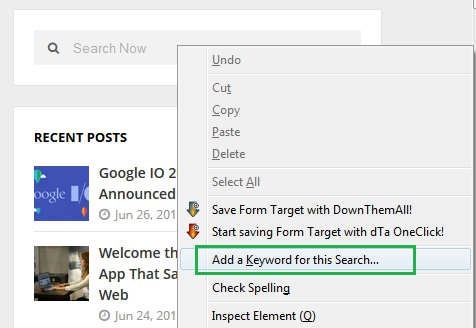
    This a tip most of you might not be knowing, you can add any search box on any website to the Firefox URL address bar in a very handy way. Just go to the any Search Box and simply right-click on it, then click “add a keyword for this search”.

    pic_11


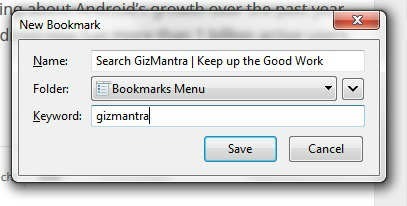
    Then you’ll get a prompt, just name the bookmark, then type in a simple short keyword you can remember.

    pic_1


    Now you can search your favorite site of choice anytime by typing the keyword, followed by what you want to search in the Navigation Bar.

    pic2


    It can save up lots of your time.


    Switch tabs with Keyboard shortcuts

    Instead of moving the mouse and select different tabs that you have open, use the keyboard. use these simple shortcuts:

    • Ctrl+Tab (rotate forward among tabs)
    • Ctrl+Shift+Tab (rotate to the previous tab)
    • Ctrl+1-9 (choose a number to jump to a specific tab)


    Quickly Delete Items from Address Bar History

    When you start typing in the address bar, firefox automatically show previous URLs you’ve visited as drop-down list. But if you want to quickly delete them (You know why?), Go to the address bar, start typing an address, and the drop-down menu will appear with the URLs of pages you’ve visited. Use the down-arrow key to go down to an address you want to delete, and press the Delete key to make it disappear.


    Auto Complete URL

    Most of you as geeks might know this one. Oh ! yeah.  Go to the address bar (Ctrl+L) and type the name of the website without the “www” or the “.com”. Then hit Ctrl+Enter, and it will automatically fill in the “www” and the “.com”. similarly for “.net” addresses, press Shift+Enter, and for “.org” addresses, press Ctrl+Shift+Enter.


    Mouse shortcuts

    These are some simple but useful shortcuts

    • Middle click on link (opens in new tab)
    • Shift+scroll down (previous page)
    • Shift+scroll up (next page)
    • Ctrl+scroll up (decrease text size)
    • Ctrl+scroll down (increase text size)
    • Middle click on a tab (closes tab) [Really useful]


    Open Previously Closed Tab

    If you have closed a tab by mistake, don’t panic! Hit Ctrl+Shift+T. This will open up the last tab you closed. If you keep clicking the shortcut, all your recently closed tabs will open.

    That’s it for now. We’ll keep adding more.

  • Mozilla Firefox Offline installer (Standalone) download

    Mozilla Firefox Offline installer (Standalone) download

    firefox-bannerThe common thread that runs throughout Mozilla is our belief that, as the most significant social and technological development of our time, the Internet is a public resource that must remain open and accessible to all. With this in mind, our efforts are ultimately driven by our mission of encouraging choice, innovation and opportunity online.
    To achieve these goals, we use a highly transparent, extremely collaborative process that brings together thousands of dedicated volunteers around the world with our small staff of employees to coordinate the creation of products like the Firefox web browser. This process is supported by the Mozilla Corporation, which is a wholly-owned subsidiary of the non-profit Mozilla Foundation.
    In the end, the Mozilla community, organization and technology is all focused on a single goal: making the Internet better for everyone.

    This post is about how to get Mozilla Firefox Offline Installer (standalone)download in an easy manner.

    Along with many other benefits, following are the two main benefits of using the Mozilla Firefox offline installer when installed on Windows PC. Foremost is the fact that you may download the complete package altogether and then use it anytime you want to. In case you are installing the Firefox with online installer, then disconnection of internet connection means that the installation will be stopped. When you will resume the internet connection, you will have to start the installation process all over again.

    From the Mozilla website you may install loads of extensions and addons. These will offer you specific functionalities to the Mozilla Firefox.

    In order to keep your data synchronized, you can create your own account. The Mozilla Firefox also enables its users to go for multi-tasking. The browser is better, faster and more secured as compared to any other web browser.

    Mozilla Firefox Offline Installer (standalone) download

    Download Link for Firefox Offline installer

    Download Link 2

    GO and grab the best internet browser.

  • MWC 2014: Huawei launched its first Firefox OS phone Y300

    MWC 2014: Huawei launched its first Firefox OS phone Y300

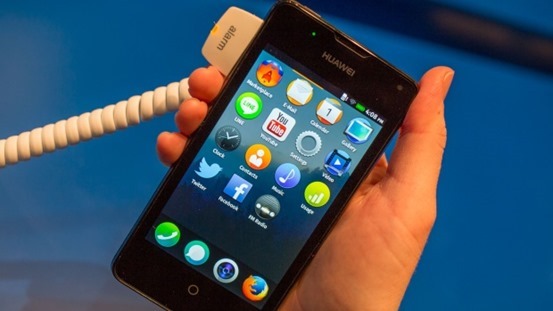
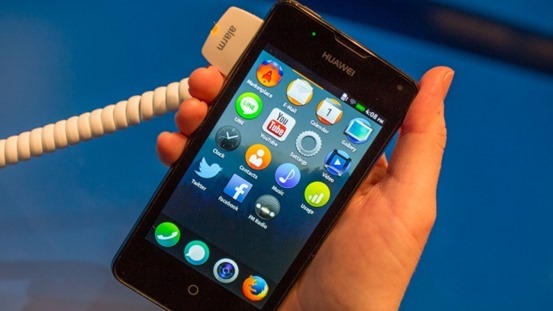
    Firefox_OS_Huawei_Y300Huawei made its debut in world of Firefox OS with Y300. The phone was showed at MWC 2014. The device runs FFOS 1.1 with its focus on stability. Regardless, the Y300 looks like much like its sibling FFOS devices in software and general build quality. The FFOS UI appeared mostly same on the Y300,
    It’s the first Firefox OS device to have dual cameras: a 5 megapixel camera on back and VGA for the front.The Huawei Y300 has a black, all made up of plastic with a power button up top and the headphone jack, volume keys on the right edge and a micro-USB port at the base.

    Donot confuse with Huawei Ascend Y300, the android smartphone its Huawei Y300 with FFOS. It seems Huawei is using the same basic spec as the earlier Android smartphone for its Firefox debut.

    Features of Huawei Y300:

    • 1GHz dual-core Snapdragon 8225 processor
    • 4-inch WVGA display
    • 512MB RAM
    • 1,950mAh battery
    • 5 megapixel camera on back & front VGA. camera
    • Firefox OS v1.1

    There’s no specific release date for Huawei’s Y300 yet, but expected a retail launch within the next couple of months. Price tag is also yet to be unveiled , But it would a affordable phone

  • How to Block Websites in Mozilla Firefox or Chrome

    How to Block Websites in Mozilla Firefox or Chrome

    Block websites on chromePerhaps you’re disciplined and want to block a website from yourself. Maybe you’ve the proud owner of a child who surfs the web for less than appropriate material. Whatever the This action will require you to edit your Host file. Your host file is a computer file used to store information on where to find a node on a computer network.

    Method 1 : How to Block websites using hosts file

    1. Open Windows Explorer and type in C:/Windows/System32/drivers/etc. If Windows isn’t installed on the C: drive, substitute the C: for the appropriate drive letter.

    2. Double-click on hosts and open the document using Notepad when Windows prompts you. The hosts file tells the system what it should do when specific domains or IP addresses are accessed. This is the file that you are going to edit.

    If Windows automatically redirects you, or if hosts opens in another program, simply open Notepad (Start -> All Programs -> Accessories -> Notepad) and then go to hosts by clicking File -> Open inside Notepad.

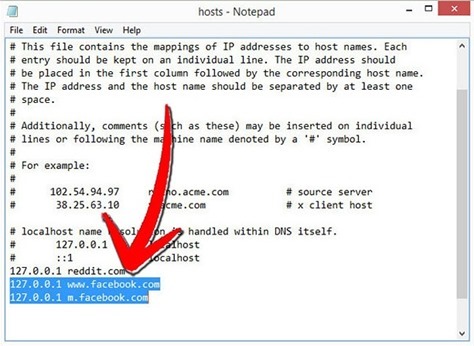
    3. Locate the line “127.0.0.1 localhost” or “::1 localhost.” Put your cursor at the end of whichever line is lowest down.
    Press “Enter” to create a new line.

    Block-website-using-host-file

    4. Type in whichever website or websites you wish to block. You can add any site, but you’ll will need to preface it with “127.0.0.1”.

    To block the website facebook.com for example, just type in “127.0.0.1” followed by a single space, followed by “facebook.com”. Add all of the site’s domains, especially mobile domains, on new lines. Your computer might block “www.facebook.com”, but not “m.facebook.com” if you’re not careful. This is an easy workaround for the experienced computer user.

    5. Click “File -> Save” in order to save the hosts file. If a prompt comes up saying that you cannot save the file because you are not an administrator, you’ll need to change the administrator permissions to include you. To do this:

    Right click on the hosts’ file, choose Properties -> Security and make sure all the boxes are checked in your user account. This should allow you to save the file as an admin.

              Also check -> How to turn off Images and Javascript in Firefox

    Method 2: How to block site using addons(as Block Site, Fox Filter)

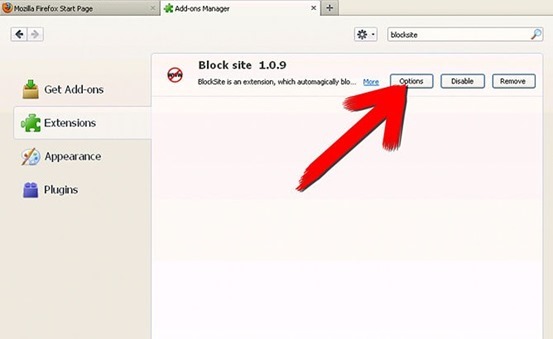
    1. Open Firefox, click “Tools” then “Add-ons.” Click “Get Add-ons” and then “Browse All Add-ons.” Type “blocksite” in the search bar after the Mozilla Firefox add-ons website opens and hit “Enter.”Block-site

    2. Click the “Add to Firefox” button next to the entry for BlockSite. Allow the add-on to load (usually fewer than 5 seconds), then click the “Install Now” button. Restart Firefox when prompted.

    3. Go to “Tools,” then “Add-ons,” then click the BlockSite “Preferences” button after Firefox restarts. Make sure the “Blacklist” radio button is ticked, as well as “Enable BlockSite,” “Enable warning messages” and “Enable link removal.”

    4. Check “Enable authentication,” then enter a password if you would like to keep other users from deleting blocked websites or changing the settings in BlockSite without your permission.

    5. Click the “Add” button, enter the URL of the website you would like to block, then click “OK.” Repeat to add more sites, or click the “Clear” button to delete the list. Once the list of blocked sites is complete, click “OK” and restart Firefox.

    There are many other addons available.

  • How to turn off Images and Javascript in Firefox 23 and above

    How to turn off Images and Javascript in Firefox 23 and above

    firefox-no-imagesFirefox made an update to their desktop browser few months ago and the new versions had some previously visible options removed.
    One of the major functionalities that were disabled are the options to Disable Javascript and also Turn off images. There are a couple of reasons why you might want to turn off your javascript or images such as poor load time due to slow internet speed.

    Disabling JavaScript and Images in Firefox wasn’t actually removed completely but was hidden and removed from the regular user interface. If you know the about:config options, you can find your way through it. (Be Careful !)

    How To Turn Off Images In Firefox Browser 23, 24, 25

    1. In your address bar, type in the word about:config and hit the Enter button.

    2. You’ll land on a page with lots of option in a tabular form. It has numerous rows and four columns of Preferences Name,  Status, Type and Value. In the search box above the table, type in permissions.default.image . The first row that shows up is what we need to edit in order to disable images.

    3. In the permissions.default.image row, the column with title as value has 1. Double click on one and dialogue box would pop up for you to make an entry, change the number 1 to 2 and hit OK.

    4. Hurray, your images would be disabled. To enable your images again, follow the same procedure as above, but change the value from 2 back to 1.

    Are you a Firefox Fan? – Mozilla Firefox : Different by Design 

    How To Disable Javascript In Firefox Browser 23, 24, 25

    1. Following the same method as for images, type about:config and hit the Enter button.

    2. In the search box provided above the table, type in javascript.enabled and the very first row is what we have to edit. In the value row, you’ll see true. Double click on true to change it to False.

    3. As long as the row remains in False, your javascript would be disabled. You can change it back to normal by double clicking to display true.

    There are addons that can help you achieve this, but since we could alter these options manually, its better use that.
    1. Quick Java
    2. Setting Sanity

    Feel free to ask any questions if need be and remember to share this tutorial with your friends.

  • Try out the new Future Fox : Australis

    Try out the new Future Fox : Australis

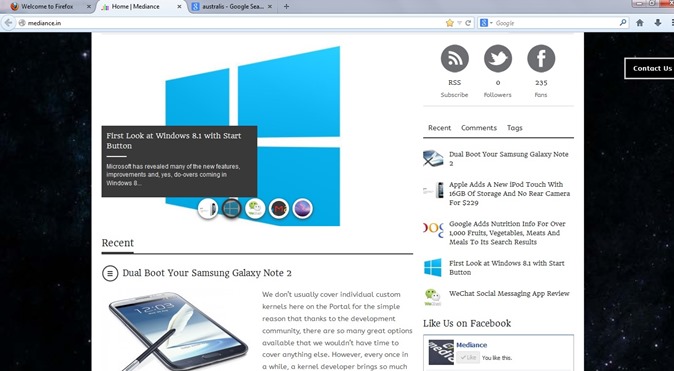
    The new Australis theme has been looming around the heads of the Firefox community for a very long time. Most of what we – that is the public – know about the theme is that it will modify how Firefox looks as it will replace the current default theme when it is released. What many Firefox users may not be aware of though is that Australis is more than just a theme replacement as it will affect the way we customize the browser.
    Australis

    The project that has been guiding Mozilla’s exploration of what a modern browser should look like is Australis (because Mozilla apparently likes to name projects after star systems) and the fruits of this project will soon find their way into the Firefox release channels, starting with Nightly once it hits version 25 soon. After that, it will make its way through the usual release channels, though Nightingale told me that the team may hold it back from the stable channel a bit longer to ensure that everything works smoothly.

    If you feel really adventurous, you can already install a version of Firefox from Mozilla’s relatively obscure UX branch and test it in its current state (but don’t blame us if it crashes a lot or shreds your hard drive).

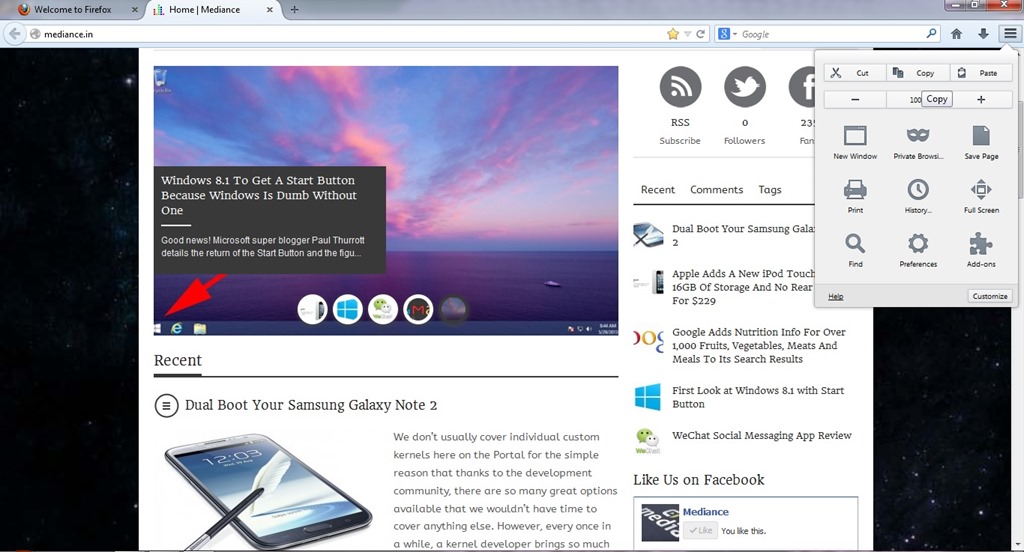
    firefox1While the main Australis theme won’t land in the stable channel before October. The combined stop/load/reload button in Firefox, for example, came out of this group. So did the new download manager and the fact that Firefox now doesn’t show the forward button anymore when there is no page to go forward to. The customization and tools menu now also uses icons in a three-by-three arrangement and dedicated buttons for copy, select and paste, as well as for increasing font sizes instead of just using a regular drop-down text menu.

    Australis is not just about the design, though. One area that’s also changing with Australis is how you customize the look and feel of your browser. Mozilla currently offers quite a few tools for this, but the team believes they are hard to find and not “fun” enough to use. As Mozilla’s Gavin Sharp told me, the idea here was to get users to enjoy customizing their browsers for the way they use it. Unless users can find these features, though, they could just as well be left out, so the team is working on ways to make it a bit more obvious that users can rearrange and remove virtually all the parts of the Firefox interface to suit their needs.

    ff2Now that Firefox is on a rapid-release schedule, the team obviously can’t change the user interface with every update, so the current thinking is to roll some things out together once they are ready and, where it makes sense, roll others out individually. This means that while we’ll see Australis and its curvy tabs in the nightlies of Firefox 25 very soon, it may not actually land in the stable version of Firefox 25.

  • MWC 2013: Mozilla presents first Firefox OS smartphones

    Mozilla conveyed a host of journalists, analysts and partners in Barcelona, just before the start of MWC 2013, for an event that saw the announcement of a number of smartphones and the formal launch of Firefox OS.

    Two phones were presented, the Alcatel One Touch Fire and the ZTE Open with handsets from LG and Huawei on the way. Mozilla’s CEO, Gary Kovacs, hinted that handsets based on Firefox OS would come to the US market in 2014 and confirmed that "there [mobile phone partners] are more coming".

    Motorola is out of the picture given its allegiance to Google. Nokia is an interesting option as Nokia HERE maps app is one of the featured apps on the new Firefox Marketplace; and since Firefox OS is not focusing on mainstream markets, the Finnish phone manufacturer might see Mozilla’s mobile platform as a fitting replacement for the Series 40 used in Asha.

    In total, 18 mobile phone operators across the world have backed Mozilla in its Firefox OS venture including Telefonica, Hutchinson Three Group, China Unicom, Deutsche Telekom and Sprint. Most of the big North-American and some major European operators (Orange, Vodafone) have yet to bring their support to the platform.

    Firefox OS is a HTML 5-based operating system that, like its namesake, uses open web standards. Possibly its most important feature will be Firefox Marketplace which promises to radically change the dynamics of app development, monetisation, distribution and consumption.

  • Mozilla announces Nightly build of Metro Firefox for Windows 8

    Mozilla today announced the release of the first Nightly build of Firefox Metro. The company also confirmed that the browser is now stable enough for “regular testing” by interested Windows 8 users.


    Mozilla’s Director of Community Development Asa Dotzler revealed the news last night:

    On Tuesday, our preliminary Metro Firefox development work arrived at mozilla-central, the source code repository that feeds the Firefox Nightly channel. This means that if you are on the Firefox Nightly channel and you have a Windows 8 device, your Wednesday Firefox update should deliver a Metro Firefox tile to the far right end of your Windows Start screen. There’s plenty of work still to do, but it’s stable enough that we’re ready for more and more regular testing.

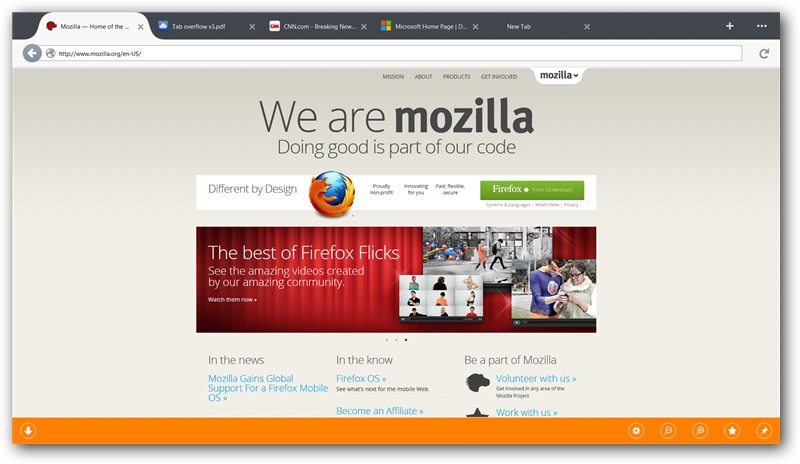
    Unfortunately, as the comments on his post indicate, some users (including yours truly) are having issues enabling the new user interface. A new Nightly build will be coming out tonight though and might fix some of these issues. The new Nightly is supposed to launch a chromeless browser window similar to Metro IE. Here’s how it should look:

    You can only access the new user interface if you set Firefox Nightly as your default browser. If not, the Desktop version of Firefox will launch instead when you click on the Nightly icon in your Start Screen. This is a limitation Microsoft has purposefully included for security reasons: only the default browser can run in the Metro UI.

    The Firefox Nightly channel, as its name implies, is automatically updated each night. The builds are meant only for developers interested in helping out the company test new and experimental features.

    After six weeks or so, Nightly builds are brought into the Aurora channel. This is the alpha channel, which is followed by the beta and release channels. We can thus expect the Metro version of Firefox to be released as a stable build somewhere in May or June, but possibly later if testing takes more time.

    Mozilla first revealed it had a Windows 8 Metro prototype of Firefox back in April 2012. The company then showed off a pre-release of Firefox for Windows 8 in October 2012.