Tag: how to

  • How to Determine the Quality of Your Mobile Signal

    How to Determine the Quality of Your Mobile Signal

    In the today’s interconnected world, a cell phone reception affects text messaging, email, internet, social media, applications, and other services. This is to say that we constantly need a reliable 3G or 4G LTE signal, however, providers are not always able to deliver it. Hence, it is not uncommon for users to realize the shabbiness of connection only after signing the contract. What you need to do is gain a realistic picture of the signal strength and then decide on further steps in becoming a full-fledged digital citizen.

    cell phone

    Mixed signals

    Bad reception is the worst nightmare of those who are used to being in tune with the digital world on the go. Moreover, high cellphone bills should really allow us to smoothly access the internet with a few taps of the finger. Now, it can be difficult to objectively evaluate the strength of the signal due to the fact that it tends to change all the time. Sometimes, even moving a few feet can improve the connection.

    Carriers reconfigure the infrastructure, the urban landscape shifts, and the weather has its mood swings. Your phone can also undermine the reception, but if the trouble started upon moving to the new area, then it is likely you’ve managed to find a black hole of coverage. Obstacles and obstructions between your device and the tower emitting the signal usually cause the interference: Those who are close to the cell phone tower location should have the best signal.

    People busting their head with signal difficulties often invite a friend with the same service provider over to their house in order to see how their signal holds up, or ask around the neighborhood to find out what’s people’s favorite carrier. Furthermore, there is a possibility to access a Coverage map on the carrier’s website and type your city, state and zip code. Of course, this still does not give you concrete numbers, but we shall get into that now.

    Hard science

    Those who want to check the actual signal strength should not settle for the fluffy bars. This indicator is not overly dependable because the cell phone signal is measured in decibels (dB). They are basically radio waves, with the standard frequency of -50 (full signal strength) to -110 (a dead zone). There is no industry standard that links dB values to the number of bars — it is subjective across the carriers. On the other hand, a dB figure is just the type of hard evidence you need.

    Mobile signal
    The dB readings are usually available in the Settings menu, and you want to see the number which is as close as possible to the -50 dB. Also, iPhone users can dial *3001#12345#* and enter a Field Test mode — a dB scan result should be in the left-hand corner. As for Android platforms, they should navigate to the Network or Status under About Phone option in General Settings. At last, one of the most effective ways to handle the signal issues is to conduct a mobile internet speed test.

    Once you obtain the value, wander around your house to discover the dead zones, as well as the places with the best signal. Just bear in mind that connecting to the tower drains the juice from your phone and make sure you are not blocking the internal antenna in your device. The problem on the carrier’s side means that you can probably terminate the contract and switch to the new provider. Finally, in case the DIY research does not produce the expected results, call the carrier and get to the bottom of the situation together.

    Cover all the bases

    There are a few things as frustrating as waiting for progress bar to reach its end. Lousy signal turns your phone into something like a glorified calculator, which is unacceptable, since we should all get exactly what we pay for. So, inspect the signal strength using one of the aforementioned methods. This helps you make a decision about whether to jump ship and find a new carrier. In high-tech information age, problems in this department cost you precious time, money and nerves.

  • How to Root Moto X (1st Gen.) on Android Lollipop 5.1

    How to Root Moto X (1st Gen.) on Android Lollipop 5.1

    moto-x-android-l

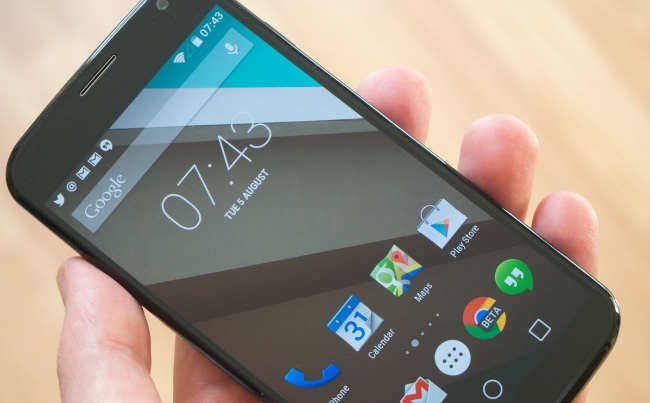
    Finally the long awaited lollipop update for 1st gen Moto X is here and most of you have done it already. Now, to take up power of your device you need to have access ! Here’s a quick tutorial for rooting your Moto X 2013. To begin, you first have a your bootloader unlocked.

    Also Read- 7 Reasons to Root Your Android Device

    Unlocking the bootloader

    For ALL Developer Editions (GSM and VZW) Moto X, and some carrier editions (Like T-Mobile, Sprint, Rogers and others), Motorola freely gives away the bootloader Unlock codes when requested On Motorola’s Website. In the case of the Non-Developer Editions, the warranty is void after you unlock the bootloader. Now to unlock your bootloader, you can go to Motorola’s website. Follow the instructions and you will do it.

    Requirements

    How to start Fastboot AP/Bootloader mode on Moto X

    • Unplug phone
    • Power down phone.
    • Hold Volume Down and Power
    • After a few seconds release Power, you should be in Fastboot AP menu on phone

    How to root Moto X 2013 (1st Gen) on Lollipop 5.1

    NOTE: Replace TWRP.IMG in the below steps, with the name of the file you downloaded! (Example: twrp-2.8.6.0-ghost.img )
    NOTE: Failure to perform these steps EXACTLY as written can result in the appearance of the Android in distress (logo with Exclamation mark) with the caption “No Command” and the inability to enter recovery, OR it will enter STOCK recovery even though you have flashed TWRP!

    1. Start the phone in Fastboot AP mode.
    2. Connect your phone to PC via MicroUSB cable.
    3. Open a command prompt and change to the folder you downloaded your TWRP.IMG file.
    4. Type the following, pressing enter after each command, and wait for it to finish before going onto the next.
      mfastboot flash recovery TWRP.img
      mfastboot reboot-bootloader
    5. Use the VOL DOWN Key to SCROLL to Recovery and VOL UP Key to select
    6. The device should enter TWRP.
    7. If your device is not rooted, TWRP may prompt you to root now or install SuperSU. Do it.
    8. Use the menu options to Reboot to system.
    9. You will likely be prompted to UPDATE SuperSU. Please update it, and reboot.
    10. Done. You now have a rooted Moto X.

    If TWRP doesn’t prompt you to root/install SuperSU

    1. With your phone booted normally, connect it via USB cable to your PC.

    2. Drag/Drop the SuperSU.zip you downloaded onto the phone’s internal storage

    3. Reboot the phone into TWRP

    4. Use the menu option to install zip, navigate to and select the SuperSU zip.

    5. Boot to System.

    Disclaimer – Your warranty is now void. We are not responsible for bricked devices, dead SD cards, thermonuclear war, or you getting fired because the alarm app failed. YOU are choosing to make these modifications, and only you are responsible for it.

    This guide follows posts from xda-developers. Thanks to user KidJoe. If you have queries you can follow this thread.

  • How to Find A Great Laptop

    How to Find A Great Laptop

    buying-laptop

    When you’re ready to buy a new laptop, your selection deserves plenty of careful thought. You need to consider a ton of information. Fortunately, the article below was written to help you with that. Read more to find some tips you can use.

    Read through testimonials and reviews prior to buying a laptop. You may think that a budget computer is your best option, but later on you may wish you had chosen a different computer. That is why you need to see what real buyers are saying.

    To save money, buy a laptop that does not have word processing software already installed. Preloaded software can be more expensive, whereas buying it separately and installing it yourself is usually much cheaper. Instead, shop online for a discount vendor for your software. You will end up saving a large percentage.

    Consider buying a laptop on the Internet. Check there before buying at a store. You can get great Internet deals using online coupons that are not found offline. Look online before buying one in the store.

    Before purchasing a laptop, consider the type of work you will be doing on it. That should dictate your budget. If you’re basically a web surfer, then a super pricy laptop with uber-powerful chipset is not necessary at all. When you’re trying to figure out what the laptop will be doing for you, it will allow you to get yourself a machine with the right price.

    Once you decide on a budget for a laptop, consider bumping it up just a bit. Technology is always changing and a simple laptop will become outdated quickly. Just a small spec bump can make a difference between the laptop that only lasts one year and one that will last more.

    Buy-Laptop

    Be gentle with your laptop when you are traveling with it. Get a sturdy, firm bag that does not bang or bump into you when you walk. This can cause damage to the components on your computer.

    Think about a tablet for mainly entertainment applications. Tablets have apps that allow for easy software downloads. You can even connect the tablet to a keyboard so that you can write emails or take class notes.

    When you’re going to be purchasing a laptop, try to shop smartly. Check out traditional stores and play with the laptops a bit. Play around with different ones so that you can find one that you’re comfortable with. Once you’ve figure out which model you enjoy, you can get on the Internet to see if there are any deals.

    When you’re going laptop shopping, don’t decide on a laptop just because of the brand. Lesser known companies often have great deals. Understand the hardware inside the laptop, so you can determine if the less expensive models offer the same level of technology. It is often easy to find a comparable product with a less recognized company.

    There are many things to consider prior to buying a laptop. Whether you’re buying a new machine, or upgrading it, you needed some basic information and that has now been provided to you. Use the helpful information you received in the above article to assist you in making the right purchase.

  • How to Root Moto G (2nd Gen 2014 Edition)

    How to Root Moto G (2nd Gen 2014 Edition)

    MotoG_new

    Ok, now you got your new Moto G 2nd Gen but no android phone is complete without root access ! This handy tutorial will help you to root Moto G 2nd gen and install custom recovery.

    Requirements:

    Step by Step: How to Root Moto G (2nd Gen)

    • First you have to unlock your BootLoader. Just go here and follow the instructions.
    • Download the SuperSU file from here and copy it to internal SD card.
    • Power OFF your device.
    • Now, you need to Boot into Bootloader mode (Hold power+Vol down and release).
    • Connect your device to your PC.
    • Flash TWRP recovery using through fastboot mode. Go to adb+fastboot folder and type the following in command prompt.

    fastboot flash recovery TWRP2.7.1.1-titan-motog-2014.img

    • Flash SuperSU zip from recovery. (Press power and volume down together after switching off to get into recovery)
    • Reboot and now your Moto G is successfully rooted with Custom TWRP recovery installed.

    A small bug in this method is you can’t backup data to your Internal SD card which will be fixed soon.

    Thanks to XDA for this guide.

    Also Read: Everything Apple announced that you care about

    You can ask any doubts in comments. If you have any problems, feel free to ask.

    Note: This procedure is very technical and should be performed by a person with sound knowledge of rooting (or manual software installation) Android devices. If the step-by-step installation process is not followed properly, there are chances of the smartphone getting bricked or being permanently irreparable.We cannot be held responsible for any damage or claims from readers if the procedure does not yield the required results or if the smartphone is bricked. Hence, users are advised to proceed with caution.

  • Have a Nexus 5 or 7 ? – Install ‘Android L’ Right Now

    Have a Nexus 5 or 7 ? – Install ‘Android L’ Right Now

    Android-L-images.jpg

    Google just released its first ever developer preview of the upcoming version of Android. But If you can’t wait for official release, then there is a chance to install Android L on your Nexus 5 or Nexus 7 (2013). You can download the relevant OS file from Google servers and install them on your device. These versions are meant for developers.

    Requirements

    google-nexus-5-011

    An Unlocked Nexus 5 or Nexus 7 (2013-Wifi)

    Android L OS file (Download)

    ADB and Fastboot installed on computer (Install Now)

    Must Read: Google IO 2014: Everything Google Announced

    How to turn on USB Debugging ON

    Open developer options on your Nexus device. These options are hidden by default. You have to go to Settings > About Phone and then tap on the build number 7 times. After doing that you can access the developers options. Now make sure to enable USB Debugging.

    NOTE: Installing Android L will erase all your data on the phone, so first have a backup of photos, music, files or any other data before proceeding.


    How to install Android L Developer Preview on Nexus 5 or Nexus 7

    Step 1: Download the Android L OS file for your device from the above link.

    Step 2: Unzip/Extract the downloaded file.

    Step 3: Connect your device to your computer via USB cable and turn on USB debugging ON (see above).

    Step 4: On your computer, Open up a command line/terminal for ADB.

    Step 5: Type the following command to access your device’s bootloader.

    adb reboot bootloader

    Step 6: Go to the folder containing the Android L OS file.

    Step 7: Now, Enter following command to run the installation script.

    flash-all

    Step 8: Now just wait for the process to complete. If you have done everything right, Android L Developer Preview will be installed on your phone. It may take upto 10-15 minutes. Have a snack !

    Warning: Installation of this may void your warranty.Also, if something goes wrong during the installation process, we are not responsible. This process is tested and worked fine.

    Instructions from google (https://developers.google.com/android/nexus/images#instructions).

  • Awesome Firefox Tricks You Might Not Know

    Awesome Firefox Tricks You Might Not Know

    firefox-banner

    Yes, we know you love firefox. It’s the most customizable browser ever. You can add great extensions available out there. But we are going to give you some cool tricks that will make you love even more.

    Use Firefox as Notepad

    Open new tab, type the following (without quotes) in address bar :

    "data:text/html, <html contenteditable>"

    And the best thing is you can even customize it using html styles. Come, on where’s your geeky mind ! Here’s one example for you.

    data:text/html, <title>I love Firefox!</title><style>html,body{margin: 0; padding: 0;}</style><textarea style="font-size: 1.5em; line-height: 1.5em; background: %23000; color: %233a3; width: 100%; height: 100%; border: none; outline: none; margin: 0; padding: 90px;" autofocus placeholder="Say Hi..." />

    pic53

    Go on, copy and paste the above code in a new tab. (It works in other modern browsers as well)

    Now, you can use the page as a quick notepad to carry your notes while browsing.


    Add ‘Search Keywords’ For Your Favorite Websites In Just A Few Clicks

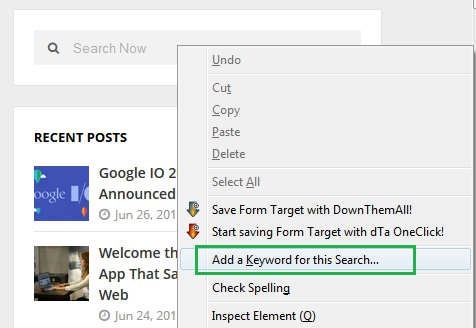
    This a tip most of you might not be knowing, you can add any search box on any website to the Firefox URL address bar in a very handy way. Just go to the any Search Box and simply right-click on it, then click “add a keyword for this search”.

    pic_11


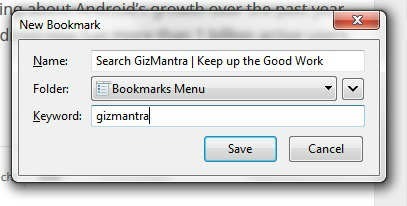
    Then you’ll get a prompt, just name the bookmark, then type in a simple short keyword you can remember.

    pic_1


    Now you can search your favorite site of choice anytime by typing the keyword, followed by what you want to search in the Navigation Bar.

    pic2


    It can save up lots of your time.


    Switch tabs with Keyboard shortcuts

    Instead of moving the mouse and select different tabs that you have open, use the keyboard. use these simple shortcuts:

    • Ctrl+Tab (rotate forward among tabs)
    • Ctrl+Shift+Tab (rotate to the previous tab)
    • Ctrl+1-9 (choose a number to jump to a specific tab)


    Quickly Delete Items from Address Bar History

    When you start typing in the address bar, firefox automatically show previous URLs you’ve visited as drop-down list. But if you want to quickly delete them (You know why?), Go to the address bar, start typing an address, and the drop-down menu will appear with the URLs of pages you’ve visited. Use the down-arrow key to go down to an address you want to delete, and press the Delete key to make it disappear.


    Auto Complete URL

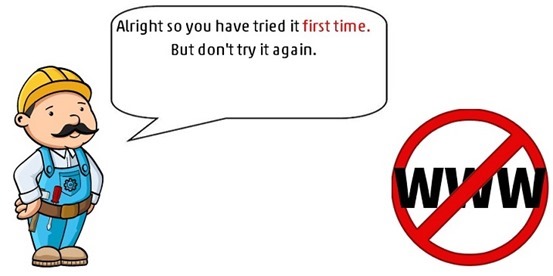
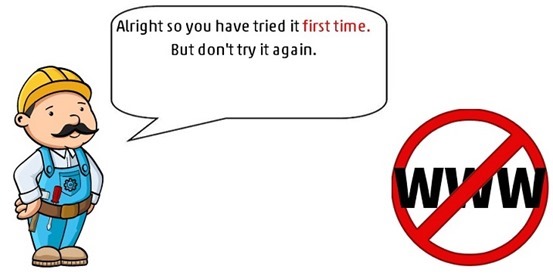
    Most of you as geeks might know this one. Oh ! yeah.  Go to the address bar (Ctrl+L) and type the name of the website without the “www” or the “.com”. Then hit Ctrl+Enter, and it will automatically fill in the “www” and the “.com”. similarly for “.net” addresses, press Shift+Enter, and for “.org” addresses, press Ctrl+Shift+Enter.


    Mouse shortcuts

    These are some simple but useful shortcuts

    • Middle click on link (opens in new tab)
    • Shift+scroll down (previous page)
    • Shift+scroll up (next page)
    • Ctrl+scroll up (decrease text size)
    • Ctrl+scroll down (increase text size)
    • Middle click on a tab (closes tab) [Really useful]


    Open Previously Closed Tab

    If you have closed a tab by mistake, don’t panic! Hit Ctrl+Shift+T. This will open up the last tab you closed. If you keep clicking the shortcut, all your recently closed tabs will open.

    That’s it for now. We’ll keep adding more.

  • 6 Ways to Spot Movies that Worth your Time

    6 Ways to Spot Movies that Worth your Time

    originalRegardless of the race, people have a soft heart on movie viewing. Movies have long been helping people see the world in different light. Unconsciously, it is bridging some cultural and distance gaps between nations. Yet, as a usual scene in life, there are ones made in lesser taste.


    In order to filter the movies that worth your while, money and anticipation, here are some guides to quality movie watching.

    Read Reviews

    It is favorable to check the internet for some movie reviews before jumping in the ticket booth. Though people have different view on beauty, you can somehow gauge the quality of the movie from the review of some essay writers. Meanwhile, be careful not to jump on the sites of spoilers. Otherwise, you will have the most boring film ever made. I can recommend imdb.com and rottentomatoes.com because these two websites are comprehensive and do not spoil the movie.

    Check out Promos

    There is nothing more relaxing than to watch a worth remembering movie free. Check out promos, free screening and phone friends who have access to media. Most of the time, free screening opens during film festivals. Or you can actually join contests to win movie tickets. There bloggers who do this kind of contest. Even the social media account of an upcoming movie sets a contest so that they could give away movie tickets. Just be on a constant look on different social media sites like Facebook.

    Watch Online

    If you are so into upcoming movies, you must pause for a while and do some rewind. Watch movies made before your time and see what’s behind them. You will be surprised to see movies you never imagined have existed. It’s also important to educate yourself about movies made before you were born. You will discover different movies who have moved the society into tears or anger. Who know, you might turn into a movie buff or a cinephiles.

    Watch at off-peak times

    If you are after saving, you can see a movie a week after its first-full show. Most of the time, movie houses slash down prices after the peak. Also, you may try to watch during mid-day so you won’t be wasting your time falling in line with the excited ones. Just manage your schedule accordingly.

    Watch with Friends

    You are not just having a good time, but you are slashing down excess spending if you watch movie with friends. Most of the cinemas are giving away discounts for group viewing, so it’s your chance. Besides, it’s really a good thing to watch a movie with your friends because it will be a form of bonding time. Why not grab it, right? It won’t hurt.

    Watch alone

    If you are about to watch an extra sensible movie, then you must go alone. There are movies that require full attention, so don’t dare bring a girl friend.

    Movie time is always fun to do and you should make it a habit; whether you are watching it on big screen or in the comfort of your home.

    About the Author:

    Lissie Mason majors in Creative Writing. She likes writing, watching movies, travel and three cups of coffee a day. Elizabeth juggles her time between academic works and writing for uk.bestessays.com. Among her favorite films are The Godfather, Inception and 3 Idiots.

  • How to use Whatsapp on your PC/Mac without Bluestacks?

    How to use Whatsapp on your PC/Mac without Bluestacks?

    whatsapp_windows_phone_header_logoWhatsapp is one of the most famous messaging app available for smartphones, so people who don’t own a smartphone like to use it via their laptops or computers. Now if you are one of those people who want to install Whatsapp on their phone without installing Bluestacks or any other App Player or Simulator.

    We know that there are many reasons for not using these players or simulators, they are bulky, they require high configuration, they require graphic cards to run or may be you don’t trust them to be installed on your PC. But Now with this method you don’t need any Graphic Card.

    Things you Need –

    • Working PC with Windows XP/Vista/7/8
    • A Internet connection
    • Mobile number to create your new Whatsapp account (not needed if you already have a Whatsapp account).
    • Wassapp Application

    wassapp_logoWassapp application basically allows any user to chat with his WhatsApp contacts from a computer (using a phone number that has been previously registered in WhatsApp, using a smartphone or any other method).
    Linux and OS X versions will be available soon.


    Here are the easy steps to Download Whatsapp on your PC without using Bluestacks or any other App Player.


    1. First of all Download Wassapp for Windows.
    2. After completeing the download, double click the downloaded file and install the Wassapp application.
    3. When installation is completed open Wassapp using desktop shortcut.
    4. Now enter you mobile number and password.
    5. Then either click on Login or Register. Login if you are already using Whatsapp from your number or register if you don’t have an account.
    6. That’s it, now add you friends to your list using their contacts and chat with them for free.

    NOTE:

    If the phone number was registered on an Android phone, the password is the phone’s IMEI.
    If the phone number was registered on an iPhone, the password if the WiFi MAC address.


    If you are having any problem, feel free to contact.

  • How to Block Websites in Mozilla Firefox or Chrome

    How to Block Websites in Mozilla Firefox or Chrome

    Block websites on chromePerhaps you’re disciplined and want to block a website from yourself. Maybe you’ve the proud owner of a child who surfs the web for less than appropriate material. Whatever the This action will require you to edit your Host file. Your host file is a computer file used to store information on where to find a node on a computer network.

    Method 1 : How to Block websites using hosts file

    1. Open Windows Explorer and type in C:/Windows/System32/drivers/etc. If Windows isn’t installed on the C: drive, substitute the C: for the appropriate drive letter.

    2. Double-click on hosts and open the document using Notepad when Windows prompts you. The hosts file tells the system what it should do when specific domains or IP addresses are accessed. This is the file that you are going to edit.

    If Windows automatically redirects you, or if hosts opens in another program, simply open Notepad (Start -> All Programs -> Accessories -> Notepad) and then go to hosts by clicking File -> Open inside Notepad.

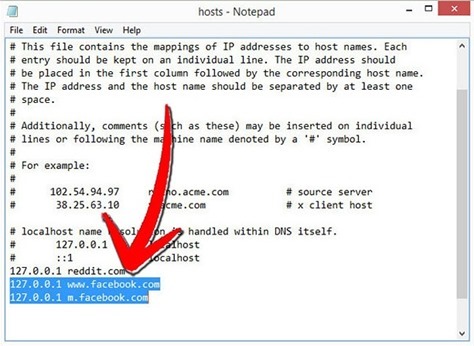
    3. Locate the line “127.0.0.1 localhost” or “::1 localhost.” Put your cursor at the end of whichever line is lowest down.
    Press “Enter” to create a new line.

    Block-website-using-host-file

    4. Type in whichever website or websites you wish to block. You can add any site, but you’ll will need to preface it with “127.0.0.1”.

    To block the website facebook.com for example, just type in “127.0.0.1” followed by a single space, followed by “facebook.com”. Add all of the site’s domains, especially mobile domains, on new lines. Your computer might block “www.facebook.com”, but not “m.facebook.com” if you’re not careful. This is an easy workaround for the experienced computer user.

    5. Click “File -> Save” in order to save the hosts file. If a prompt comes up saying that you cannot save the file because you are not an administrator, you’ll need to change the administrator permissions to include you. To do this:

    Right click on the hosts’ file, choose Properties -> Security and make sure all the boxes are checked in your user account. This should allow you to save the file as an admin.

              Also check -> How to turn off Images and Javascript in Firefox

    Method 2: How to block site using addons(as Block Site, Fox Filter)

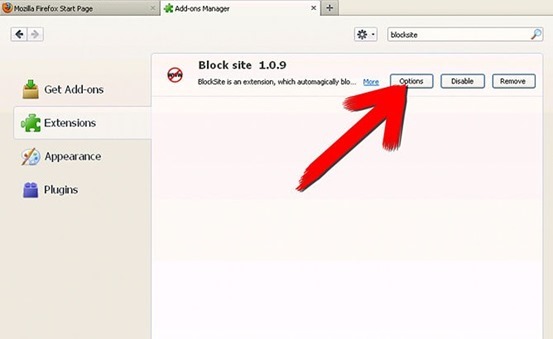
    1. Open Firefox, click “Tools” then “Add-ons.” Click “Get Add-ons” and then “Browse All Add-ons.” Type “blocksite” in the search bar after the Mozilla Firefox add-ons website opens and hit “Enter.”Block-site

    2. Click the “Add to Firefox” button next to the entry for BlockSite. Allow the add-on to load (usually fewer than 5 seconds), then click the “Install Now” button. Restart Firefox when prompted.

    3. Go to “Tools,” then “Add-ons,” then click the BlockSite “Preferences” button after Firefox restarts. Make sure the “Blacklist” radio button is ticked, as well as “Enable BlockSite,” “Enable warning messages” and “Enable link removal.”

    4. Check “Enable authentication,” then enter a password if you would like to keep other users from deleting blocked websites or changing the settings in BlockSite without your permission.

    5. Click the “Add” button, enter the URL of the website you would like to block, then click “OK.” Repeat to add more sites, or click the “Clear” button to delete the list. Once the list of blocked sites is complete, click “OK” and restart Firefox.

    There are many other addons available.

  • How to turn off Images and Javascript in Firefox 23 and above

    How to turn off Images and Javascript in Firefox 23 and above

    firefox-no-imagesFirefox made an update to their desktop browser few months ago and the new versions had some previously visible options removed.

    One of the major functionalities that were disabled are the options to Disable Javascript and also Turn off images. There are a couple of reasons why you might want to turn off your javascript or images such as poor load time due to slow internet speed.

    Disabling JavaScript and Images in Firefox wasn’t actually removed completely but was hidden and removed from the regular user interface. If you know the about:config options, you can find your way through it. (Be Careful !)

    How To Turn Off Images In Firefox Browser 23, 24, 25

    1. In your address bar, type in the word about:config and hit the Enter button.

    2. You’ll land on a page with lots of option in a tabular form. It has numerous rows and four columns of Preferences Name,  Status, Type and Value. In the search box above the table, type in permissions.default.image . The first row that shows up is what we need to edit in order to disable images.

    3. In the permissions.default.image row, the column with title as value has 1. Double click on one and dialogue box would pop up for you to make an entry, change the number 1 to 2 and hit OK.

    4. Hurray, your images would be disabled. To enable your images again, follow the same procedure as above, but change the value from 2 back to 1.

    Are you a Firefox Fan? – Mozilla Firefox : Different by Design 

    How To Disable Javascript In Firefox Browser 23, 24, 25

    1. Following the same method as for images, type about:config and hit the Enter button.

    2. In the search box provided above the table, type in javascript.enabled and the very first row is what we have to edit. In the value row, you’ll see true. Double click on true to change it to False.

    3. As long as the row remains in False, your javascript would be disabled. You can change it back to normal by double clicking to display true.

    There are addons that can help you achieve this, but since we could alter these options manually, its better use that.
    1. Quick Java
    2. Setting Sanity

    Feel free to ask any questions if need be and remember to share this tutorial with your friends.