Tag: how to

  • How to Install Ubuntu Touch 13.10 on Your Phone/Tablet

    How to Install Ubuntu Touch 13.10 on Your Phone/Tablet


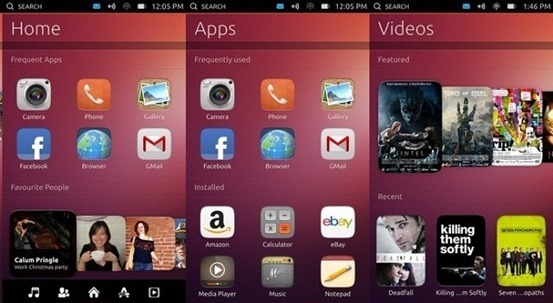
    Ubuntu Touch 13.10 is a new operating system from Canonical aimed at phones, but it’s not as easy installing it on your phone as it is on the desktop.ubuntu-touch-how-to

    Canonical provides all the necessary tools for the installation of Ubuntu Touch 13.10. This is very good news because installing the operating system manually can be a hassle.
    First of all, the operating system can’t be used on just any phone/phablet. For development reasons, Canonical limited its use to Nexus devices:

    Galaxy Nexus – maguro (GSM/HSPA+ Variant)
    Nexus 4 – mako
    Nexus 7 – grouper
    Nexus 10 – manta
    List of other unofficially supported devices

    To install the tools you will need to enter a few easy commands in a terminal:
    sudo add-apt-repository ppa:phablet-team/tools
    sudo apt-get update
    sudo apt-get install phablet-tools android-tools-adb android-tools-fastboot

    Users also have to make sure that their phone is set up for development use. Go to Settings / About Phone and tap the Build number 7 times. A short message will let you know if you’ve taken the right steps.
    ubuntu-touchscreenshot
    From the new menu that has been unlocked through the previous method, Developer options, you have to enable USB debugging. When the option is ticked on the phone, a message that informs the user about a paring will appear. Accept, and now you’re almost ready.
    The last step before starting the installation is to back up your Android. The same adb tools are used. Just open a terminal and enter the following command:
    adb backup -apk -shared –all
    If you’re going to reinstall Android, open a terminal and run this command:
    adb restore backup.ab
    The final command should take care of everything and you should run it with sudo, just to make sure. Open a terminal and enter this command:
    phablet-flash ubuntu-system --no-backup
    The process should run without any problems and the device will eventually boot into Ubuntu Touch. Do not stop the terminal and do not interrupt the process.
    These are the simple steps you have to follow, and they should work on the supported devices without any problems.
  • How to Run Tizen web Application on Emulator

    How to Run Tizen web Application on Emulator

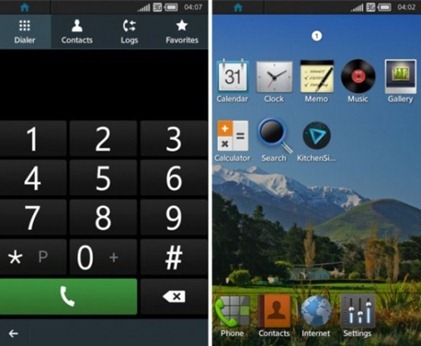
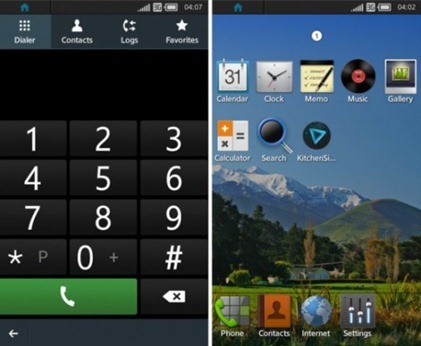
    tizen_smartphone_os-550x452

    Run the TIZEN Emulator.


    In Tizen IDE click of

    Window->Preferences->Tizen SDK->Security Profiles->Add->Enter Any Name as Profile Name.

    Edit Distributor Certificates and Change Password as your wish.

    Generate Author Certificate :

          1. Enter Key filename
          2. Alias
          3. Password (Note:- Distributor and Author password should not be same).
          4. Password confirmation
          5. Others are optional
          6. Click Ok.

    Right-Click on project name in Project Explorer in Tizen IDE.

    Run As -> Tizen Web Application.

  • How to install Tizen SDK

    How to install Tizen SDK

    Step 1 – From TIZEN site (https://developer.tizen.org/downloads/tizen-sdk) download Install Manager and SDK Image for your compatible Platform

    Prerequisites :-

    At least dual-core 2 GHz of CPU

    At least 2 GB of RAM memory

    At least 3 GB of free disk space

    Local administrator authority

    Step 2 – Download the JDK 6 or 7 installer executable for your Windows version

    Step 3 – Set Environmental variable for system path variable and modify path by adding this location path – C:\Windows\System32.

    Step 4 – Set Environmental variable for system path variable and modify path by adding this location path of your Java JDK bin folder in Program files.

    Step 4 – Now Run the Install Manager.

    Click on Advanced.

    In the Advanced Configuration windows, select the SDK Image radio button.

    Click the folder button, browse to the SDK image file, and click OK.

    Click Next.

    Accept the terms and conditions, and click Next.

    Select the components you want to install and click Next.

    Select the SDK home folder and click Install.


    How to Run Tizen web Application on Emulator

    For further details visit:-

    https://developer.tizen.org/downloads/sdk/installing-tizen-sdk

    https://developer.tizen.org/downloads/sdk/installing-sdk/prerequisites-tizen-sdk

  • How to manually Install/uninstall PunkBuster for any game

    How to manually Install/uninstall PunkBuster for any game

    punkbuster-logo

    These simple steps will solves your errors like “punkbuster not initialized” for games like COD 4 or Battlefield.

    The following method will uninstall, clean and reinstall punkbuster files:

    1) First of all, download pbsvc ( http://www.evenbalance.com/downloads/pbsvc/pbsvc.exe ), run it and select “un-install/remove punkbuster”.

    2) pbsvc is now uninstalling punkbuster and if everything is ok, you will have “OK ” in green at the end of every process pbsvc will do.

    3) Now, we’re going to clean the old punkbuster files by deleting the pb directory in your game directory. This way, they will have not any punkbuster files remaining on your computer
    delete the “PB” folder in your game directory
    example:
    Battlefield Bad Company 2 : C:\Program Files\EA Games\Battlefield Bad Company 2
    Call of Duty 4 Modern Warfare : C:\Program Files\Activision\Call of Duty 4 – Modern Warfare
    Call of Duty World at War : C:\Program Files\Activision\Call of Duty – World at War

    4) Now that your computer is clean, we’re going to install punkbuster by running pbsvc again by selecting this time “Install/Re-install Punkbuster service”. Click “Next”.

    5) everything should be ok, you will have “OK ” in green at the end of every process pbsvc will do. Just click “Next ” again.

    6) When it’s finished the following message appears “Tests completed successfully without error”. If you don’t get this message, go to your firewall settings and be sure to allow “pnkbstrA.exe ” and “pnkbstrB.exe ” ( Allowing these process in your firewall wil also solve problems like “PnkbstrB heartbeats stopped etc…”.

    7)Be sure to Restart your computer to finish the reinstallation process.

    Now if you are still having problem, just update manually your punkbuster:

    1) Download pbsetup.

    2) Extract pbsetup from the zip in a random folder( do it, psetup needs temporary files to work correctly )double-click pb setup, windows will probably ask you if you want to allow the program, just allow it and then click “I Agree” at the Punkbuster End user License Agreement.

    3) Click “Ok” at the update request.

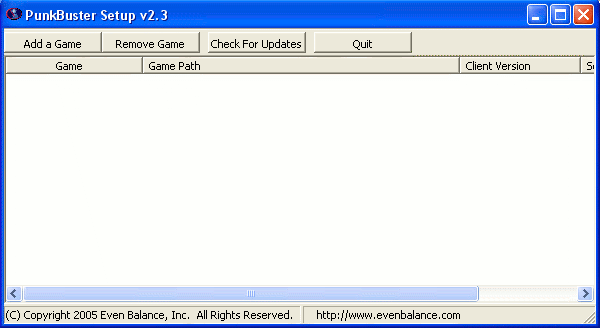
    4) The following windows appears:pbsetup1

    5) Click “Add a game “.

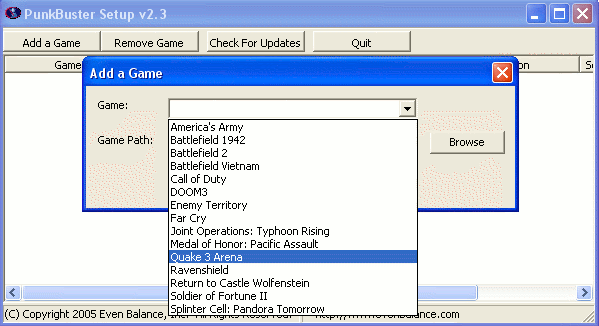
    6) Select a game in the games list ( Battlefield Bad Company 2 for example ), click “Browse ” to select the correct game path:pbsetup2

    7)Click “Add game “.

    8)Your game is now added to the list.

    9)Click “Check for updates”.

    10)PBsetup is now updating your punkbuster files, wait for a while, a windows will appear informing you that your punkbuster files are now updated.

    11)Click Ok, You can now close pbsetup.

  • What is Alexa and how it works

    What is Alexa and how it works

    alexa_rank_increase

    If you are anywhere in field of web development then you might have heard about alexa traffic rank. Ever wondered what is alexa and how it works? How to boost your alexa traffic rank? Here are few facts about Alexa.

    What is Alexa ?


    Alexa Internet, Inc.
    is a California-based subsidiary company of Amazon.com which provides commercial web traffic data. Founded as an independent company in 1996, Alexa was acquired by Amazon in 1999. Its toolbar collects data on browsing behavior and transmits it to the Alexa website, where it is stored and analyzed, forming the basis for the company’s web traffic reporting. As of 2013, Alexa provides traffic data, global rankings and other information on 30 million websites,and its website is visited by over 10 million people monthly.

    What Alexa do ?

    alexa-logoAlexa analyzes web usage from traffic data sources including their own Alexa Toolbar users to eventually create traffic rankings for websites. This essentially determines how popular a website is. Even though these scores are highly respected in certain circles, the traffic data isn’t a representative sample of the global internet population, but an extensive variety of statistics taken from Alexa Toolbar users.
    What is Alexa traffic rank ?

    The Alexa traffic rank is taken over three months from traffic data of millions of users taking into consideration both the number of users who visit that site and the number of pages which are viewed by that user. So this score can change quarterly depending on the views/visits at that time.  A lower Alexa number means a greater level of traffic.

    How Alexa traffic rank works ?

    The traffic rank is based on three months of aggregated historical traffic data from millions of Alexa Toolbar users and data obtained from other, diverse traffic data sources, and is a combined measure of page views and users (reach). As a first step, Alexa computes the reach and number of page views for all sites on the Web on a daily basis. The main Alexa traffic rank is based on a value derived from these two quantities averaged over time (so that the rank of a site reflects both the number of users who visit that site as well as the number of pages on the site viewed by those users). The three-month change is determined by comparing the site’s current rank with its rank from three months ago. For example, on July 1, the three-month change would show the difference between the rank based on traffic during the first quarter of the year and the rank based on traffic during the second quarter.

    What is the Alexa toolbar ?

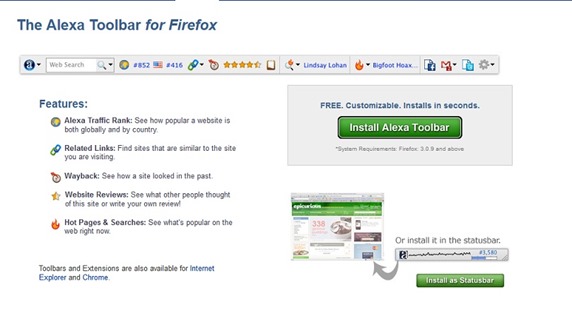
    This is a free tool which you can download that allows you to measure your own traffic and rankings and check out your competitors ranking. How to download and install the Alexa tool bar is very simple.

    Go to Alexa.com/Toolbar  to download the free toolbar for Firefox, Chrome and IE.

    alexa-toolbar-how-to

    This tool bar then shows you two rankings – a rank for the world and a rank for your country.

    This extention is useful because it also gives you a link for search analytics and way back machine link to see view past performances and also the average load time, this compare you to other sites to see how fast your site is loading right there on your toolbar.

    Toolbar Features:
    • Traffic Stats
    • Search Analytics
    • Audience
    • Contact Info
    • Reviews
    • Related Links
    • Clickstream
  • Android 4.3 root using SuperSU via xda

    Android 4.3 root using SuperSU via xda

    android-4.3-rootThe leak stems from a Samsung insider with access to an early build of Android 4.3 (JWR66N) as the company adapts it to run on the phone’s hardware. This insider, who provided screenshots as proof, believes the phone will actually be updated with the latest “Jelly Bean” installment this July. That said, we’ll likely see the HTC One Google Play Edition get the same first-class Android 4.3 love next month along with the Nexus 4, Nexus 7 and Nexus 10.
    Install Android 4.3 on your Galaxy S4
    A recently leaked Samsung firmware based on Android 4.3 (JWR66N for those keeping track) has been found to work pretty darn well on the original TouchWiz-laden Snapdragon-powered Galaxy S4. However it was not rootable until today, and therefore somewhat less viable of an option for those who can’t live without their root applications. Cue XDA Elite Recognized Developer Chainfire and his modified version of SuperSU, which is specially adapted for use with 4.3.

    For this root, SuperSU is running in daemon mode (new feature), and launched during boot.
    The daemon handles all su requests, and while this should mostly work just fine, some apps may expect their su session to be running on the same branch on the process tree as the app that launched the session.

    Whether these changes are due to Samsung or just Android 4.3 in general remains to be seen. But needless to say, once we see a few more 4.3-based firmwares, we will have an answer. There are also some other differences  that will you will want to be aware of, especially those of you using a CWM-based recovery, so I highly recommend checking out that post in full. For how to root android 4.3 follow on.. If you’re currently running the 4.3 leak on your S4, this is probably something you’ve been looking forward to for a few days now. The flashable zip file itself can be downloaded from the Google+ post, and the current SuperSU thread should be used for any related issues.

  • How To Make Android Faster: What Works, And What Doesn’t

    How To Make Android Faster: What Works, And What Doesn’t

    Everyone wants their devices to run faster and scammers prey on that. Recently, a scam app named Android Defrag Pro popped up on Google Play. Android doesn’t need defragmentation, but many users installed it anyway and left positive reviews. Android isn’t like Windows and doesn’t require as much maintenance — still, there are some things you can do to make your device perform faster.

    You may have heard that “Android fragmentation” is a problem, but this refers to the number of devices and versions of Android in the wild – fragmentation on Android’s file system is not a problem.


    What Works – The Basics

    These easy-to-follow tips will work for everyone, no rooting your device required:

    • Optimize Your Home Screens: Loading up your home screens with widgets and live wallpapers will slow things down a bit, particularly if you have an older, slower device. Trim the number of widgets you use and you may see a performance increase – of course, widgets may not slow things down too much, especially if you have a newer device. While animated wallpapers provide eye candy, they may cause your home screens to lag — not to mention the battery life hit.

    • Kill & Uninstall Misbehaving Apps: Task killer apps are unnecessary — we’ll get to that later — because Android normally does a good job of managing processes for you. However, in some cases, an app may misbehave, taking up a lot of CPU time and slowing your system. You can identify these apps from the Task Manager by their high resource usage. You can also use an app like Watchdog Task Manager, which watches for misbehaving apps. After you spot a misbehaving app, kill it. If it continues misbehaving, you should uninstall it.
    • Install a Different Browser: If you’re one of the majority of Android users stuck on an older version of Android, like Gingerbread, you could see a performance increase from installing a new browser. Android’s built-in browser is only updated with the operating system, which means that Gingerbread’s browser hasn’t been updated in a long time. The new Firefox app for Android runs on Gingerbread and seems significantly faster than the built-in browser, in my experience. Users of Android 4.0 Ice Cream Sandwich and above can also try Google Chrome for Android. Opera Mini is another good choice – Opera Mini renders pages on Opera’s servers before sending them to your device, saving your device’s processing power and reducing network usage. Opera Mini will help more with slower devices that take a while to load web pages.


    What Works – The Geekier Stuff

    These tips will require rooting your device or installing a custom ROM – not necessarily for the average user! That said, rooting your Android phone or tablet may be easier than you’d think.

    • Overclock Your Device: Just like with a desktop or laptop computer, you can overclock your Android phone or tablet to speed things up. However, this will require root access. SetCPU is a popular choice for overclocking your device’s CPU. Bear in mind that overclocking can be dangerous – an overclocked phone will generate more heat, and this could result in hardware damage. Overclocking will also decrease your device’s battery life.
    • Install Custom ROMs to Get a Newer Version of Android: Newer versions of Android perform better than older ones. For example, Android 4.1 Jelly Bean is significantly more responsive than older versions thanks to Project Butter, which aimed to dramatically reduce lag. While your phone may not have an official update to a newer version of Android, you can often upgrade by installing a custom ROM. A custom ROM is a new build of the Android operating system, customized for your device and developed by the community. One popular custom ROM that supports a variety of devices is CyanogenMod.

    • Manage Autostart Programs: If you’ve rooted your Android, you can also use an app like Autostarts to manage which apps have permission to automatically start with your device. This can speed up your boot process.

    What Doesn’t Work

    These things just don’t work, or may be counterproductive.

    • Defragment Your Android: For decades, Windows users have been told that defragmenting their hard drives will speed their computer up. With this in mind, it’s no surprise that scammers would create Android defragmenting apps. You don’t need to defragment Android for the same reason you don’t need to defragment a solid-state drive on a Windows computer. The SSD automatically manages where the data gets placed — defragmentation doesn’t speed anything up. In fact, defragmentation can actually harm things – SSDs have a limited amount of write cycles, so defragmentation can reduce the life of your Android’s storage.

    android defrag pro

    • Run a Task Killer: Task killer apps end processes and remove them from memory – this sounds like it should speed things up. However, it may actually slow things down. Android will manage processes for you – processes running in the background don’t use up resources like they do on Windows. While your memory may be full of processes, that’s a good thing – unused memory does nothing, and the apps in memory will load more quickly when you go back to them. When a task killer kills a process, the app will take longer to load next time – it may also start back up immediately, slowing things down. Let Android manage processes for you. The one exception to this is misbehaving processes, which you should kill and uninstall – see the information about that in the basics section above.

    How do you speed up your Android smartphone or tablet? Have you run into any other scams we haven’t mentioned here? Leave a comment and let us know!

  • How to Install Windows 7 From USB Drive

    How to Install Windows 7 From USB Drive

    Here is a easier way to install Windows 7 from a USB Flash drive. Unlike other methods where you have to write complicated commands, this method can be completed even by those who have very little computer background.

    The whole process takes only two steps, run UNetbootin/WIndows USB/DVD Tool, load the Windows 7 ISO file, and finally restart your computer.

    Before you begin, you will require the following:

    USB Flash Drive (4GB minimum)

    Windows 7 ISO Image file

    UNetbootin (Method 1) / Windows 7 USB/DVD Tool (Method 2)

    Step 1 – Creating Bootable USB:

    Method 1- Using UNetbootin:

    Now insert the USB drive, run UNetbootin, and select Disk Image as ISO. Browse your local drive for Windows 7 ISO that you downloaded and click Open. Now Select Type as USB and choose the drive. Once done, it will look like a bit similar to the screenshot shown below.


    Click OK and it will begin extracting all installation files to the USB drive. The whole process will take some time(10-15 minutes), so have patience.


    unetbootin installing windows 7 iso


    Method 2 – Using Windows 7 USB/DVD Tool:

    Download Microsoft’s official tool called Windows 7 USB/DVD Tool.

    Choose the ISO file, then choose the USB drive and then Begin.


    Final Step:

    Once the bootable disk is complete, reboot your computer. Now while your system is starting up press the appropriate button(usually F1, F2, F12, ESC, Backspace, or Escape) to bring up Bios Boot Menu. Change the startup order to boot USB by default, usually you will have to press F6 to move the selected USB device on top. Once done, save changes and restart the system.


    Wasn’t that easy? Enjoy!