 If you are not using a genuine version of Windows 7 or other using a pirated copy. You will notice “This copy of Windows is not genuine “displayed at the bottom of the screen, If you are also facing the same problem then no need to worry about, we have an easy guide that will help you to fix . By providing this guide we are not encouraging or promoting piracy. So, The best way to solve this problem is to buy a genuine copy of windows 7. This guide for the people who can not for any reason are unable to buy brand new windows.
How to fix‘Windows 7 Not Genuine Error’
Method 1: Fix Not Genuine Error using Command Prompt
1, Go to Start menu, type cmd and then right click on cmd and click on the Run as Administrator
2: Now in the command prompt (cmd) window type “SLMGR –REARM”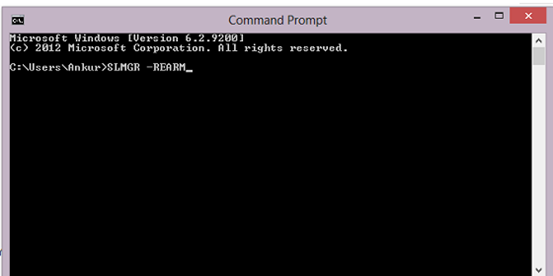
3: Press Enter and wait till it executes
4: Now a dialogue message box will appear asking you to restart your system. Click Ok to restart your system.
5: That’s it. When you restart your system you’ll not see any message like “ Not genuine error” anymore
Method 2: Fix not genuine Error using Remove WAT Utility
1: Download this WAT utility and Extract it
2: Now. Right click on “WAT Remover” and select run as Administrator
3: Now click on Remove WAT
4: Then click on OK to confirm
5: Wait for the process to complete and then restart the computer. .
NOTE : Do not download and install the “KB971033” Windows update as it will nullify the WAT Remover action. It is recommended to disable the Windows Update feature in your PC.
Hope this guide will help you fix the Windows 7 not genuine error. If you face any problem then report to us. We will be very much happy to guide you.
 Here is a easier way to install Windows 7 from a USB Flash drive. Unlike other methods where you have to write complicated commands, this method can be completed even by those who have very little computer background.

_3.png)