Tag: windows

  • Adobe launched Photoshop Express for Windows Phone

    Adobe launched Photoshop Express for Windows Phone

    ps

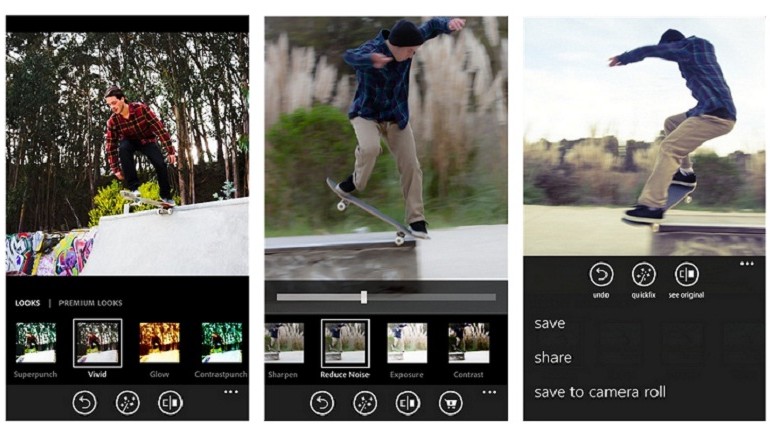
    Adobe launched Photoshop Express for Windows Phone , finally bringing its first image-editing app to the mobile platform.

    The app will follow the same freemium model as the iOS and Android version of Photoshop Express, with basic editing features available for free and more advanced effects available through in-app purchases.


    Now, Get your pictures to pop! And after sharing, you’ll be the talk of your friends. further are features details :

    • Basics: Crop, Straighten, Rotate, and Flip 
your photos. Remove red eye.
    • Auto-Fix: One-touch adjustment for Brightness, Exposure and Shadows.
    • Color: Slider controls for Exposure, Contrast, Clarity, Vibrance and more.
    • One-touch filters “Looks”: Choose from over 20 eye-catching effects!
    • Get creative by adding the Looks Pack* and Noise Reduction Pack*
    • Share easily to social sites like Instagram and Facebook, and via SMS text.

    Photoshop Express makes it really easy to edit photos you take on your Windows Phone device really quickly and comes with the basic photo-editing features you would expect like crop, straighten, rotate, flip, and red-eye removal. You can also alter the color of your photos through slider controls that let you adjust exposure, contrast, clarity, vibrancy, and more. But one of the best things about Photoshop Express is its one-touch filters – called “Looks”. You can choose over 20 Looks for your photos and purchase a Looks Pack and Noise Reduction Pack within the app if you want to really get creative.

    adobe-photoshop-express-app-770x440

    Adobe showed off a new version of Photoshop CC optimized for Surface tablets at Microsoft’s Surface Pro 3 launch last month, but Photoshop Express is the company’s first creative app to make it to Windows Phone.

    The iOS version of Photoshop Express rolled out in 2009, and the Android version followed in 2011.

  • Best Rainmeter Skins for a customized Desktop Experience

    Best Rainmeter Skins for a customized Desktop Experience

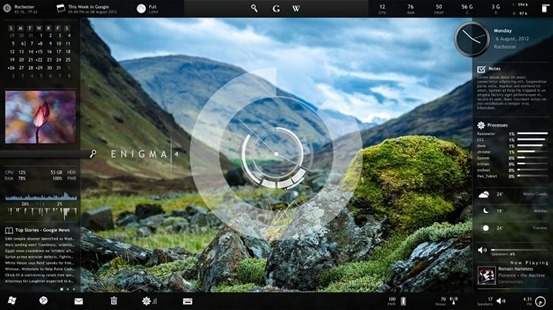
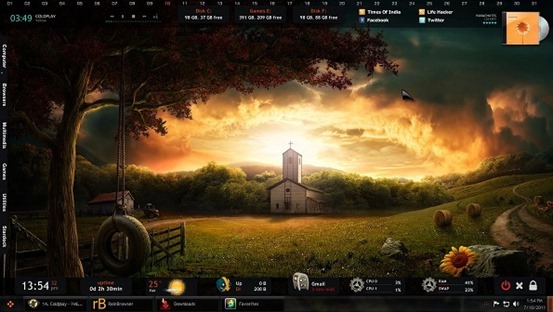
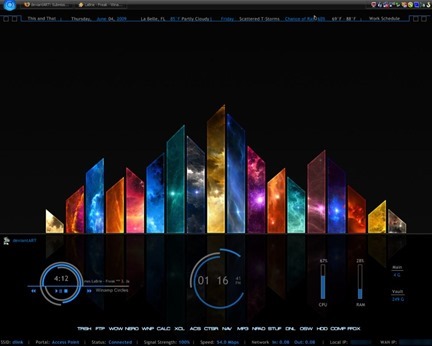
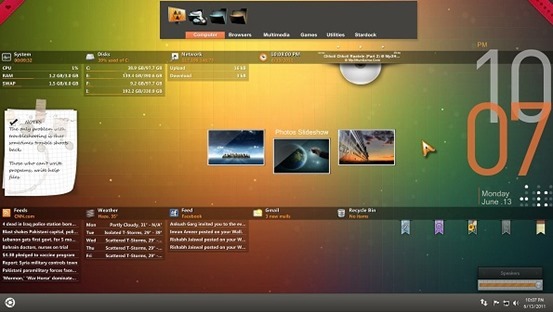
    enigma_by_kaelriWindows Desktop customization app Rainmeter has a pool of various configuration options, informational tools, and settings that let you customize almost every square pixel of your desktop exactly how you like it—plus it looks fantastic. It’s powerful and effective once set up.

    Rainmeter can take a bit of time to set up, so it’s not clear how awesome your desktop can really be if you put your mind to it.

    The primary purpose of this program is to run skins that come in various styles, sizes, user interfaces and levels of complexity with sometimes-interactive window, which appears over the desktop normally, collects and displays information such as RSS feeds, weather forecasts, battery power, control media player and applications etc.; like widgets on an Android run device.

    How to Install Rainmeter and its Skins:

    1) Download Rainmeter.

    2) After installing download Rainmeter skins according to your wish.(or choose from skins given below)

    3) After that press right click and copy all the documents remaining on the desktop but be careful about that all the files should kept in a zipped folder.

    4) Then Copy and paste all those files in the skins folder which will be available to you in the document folder.

    5) Restart the app and then do right click on the tray icon.

    6) Further, select the ‘configuration’ option and enjoy the special experience of new downloaded skins.

    7) Or, you can also right click on the tray icon of Rainmeter and after right click there will be a option of layouts, it will show every installed skins name you can just click anyone you like to apply and after that restart the Rainmeter.

    Here are the best Rainmeter Skins:


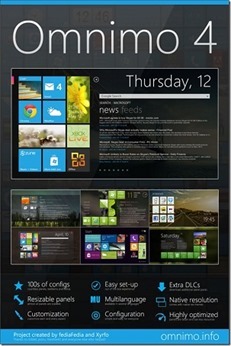
    Omnimo

    OmnimoUIforRainmeter_thumb

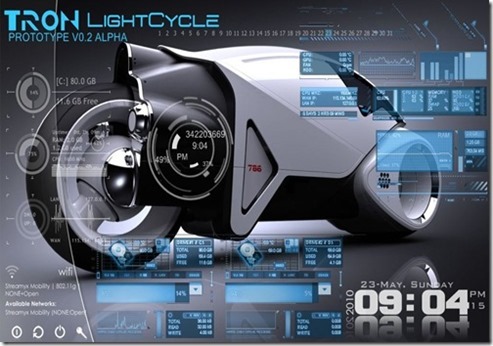
    Tron

    TRON_Theme_Rainmeter_by_oneazam_thumb

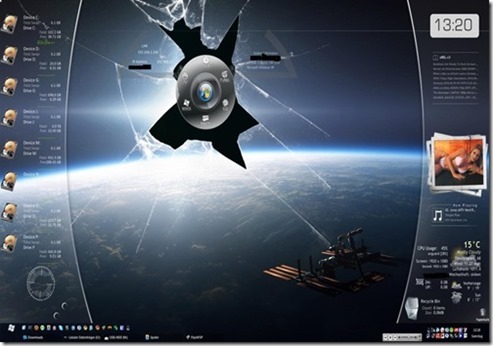
    Rainmeter Desktop

    Rainmeter_Desktop_by_Foxy889_thumb

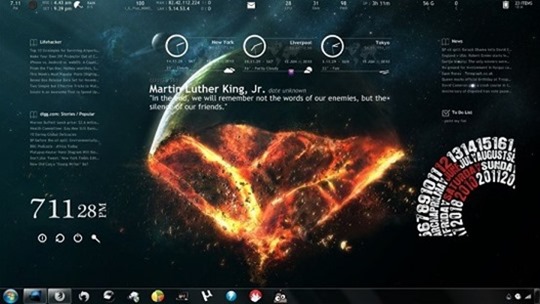
    End of The World

    End_of_The_World_for_Rainmeter_by_dracul91

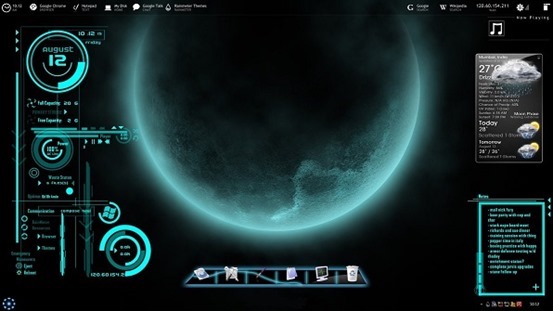
    Futuristica

    futuristica_rainmeter_skin_by_jawzf-d46237r

    Darkness Falls

    rainmeter___darkness_falls_by_iamshobhit-d3lkqv2.png

    Electric Space

    E_lectric_Space_by_Gerguter.png

    Orange Glow

    rainmeter_orange_glow_by_iamshobhit-d3is2kt.png

    There are many other rainmeter skins and themes available. Go, Explore.

    Share your favorite skin with others.

  • Here’s why we like Maxthon Cloud Browser !

    Here’s why we like Maxthon Cloud Browser !

    Banner4Maxthon Cloud Browser is nothing new on the market but it struggled with “the Internet Explorer clone label” but it has been long lost thanks to the interesting multiple features and improvements implemented over the development.

    With version 4.2, Maxthon integrates a tweaked Blink rendering engine in order to infuse increased browsing speeds and faster startup and file download times. With Modern Looks and essential buttons readily available in the toolbar, a multifunctional address bar, and the less used features hidden under the menu button.

    The browser is available both as a desktop version as well as a portable download for Windows PC. Also available for various platforms including Android, Mac, iPhone and Windows Phone.

    So, What we Like about Maxthon ? 

    Maxthon Cloud Services

    Maxthon offers many cloud services in-built with the browser such as:


    • Cloud Push: Supports sending text, images, websites/links and tabs to Mac, Android and Windows operating systems.
    • Cloud Share: Supports sharing text, images, websites/links and files with friends.
    • Cloud Download: Supports downloading files in various formats and uploading them to ‘My Cloud’ for backup on any device.
    • My Cloud Tabs: Lets you pick up where you left off by automatically syncing your tabs to Android, iOS or Mac devices.
    • Cloud Sync: Syncs account data (Favorites, Settings and Magic Fill data) to other devices.

    Also Read: Improve and visualize sleeping habits with Sleep as Android


    Easy Reading Features

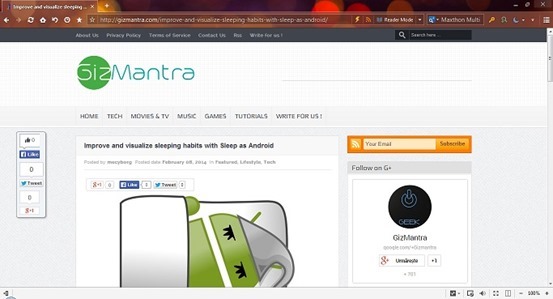
    Reader Mode: Makes it easy to view articles by adjusting font sizes and removing ads and other distractions. It automatically detects long texts in the page and offers the possibility to switch to a view that hides distractions and focuses on content. There are tweaking options as far as the page width, color and font go.

    Night Mode: Adjusts the brightness of the screen for low-light reading. It changes the page colors to fit the contrast between the display and a darker environment. It can be also be scheduled to activate in between specific times.

    screenshot

    More Convenient Browsing

    • Magic Fill: Securely saves the names and passwords of websites you visit and then fills in that information when you return.
    • Ad Hunter (Ad-block): Maxthon removes advertisements with one click, and automatically blocks annoying pop-up windows.
    • New Session: Users and gamers can simultaneously log into the same website with different accounts.
    • Source Sniffer: Extract all photos, embedded videos and audio files from a web page and download them with one click.
    • SkyNote: Save and access text notes anywhere, anytime. You can also sync them across Windows and Android.
    • Snap: Click the camera button in the toolbar to easily and quickly capture a screenshot of the entire web page in one click!
    • “Do Not Track” protects your privacy by preventing ad networks from tracking you.

    Also Read: How to install Ubuntu on your Phone or tablet

    Extension Center

    Maxthon has a diverse selection of extensions for entertainment, information and social media.

    Extensions are easy to install and manage with just one click.


    Security and Privacy

    • Safe site technology identifies websites you are about to visit and lets you know if they are safe and secure.
    • Maxthon blocks malicious websites and phishing attempts for you, automatically.
    • Easily launch a private browsing session that does not track history.

    Free Download

    Maxthon for Windows

    Maxthon for Mac

    Maxthon for iPhone/iPad

    Android Browser

    Windows Phone Store

  • Nokia Lumia 1320 vs Nokia Lumia 625 – The Big Screen War

    Nokia Lumia 1320 vs Nokia Lumia 625 – The Big Screen War

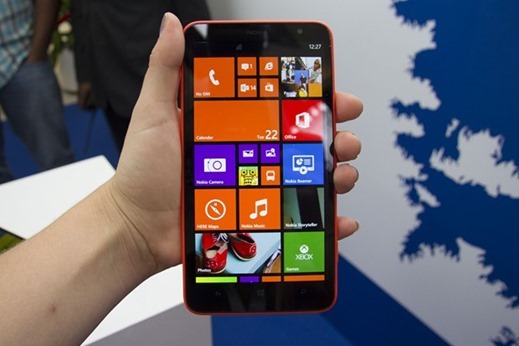
    nokia-lumia-1320The Phablet war is getting extreme day by day in the Indian marketplace. If you are out to buy a smartphone with an extra large display, you can get many offerings around. The Indian smartphone marketplace offers many Phablets by the Indian as well as International manufacturers at various price brackets. It is well known that the South Korean, Samsung is leading the Phablet segment and is closely followed by the Indian brand Micromax. However, both of them use Google’s Android as their OS.

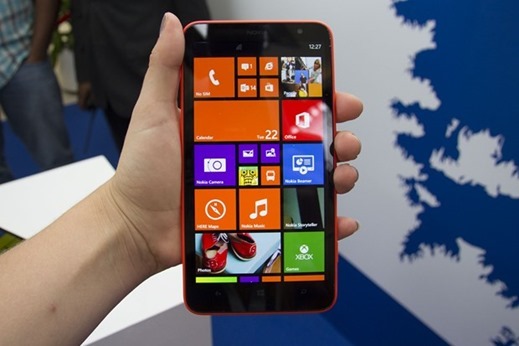
    If you want a Phablet offering something other than Android OS, here is something really good for you. The Finnish manufacturers, Nokia has launched their latest Phablet naming as Nokia Lumia 1320 in Indian market at a price tag of Rs.23, 999. This smartphone sports an extra large 6-inch display which is a treat to your smartphone’s multimedia experience. Earlier, Nokia launched an affordable phablet naming as Nokia Lumia 625 sporting a 4.7-inch display.

    The Nokia Lumia 625 is available at an affordable price tag of around Rs. 15,000, which is much cheaper than Nokia Lumia 1320. But what makes Nokia Lumia 1320 a worth upgrade over Lumia 625, let’s find out here in a quick comparison between Nokia Lumia 1320 and Nokia Lumia 625.

    Display

    Nokia Lumia 1320 sports a brilliant 6-inch ClearBlack IPS LCD Touch Screen, producing a resolution of 1280 x 720 pixels at 244 ppi. Whereas Nokia Lumia 625 sports a 4.7-inch IPS LCD Capacitive touch screen display which produces a resolution of 480 x 800 pixels at 199 ppi. Both these smartphones feature Corning Gorilla Glass 2 protection.

    Hardware configuration & OS

    Nokia Lumia 1320 houses a Qualcomm Snapdragon S4 chipset, Dual Core processor clocked at 1.7GHZ and added with 1GB of RAM. While, Nokia Lumia 625 is powered by a 1.2GHz Qualcomm Snapdragon Dual Core processor coupled with 512MB of RAM. Both these smartphones run on latest Microsoft’s Windows Phone 8 operating System. The Windows Phone Store features many useful applications and addictive games which enhance the Windows Phone experience.

    Camera

    For photography on the go, both Nokia Lumia 1320 and Lumia 625 houses a standard 5 Megapixels Autofocus Rear Camera supported with LED Flash. This rear camera is capable to record Full HD 1080p videos. You can enhance the camera results by downloading useful camera applications by Nokia. These smartphones also carry a VGA camera on their front for video calls.

    Storage

    Nokia Lumia 1320 and Nokia Lumia 625 offer similar 8GB of internal storage memory, which can be expanded further up to 64GB using a MicroSD card.

    Connectivity

    The connectivity features of both these smartphones are almost same including 3G, Bluetooth 4.0, GPS with A-GPS, GLONASS, WI-Fi, WI-Fi hotspot (Internet Sharing), USB 2.0, MicroUSB and 3.5mm audio jack.

    Battery

    Nokia Lumia 1320 is fuelled by a 3400mAH non-removable battery, while Nokia Lumia 625 is fuelled by a comparatively weaker 2000mAH battery. Nokia Lumia 1320 features wireless charging options which is absent on Nokia Lumia 625.

    Verdict

    In the end, it can be clearly stated that Nokia Lumia 1320 is a clean winner because of its bigger & better display, powerful processor, RAM and battery. But on the same time camera, storage memory and connectivity features of both Nokia Lumia 1320 and Lumia 625 are similar.

    The final decision remains in the hands of the buyer. Nokia Lumia 1320 is a perfect buy for those who want an extra large touch screen on their smartphones. It is a complete entertaining device as well. And Nokia Lumia 625 is for them who can adjust their multimedia usage in a 4.7-inch display at an affordable pocket friendly price tag.
  • CES 2014: Asus Transformer Book Duet laptop runs Windows 8.1 and Android

    CES 2014: Asus Transformer Book Duet laptop runs Windows 8.1 and Android

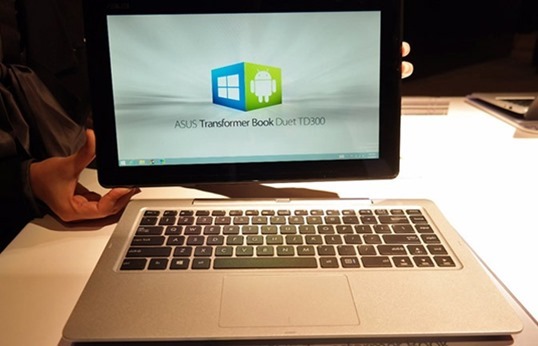
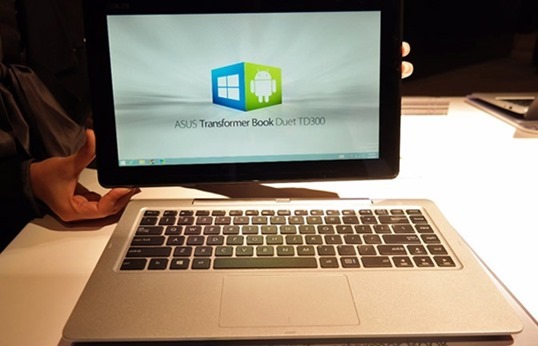
    asus_transformer_ss_2The ASUS Transformer Book Duet TD300 unites Windows 8.1 and Android. Thanks to BlueStacks’ virtualization software, this 13-inch combo tablet-laptop can switch between Microsoft’s and Google operating systems at the press of a button. That gives users access to Word Excel or documents spreadsheets in Windows, and lets them swing a quick game of “Angry Birds: Star Wars” over in Android. With a detachable keyboard dock, the Duet hits high notes on specs: there’s up to a 1TB storage drive, USB 3.0, HDMI and a 1080p display upgrade.
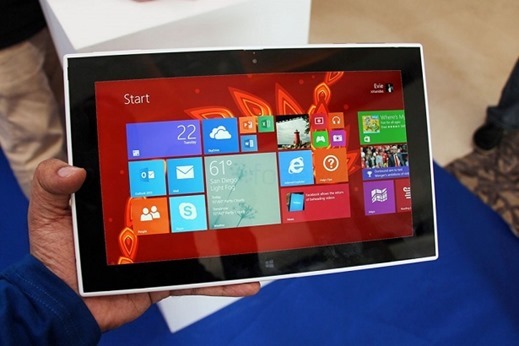
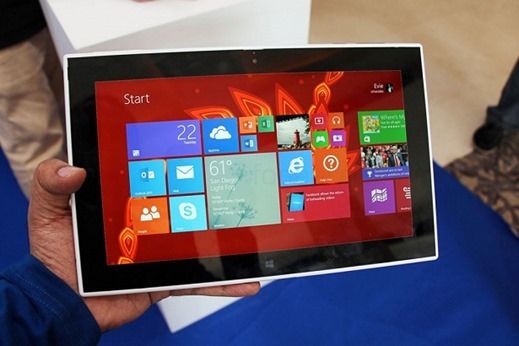
    The Transformer Book Duet also features a microSD card expansion slot, a front-facing camera, and audio enhancing SonicMaster technology to complement the tablet’s dual speakers.

    Though the dual-OS packing convertible tablet is an impressive release, the tablet has a few downsides. It runs an older version of Android (4.1) and, with the dock, it’s a thick and hefty package.As for the hardware, well, this feels like a $599 machine, and that’s actually us being generous. Granted, the build quality is solid, but the textured plastic back has a cheap, hollow feel to it. Also, at 1.9kg (4.2 pounds), it’s rather heavy for a 13-inch laptop, even a touchscreen one, so if you’re going to get this, you better be really excited about the dual-OS feature (and we’re sure some of you are). On the plus side, the tablet itself feels relatively light, given its 13-inch screen size, and for that, we probably do have the plastic construction to thank. Also, keep in mind that that thicker design gets you up to 1TB of storage in the dock, up to 128GB of space in the tablet and nice-to-have ports like an Ethernet jack and full-sized HDMI socket. A fair trade, we’d say.

    As for the hardware, well, this feels like a $599 machine, and that’s actually us being generous. Granted, the build quality is solid, but the textured plastic back has a cheap, hollow feel to it. Also, at 1.9kg (4.2 pounds), it’s rather heavy for a 13-inch laptop, even a touchscreen one, so if you’re going to get this, you better be really excited about the dual-OS feature (and we’re sure some of you are). On the plus side, the tablet itself feels relatively light, given its 13-inch screen size, and for that, we probably do have the plastic construction to thank. Also, keep in mind that that thicker design gets you up to 1TB of storage in the dock, up to 128GB of space in the tablet and nice-to-have ports like an Ethernet jack and full-sized HDMI socket. A fair trade, we’d say.

    Follow it all at CES 2014 on Gizmantra

  • Nokia’s first Windows tablet Lumia 2520

    Nokia’s first Windows tablet Lumia 2520


    nokia-lumia-2520Nokia has expanded its Lumia lineup by introducing a pair of new devices: a larger 6-inch smartphone and an entirely new product for the company, a Windows tablet. Both were revealed at the Finnish company’s Nokia World event in Abu Dhabi. Nokia also made several app announcements for its devices and the Windows Phone platform, the major one involving Instagram — the official word from Nokia is that the photo-sharing app will arrive on Windows-powered mobile devices in “the coming weeks.”
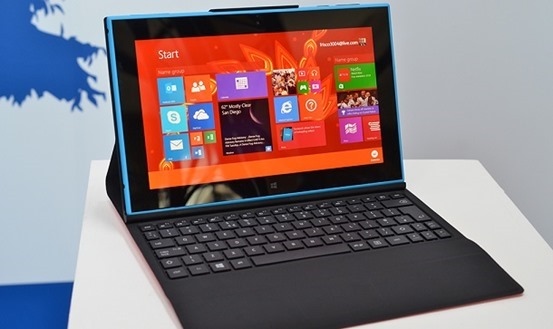
    It’s packing LTE, and a 2.2GHz Snapdragon 800 CPU inside, with a bright 10.1-inch 650nit screen made out of Gorilla Glass 2. Nokia showed off a video demonstrating its outdoor readability in sunny Abu Dhabi, bright enough to check out Flipboard on Windows RT. With 1920 x 1080 display viewing angles are great and the brightness is equally impressive. Color reproduction is incredibly accurate, and it’s clear Nokia has really aimed high with the display on its first tablet.It also packs the Storyteller app seen on the 1520, along with a 6.7MP rear camera featuring Zeiss optics and a 2MP front facing camera.

    As with other Windows RT devices, Nokia’s tablet gets the entire Microsoft Office RT suite with Word, Excel, Powerpoint and now Outlook. You also get some Nokia exclusives, like Nokia Music and the Nokia HERE maps. The company is also offering its own Nokia Power Keyboard, a wraparound cover that functions as a keyboard and trackpad, and will give the tablet five extra hours of battery life.lumia2520-cover

    While the Surface 2 has its own Touch and Type Covers, Nokia has opted for a Power Keyboard. It adds a Surface-like keyboard and trackpad, alongside two USB ports and a boost of five hours to the battery life. Nokia says the Lumia 2520 should get 11 hours by itself, so it’s possible this device will reach 16 hours in total with the cover attached.

    LTE included, the Lumia 2520’s unsubsidized price is $499 in either a red/white glossy finish, or cyan and black matte paintjob when it ships in Q4. Also included are quick charging capabilities that let its 800mAh battery go from drained to 50 percent charge in just 40 minutes. The Nokia Power Keyboard accessory shown above costs an extra $149, and promises an extra five hours of battery life plus two extra USB ports. Check after the break for a full list of specs and a video demo, we’ll have hands-on impressions of the new slate from Nokia World in just a moment.

  • What does Refresh Desktop or Refresh explorer window actually do?

    I am sure that you must have noticed that when you right-click on your Windows desktop or inside an open explorer window, you see an option called Refresh in the context menu. The Refresh option has been there since you can remember!

    But have you really wondered what this option actually does? Does it refresh your Windows OS and keep it running smoothly? Does it make your Windows faster? Or maybe you think it will clear your computer’s memory or refresh the RAM…? Actually it is none of these!

    What does Refresh Desktop or Folder do

    The Desktop is nothing but a folder in the Windows operating system. It is programmed to auto-refresh when its contents change. When the contents of the folder changes, it will auto-refresh. But at times, you may find that the desktop or folder does not auto-refresh.

    You may then need to refresh your desktop manually in the following circumstances:

    • The desktop does not display the files or folders you just created, moved, deleted, renamed or saved on it
    • You need to re-align your desktop icons
    • You find that you cannot use the desktop icons.
    • Files that were created to the desktop by some 3rd-party application do not appear
    • And such similar situations where the contents of the desktop or the folder do not change when expected to.

    In such a case, when you press F5 or right-click on your Windows desktop and select Refresh, the situation will be corrected. Manually refreshing the desktop or folder may re-order its contents as, folders first, then files, in an alphabetical order.

    Why do some people Refresh desktop constantly?

    You may have noticed that some people just refresh their desktops frequently for the sake of refreshing it. It has become almost like a compulsive disorder, to refresh the desktop constantly. You may have noticed this habit especially among some Computer Engineers and Technicians who are obsessed with using the Refresh option – almost in a state of frenzy.

    What is the reason for this? There is no need or reason to do this. It is just a silly habit, they simply need to break.

    Do you have any friends who are in habit of using Refresh Desktop option frequently? Maybe you want to share this post with them.

    Or maybe you too are one of them … if so do try and break this habit! icon wink What does Refresh Desktop or Refresh explorer window actually do?

  • Windows 8 Skin Pack 14 full 32/64 bit for Windows 7,Vista & XP

    Windows 8 Skin Pack 14 full 32/64 bit for Windows 7,Vista & XP

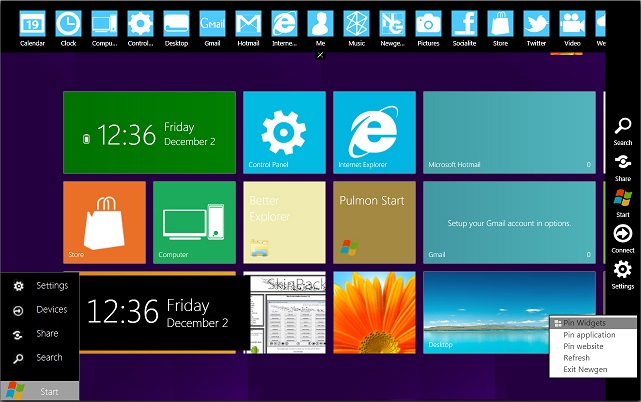
    Transform your windows XP, vista, 7 into windows 8 with latest new Windows 8 transformation pack 14.
    Windows 8 Skin Pack is a customization package that will transform the look and feel of your operating system. The installation is very simple and enables you to choose the elements you want to change. 8 Skin Pack also includes some extras to further enhance the looks of your PC.

    screenshot1Note: The application provides two installation modes. The Quick one will change the user-defined homepage, the browser search engine and will install a browser toolbar. If you do not want any changes to be applied to your system, you are advised to select the Custom installation.

    How to use Whatsapp on PC

    Support:

    [X86_X64] – [All Language] – [All Version]

    • Windows 7
    • Windows Vista
    • Windows XP

                How to Block Websites in Mozilla Firefox or Chrome

    What’s New in This Release:


    • new login screen
    • new start screen
    • new widget
    • new lock screen
    • new boot screen
    • new explorer
    • new start button
    • new wallpaper
    • new brand
    • new logo
    • new style
    • new start menu

    Removed