
Category: Tech

  • Firefox 16 Launches with Developer Toolbar

    Firefox 16 Launches with Developer Toolbar

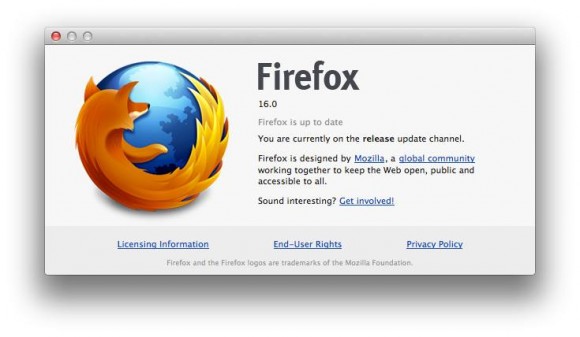
    firefox-09-introWhile this version of the browser only introduces a few new features for consumers, developers can look forward to using Firefox’s new Developer Command Line. The Command Line, says the Firefox team, “provides easy keyboard control over Firefox Developer Tools and is intuitive, completing commands and parameters for you.”

    In addition to this, the latest stable release of Firefox includes a boatload of other developer-oriented features, including CSS3 Animations, Transitions, Transforms, Image Values, IndexedDB and Values and Units. In addition, Firefox 16 gives developers access to the Battery API, which enables them to see a mobile devices’ battery status, as well as the Vibration API. Both are currently making their way through the W3C standardization process.

    For users, the stable release now brings preliminary web app support to Mac, Windows and Linux, as well as initial VoiceOver support for Firefox on OS X. As has often been the case with new Firefox releases since Mozilla moved to this rapid release cycle, there are now major changes to the Firefox user interface.

    Mobile Firefox, which doesn’t always get the credit it deserves, is also getting some new features. Most importantly, Mobile Firefox will now offer a Safari-like, distraction-free reader mode. Just like in Safari, users will now be able to click on the “Reader” icon in Firefox’s URL bar to activate this mode. In addition, Mobile Firefox now also allows you to use the “Share” menu and Firefox Sync to send tabs to your desktop or another mobile device.


    What’s New in Firefox 16

    The release notes for the beta version of Firefox 16 reveal the major changes in the new stable version of the browser. Probably most interesting from a user perspective is the incremental garbage collection that Mozilla integrated into Firefox 16.

    This feature improves the browser’s responsiveness by dividing the work of the garbage collector into smaller pieces. Instead of running the garbage collector for hundreds of milliseconds at a time, the new technology runs it in ten millisecond intervals which do not affect the browser’s responsiveness anymore. If you have noticed lag when moving the mouse for instance from time to time, you may now experience a smoother experience thanks to the incremental nature of the garbage control algorithm.

    The remaining features may appeal to a smaller part of the browser’s audience, but are for the most part not that interesting:

    • Firefox on Mac OS X now has preliminary VoiceOver support turned on by default
    • Initial web app support (Windows/Mac/Linux)
    • Acholi localization added
    • New Developer Toolbar with buttons for quick access to tools, error count for the Web Console, and a new command line for quick keyboard access
    • CSS3 Animations, Transitions, Transforms and Gradients unprefixed in Firefox 16
    • Recently opened files list in Scratchpad implemented
    • Debugger breakpoints do not catch on page reload (783393)
    • No longer supporting MD5 as a hash algorithm in digital signatures (650355)
    • Opus support by default (772341)
    • Reverse animation direction has been implemented (655920)
    • Per tab reporting in about:memory (687724)
    • User Agent strings for pre-release Firefox versions now show only major version (728831)

    Developer Toolbar

    Mozilla has launched a new feature with Firefox 16 called the Developer Toolbar, which comes with what Mozilla calls the Developer Command Line. This is designed to provide easy keyboard control over Firefox developer tools, and it completes commands and parameters for you.

    “In addition, Firefox unprefixes a number of stable features including: CSS3 Animations, Transitions, Transforms, Image Values, IndexedDB and Values and Units,” Mozilla says in a blog post. “Firefox also unprefixes Battery API and Vibration API, two Web APIs that Mozilla helped create.”

    “On mobile, Firefox for Android introduces Reader Mode to make it easier to view, read and share articles and stories from your mobile phone or tablet,” Mozilla adds. “Simply tap the ‘Reader’ icon in the Awesome Bar to activate. This feature provides an enjoyable and clutter-free way to read online content by removing advertisements, reformatting pictures and increasing font size.”

    The toolbar will also show you the errors on a page if there are any. It displays an error indicator next to the web console.

    Simply press shift+F2 to bring the toolbar up.
  • How to Install Windows 7 From USB Drive

    How to Install Windows 7 From USB Drive

    Here is a easier way to install Windows 7 from a USB Flash drive. Unlike other methods where you have to write complicated commands, this method can be completed even by those who have very little computer background.

    The whole process takes only two steps, run UNetbootin/WIndows USB/DVD Tool, load the Windows 7 ISO file, and finally restart your computer.

    Before you begin, you will require the following:

    USB Flash Drive (4GB minimum)

    Windows 7 ISO Image file

    UNetbootin (Method 1) / Windows 7 USB/DVD Tool (Method 2)

    Step 1 – Creating Bootable USB:

    Method 1- Using UNetbootin:

    Now insert the USB drive, run UNetbootin, and select Disk Image as ISO. Browse your local drive for Windows 7 ISO that you downloaded and click Open. Now Select Type as USB and choose the drive. Once done, it will look like a bit similar to the screenshot shown below.


    Click OK and it will begin extracting all installation files to the USB drive. The whole process will take some time(10-15 minutes), so have patience.


    unetbootin installing windows 7 iso


    Method 2 – Using Windows 7 USB/DVD Tool:

    Download Microsoft’s official tool called Windows 7 USB/DVD Tool.

    Choose the ISO file, then choose the USB drive and then Begin.


    Final Step:

    Once the bootable disk is complete, reboot your computer. Now while your system is starting up press the appropriate button(usually F1, F2, F12, ESC, Backspace, or Escape) to bring up Bios Boot Menu. Change the startup order to boot USB by default, usually you will have to press F6 to move the selected USB device on top. Once done, save changes and restart the system.


    Wasn’t that easy? Enjoy!

  • Enjoy Streaming Services Anywhere In the World Using Tunlr

    Enjoy Streaming Services Anywhere In the World Using Tunlr

    Stream video or music, whenever and wherever you want

    Do you want to stream video or audio from U.S.-based on-demand Internet streaming media providers but can’t get in on the fun because you’re living outside the U.S.? Fear not, you have come to the right place. Tunlr lets you stream content from sites like Netflix, Hulu, MTV, CBS, ABC, Pandora and more to your Mac or PC. Want to watch Netflix or HuluPlus on your iPad, AppleTV or XBox 360 even though you’re not in the U.S.? Tunlr lets you do this.


    It’s absolutely free

    That’s right. Tunlr won’t cost you a dime! Our service is absolutely free and without any limitations (some restrictions apply). We also have a strict “no advertisment” policy.

    Easy to setup

    There’s no software to install. You don’t need to create an account with us. No password to remember. Setting up Tunlr is a breeze and you can start watching video or listening to music instantly.

    Streaming in HD quality

    Thanks to Tunlr you will be streaming data
    in the best quality available. Since we don’t route multimedia content over an intermediary network, only the speed
    of your internet connection is the limiting factor.

    Get started with Windows 7

    Please read our FAQ regarding the limitations of our DNS server before you start.

    1. Open Network Connections by clicking the Start button Picture of the Start button, clicking Control Panel, clicking Network and Internet, clicking Network and Sharing Center, and then clicking Manage network connections.
    2. Right-click the connection that you want to change, and then click Properties. If you are prompted for an administrator password or confirmation, type the password or provide confirmation.
    3. Click the Networking tab. Under This connection uses the following items, click  Internet Protocol Version 4 (TCP/IPv4), and then click Properties.
    4. Click Use the following DNS server addresses, and then, in the preferred DNS server and alternate DNS server boxes, type the addresses of the primary and secondary DNS servers.
    5. The primary (preferred) DNS server is 184.82.222.5
    6. The secondary (alternate) DNS server is: 199.167.30.144
    7. Click OK
    8. Reboot your computer
    9. Visit the Tunlr status check page to see if Tunlr is activated.


    Get started with a Mac

    Please read our FAQ regarding the limitations of our DNS server before you start.

    1. Open System Preferences
    2. Open Network
    3. Choose your connected network (i.e. Wi-Fi or Ethernet) in the list on the left
    4. Press the Advanced… button in the lower right
    5. Select the DNS tab
    6. Add the Tunlr DNS IP address using the + button in the lower left
    7. The first Tunlr DNS IP address is 184.82.222.5
    8. The second Tunlr DNS IP address is 199.167.30.144
    9. Drag the Tunlr DNS IP addresses to the top of the list
    10. Click the OK button
    11. Click the Apply button
    12. Restart your computer
    13. Visit the Tunlr status check page to see if Tunlr is activated
  • Download Files from any filesharing site with ease

    Tired of lengthy process of downloading files from FSN or file sharing networks like Rapidshare, Megaupload etc. Now no need to worry any more about downloading files from these file sharing networks. Your all  worries will comes to end as you will complete reading this article. Today i will discuss about a revolutionary software called JDownloader.

    What is JDownloader ?

    JDownloader is a file downloader software like IDM ( internet download manager) or DAP (Download Accelerator Plus) but it is specially designed to download files from 1000′s of File sharing networks like rapidshare,megaupload etc.It allows you to download many files simultaneously and it also allows you to bypass waiting time for many file sharing sites.


           How to use JDownloader ?

    1. Download JDownloader from http://jdownloader.com and install it by following on screen instructions.
    2. After installing it, run the program from the icon on desktop or start menu.
    3. JDownloader mainly has 3 tabs which are listed below
      Download : It will initiate the download process of the file and will show the progress of downloading.
      Link Grabber : It will automatically grab the link of the file if it is copied on File sharing network and gives details about the file.
      Settings : It is used to define additional settings like where to save file or  whether to start the software on start up  or not etc.
    4. Copy download link of the  file hosted on File sharing network. For example i will download a file named screamable.txt which is uplaoded on rapidshare.com.


    5. Jdownloader will  automatically capture the link  by Link Grabber.


    6. Link Grabber will first check the details about file and after checking will display different details like ‘Size of file’.’Host’,Status. etc.*Status is very useful function as if you are downloading a package which contains lots of files ,so status option will first check if all the files are available , this can be helpful if any of the files is missing then you can choose other package and it will eventually save your time and bandwidth.


    7. Then right-click on file name and click ‘continue’.*Select continue with all to download all files or Continue with selected file to             download only the selected files.


    8.  The file will be automatically transferred to Download Tab and it will start downloading.

    9.  You can see the progress of downloading and it also shows other details such as  how much time is left for download to complete


          Some Useful Tips for using the Software


    You can even pause or stop the download in between using the top pane.
     If you are downloading multiple files you can set priority of it by right-clicking on the file and selecting Priority option from drop-      down menu. This can help if you want certain files to be downloaded first.
    So what are you guys waiting for just download the software and start downloading your files from the file sharing networks such as rapidshare, megaupload etc with ease and simplicity.
  • Windows 8 Skin Pack 14 full 32/64 bit for Windows 7,Vista & XP

    Windows 8 Skin Pack 14 full 32/64 bit for Windows 7,Vista & XP

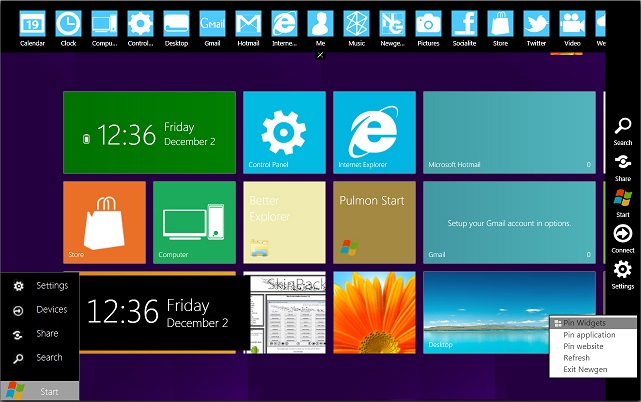
    Transform your windows XP, vista, 7 into windows 8 with latest new Windows 8 transformation pack 14.
    Windows 8 Skin Pack is a customization package that will transform the look and feel of your operating system. The installation is very simple and enables you to choose the elements you want to change. 8 Skin Pack also includes some extras to further enhance the looks of your PC.

    screenshot1Note: The application provides two installation modes. The Quick one will change the user-defined homepage, the browser search engine and will install a browser toolbar. If you do not want any changes to be applied to your system, you are advised to select the Custom installation.

    How to use Whatsapp on PC

    Support:

    [X86_X64] – [All Language] – [All Version]

    • Windows 7
    • Windows Vista
    • Windows XP

                How to Block Websites in Mozilla Firefox or Chrome

    What’s New in This Release:


    • new login screen
    • new start screen
    • new widget
    • new lock screen
    • new boot screen
    • new explorer
    • new start button
    • new wallpaper
    • new brand
    • new logo
    • new style
    • new start menu

    Removed

  • MediaMonkey 4.0.6 Released (Best Music Manager)

    MediaMonkey 4.0.6 Released (Best Music Manager)

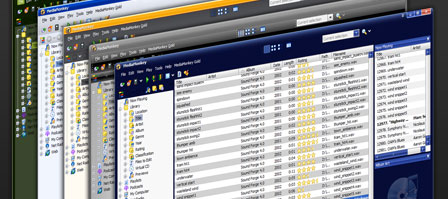
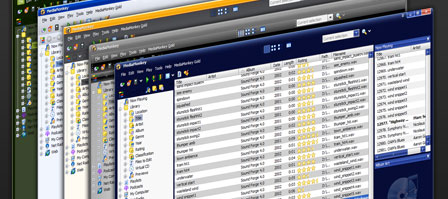
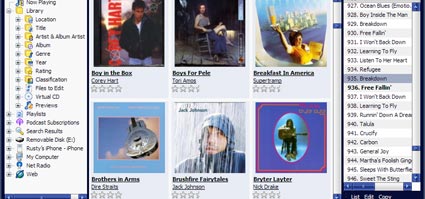
    Ventis Media is proud to announce a new release of MediaMonkey. The new version is a minor update that adds 20 miscellaneous fixes and improvements, including several related to iPhone / iPod synchronization.

    MediaMonkey is the music and movie manager for serious collectors.  It works with your devices (Apple, Android, etc.), your files (MP3, AAC, FLAC, WMA, etc.), with you in full control of how your music is tagged, organized and shared.

    A full changelog is available at:
    ChangeLog

    MediaMonkey 4.0.6 is available for download at:
    Download

    Features:

    Manage 100,000+ music and video files without bogging down.

    Record CDs and download music, movies, and podcasts.

    Automatically lookup and intuitively tag Album Art and other metadata.

    Manage any audio / video genres: Rock, Classical, Audiobooks, Podcasts, Home movies, tv, etc.

    Play MP3s and other audio formats, and never again worry about varying volume.

    Create playlists and let Auto-DJ & Party Mode take care of your party.

    Sync most iPhones, iPods, & MP3 players, converting & leveling tracks on-the-fly.

    Share via DLNA and convert MP3s, M4A, OGG, FLAC, WMA, MP4, AVI, and WMV to support most devices.

    Plus much more…