Tag: android

  • Pirate Bay cofounder is building ‘Heml.is’ an NSA-proof messaging app

    Pirate Bay cofounder is building ‘Heml.is’ an NSA-proof messaging app

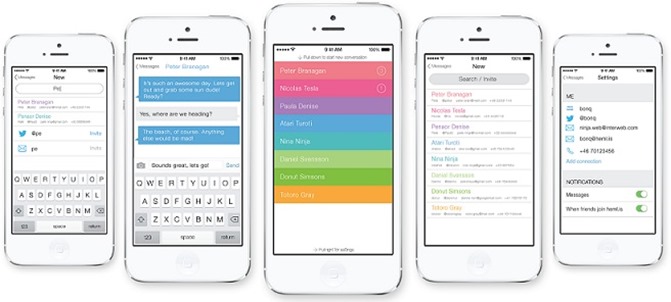
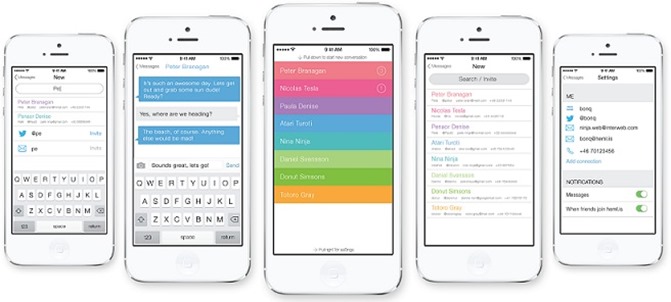
    hemlis_ui_mocksHeml.is (Swedish word for “secret”) is an elegant messaging app for iOS and Android that uses end-to-end encryption to make sure no third party — governments and ISPs included — can intercept the users’ communication.

    Peter Sunde, co-founder of BitTorrent search engine The Pirate Bay, needs your help to create a private messaging app.

    New mobile messaging app that will have superior encryption to prevent pretty much any outside party from listening in on your conversation, he said. 

    Plenty of people are working on making supersecure communication services, but few have the kind of bragging rights that Sunde and Olsson do. Sunde previously attempted to create an ultrasecure cloud storage service, Bay Files, and both he and Olsson also cofounded the ambitious crowdfunded social platform Flattr.

    The app is crowdfunded with a goal of $100,000, with the donation counter currently standing at $27,000. Users who donate $5 or more get unlock codes for the app and other perks, depending on the size of the donation.

    Hemlis will initially be available on iOS and Android The app won’t necessarily be open source because that doesn’t guarantee privacy, but the founders do intend to stay as open as possible with Hemlis’s code. It also said it won’t collect data, sell advertising, or accept funding from investment firms or angel investors. “To guarantee the safety of our users, we can not accept any money ‘with string attached,’” the team wrote in a blog post that was posted recently.

    Why is Heml.is different from WhatsApp, MessageMe, iMessage etc?

    “Our focus is your privacy so we are building everything from software to company structure to protect that. The others are focused on maximising profit.”


    Update (on helm.is blog):

    Funded 100% in 36 hours!
    Wow and incredible thanks to all our backers for funding us in 36 hours! That is one hell of a thing to wake up to. Yeah!
  • Micromax A92 Canvas Lite Now Available For Rs 8,499

    Micromax A92 Canvas Lite Now Available For Rs 8,499

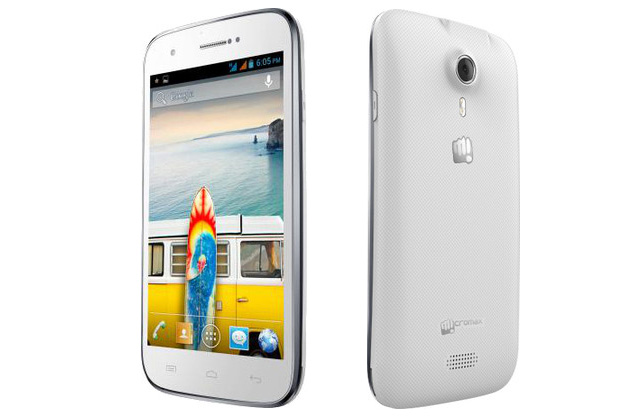
    The price tag is 8,499. The smartphone has features such as 12.7-cm (5-inch) TFT capacitive touch screen display with a resolution of 480X854 pixels.

    It boasts of 1GHz dual-core processor apart from 512MB of RAM. In addition to it, the smartphone has 4GB of internal storage with 0.94GB being user accessible. Moreover, the storage can be increased to 32GB through microSD card. A dual-SIM GSM+GSM smartphone, connectivity options include 3G, Wi-Fi 802.11 b/g/n, Bluetooth and GPS.
    It has a 5 megapixel auto focus camera with LED flash, where the camera can record videos at 30 fps. But, there is no front camera for sure.
    Running on Android 4.1 (Jelly Bean), it has G-Sensor, light sensor and proximity sensor. The smartphone measures 77X147X10.8 mm and is powered by a 2,000mAH battery. According to the company, it provides 6 hours of talk time and 240 hours of standby time on 2G network.

  • Install Android 4.3 on your Galaxy S4

    Install Android 4.3 on your Galaxy S4

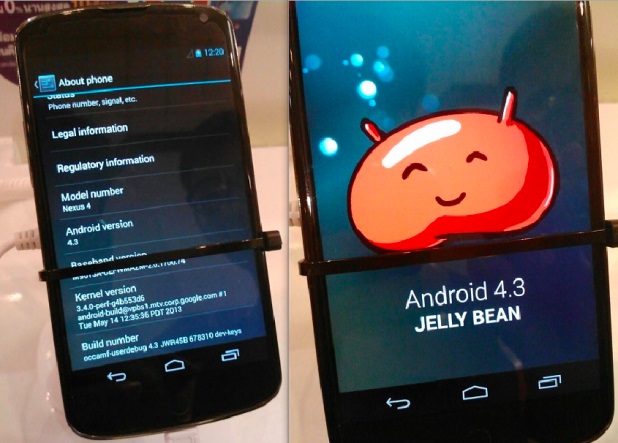
    android 4.3The leak stems from a Samsung insider with access to an early build of Android 4.3 (JWR66N) as the company adapts it to run on the phone’s hardware. This insider, who provided screenshots as proof, believes the phone will actually be updated with the latest “Jelly Bean” installment this July. That said, we’ll likely see the HTC One Google Play Edition get the same first-class Android 4.3 love next month along with the Nexus 4, Nexus 7 and Nexus 10.


    The same source that provided the screenshots and insider info may have provided the firmware to download and test as well. As seen on SamMobile, it’s the very one fitted for the Galaxy S4 Google Play Edition, but the site ported it to a standard Galaxy S4 and reportedly received some “outstanding” results. The port is working perfectly, the site claims; nothing is apparently broken. The build date was June 26, so this firmware is essentially fresh out of the oven.

    -> Android 5.0 “Key Lime Pie” UI Concepts Hitting the Web <-


    Android 4.3 test build firmware for the Google Play Edition Galaxy S4 (GT-I9505G).

    Android 4.3 port from the Google Play Edition Galaxy S4 is fully functional on the standard Snapdragon-powered Galaxy S4 (GT-I9505), there is not even a single thing which isn’t working. No changes to the port, so it’s 100% original with zero changes.

    Note:
    – This is not flashable through Odin.
    – This will void your warranty.
    – Don’t attempt this if you don’t have the skills to flash a custom ROM
    – You are doing this on your own risk

    System details:
    Android version: 4.3
    Build ID: JWR66N
    PDA: I9505GUEUBMFP
    CSC: I9505GXARBMFP
    Build Date: 26 June 2013
    Changelist: 968842

    Requirements:
    – Samsung Galaxy S4 (GT-I9505)
    – Custom Recovery

    Instructions:
    – Copy Google Play Edition ROM to your internal SD Card
    – Enter Recovery (Power + Volume Up + Home)
    – Do a Wipe/Factory Reset (Necessary due to new Android version)
    – Flash Google Play Edition ROM
    – Reboot your device!


    Download: (Choose either one)


    – Android-4.3-I9505GUEUBMFP-Odexed-I9505.zip
    MD5: 363ED9CC32A841A512E72372A19C7D05

    – Android-4.3-I9505GUEUBMFP-Deodexed-I9505.zip
    MD5: 74D241B64266220161018EB98A19F279


    Download and install at your own risk!

    Google hasn’t made Android 4.3 public yet, but it’s good to know that OEMs already have access to the source code. Early access will result in quick software updates and less Android fragmentation. Keep in mind, Android 4.3 is still in development phases and does not have all the features which are yet to be implemented.


    Read Original Thread here

  • HTC Desire 200 entry-level Android smartphone

    HTC Desire 200 entry-level Android smartphone

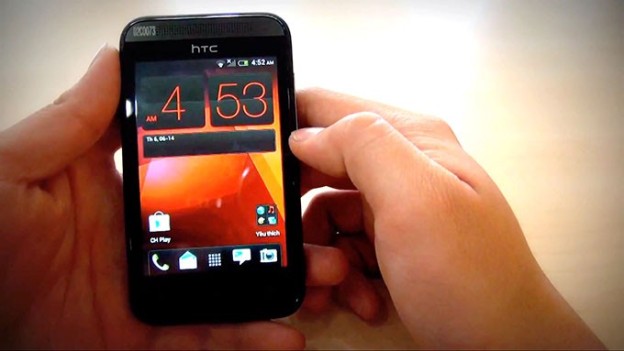
    A new HTC Android smartphone, Desire 200 ,targeted at the budget segment, has made an online appearance in a video even before its launch.

    The phone features a 3.5-inch LCD screen that has a resolution of 320×480 pixels. It’s powered by a 1GHz single-core processor and will have 512MB of RAM. It will come with 4GB internal storage expandable via microSD card and a 1400 mAh battery. The rear camera on the phone would have a 5-megapixel resolution and does not appear to come with a flash. The phone in the video runs Android  4.0 Ice Cream Sandwich but it’s expected that it would come with Android 4.1 (Jelly Bean) or later when it launches. It will feature HTC’s Sense UI layer on top.

    The phone’s earpiece resembles the HTC One’s front speaker grills. It has three capacitive touch buttons below the screen like most recent HTC phones. The phone’s back looks similar to that of the HTC Desire C. It will also feature Beats Audio as apparent from the branding at the back.

  • Apple’s iOS 7 Is Inspired By Android!

    Apple’s iOS 7 Is Inspired By Android!

    One common issue that many had with iOS was that the operating system is the same old for the past so many years. Though the company did release few updates here and there, nothing was exciting enough to satisfy tech enthusiasts. Putting that to rest, Apple released its revamped iOS 7. But, here’s a catch. Business Insider reported that, “Interestingly, if one compares the new look and features to what’s available on Android, it’s easy to see that Apple was “inspired” in no small part by Google’s mobile operating system.”


    Reasons why iOS 7 Is Inspired By Android

    1. Apple has now turned the iOS lock screen into a large digital clock, the date, and a “slide to unlock” area at the bottom, which is pretty much like Android.
    2. Similar to Android, users can now see a preview of each running application.
    3. iOS also offers quick access to settings like Wi-Fi and Bluetooth with a control panel. It has been a feature in Android for quite some time now.
    4. iOS also comes with a new colour scheme and interface in Music, which looks a lot similar to Google’s Music for Android.
    5. It also offers a much advanced and improved handling of notifications, right from the lock screen.
    6. Similar to Android’s Calendar, the new iOS Calendar has a bright white background along with a pastel colour scheme to represent allocated time slots.
    7. Safari’s tabs are more like 3D panels, just like Google’s Chrome browser for Android.

  • 7 Reasons to Root Your Android Device

    7 Reasons to Root Your Android Device

    To root or not to root? That is the question. Rooting your Android device definitely pushes you up a level or two in your geekdom. It requires a certain level of commitment, at least a little savvy, and even a modicum of risk. So, why would you want to trouble?

    We have great reasons for ya.


    What is Rooting ?

    We discuss about rooting plenty around here, but here’s the high-level look for the few remaining uninitiated. Rooting signifies gaining root access to your device. When you take your phone out of the package, while there are plenty of settings you can tweak, you can only alter what the manufacturer allows you to. By gaining root access you can modify the device’s software on the very deepest level. It takes a bit of hacking (some devices more than others), it voids your warranty, and there’s a small chance that you could completely break your phone forever. But you know what? It’s still totally worth it for all the goodies you get access in order to.

    1. The Latest OS Updates

    This may be the most common complaint among Android users, less than half of whom have made it as far as Ice Cream Sandwich. Between the Google, the carriers, and the hardware manufacturers, there are a whole lot of shenanigans behind closed doors that determines when (or if) your phone gets an upgrade. Who has the patience?

    Android’s developer community, on the other hand, is a hardcore bunch. They’re often able to get the new OS onto a phone months before the carrier releases the update, often along with a few bonus features. Once you’re rooted, you just have to find the OS version you want (optimized for your specific device), and it’s generally extremely easy to install the latest and greatest.

    2. Apps Aplenty

    If you’ve spent much time in Google Play, you know you’re not exactly hard-up for good apps. But why settle for good when you can have great. Once you’re rooted not only can you get more apps, but the apps you have access to can get way down deeper into your phone’s brains. In some cases you’ll be able to do things that carriers, manufacturers, and/or Google may not want you to do. Some will allow you to do things of questionable legality. For example, Network Spoofer uses your device to set up a fake wireless network. When your houseguests sign in, you can make ever image they see inverted, or all of the text fuzzy. It’s a harmless prank, but of course it could (but shouldn’t!) also be used for stealing passwords and other nefarious things.

    Where do you find all these root-only gems? Amazingly enough, many of them are still in the Google Play app store. Google’s much more relaxed about rooting than Apple is about jailbreaking. Some apps, like Tasker, work for factory-shipped devices as well, but get expanded superpowers when you root.

    3. Speed/Battery Life Boosts

    9 Reasons to Root Your Android Device

    Phone starting to get laggy? Or maybe you’re having trouble making it through the day on a single charge? Rooting allows you to install customized kernels (the software that enables the OS to talk to the hardware, basically) that are optimized differently. Some are made for low-power consumption, and some are built for speed. You can also use an app like Set CPU, which enables you to overclock or underclock your phone’s processor, and set rules for usage.

    For example, you can set your processors to go into overdrive when you’re playing a graphically intensive game, but have them draw the bare minimum power when the screen is off.

    4. Extreme Customization

    Android is already the most customizable mobile OS out there, which is one of its big draws, but if you root your phone you can really go nuts. If you want a total change, you can download custom ROMs that look nothing like Android at all. Want your device to navigable entirely by gestures? No problem, just install GMD Gesture Control.Prefer a sliding keyboard when you’re in portait mode, but a tapping, predictive keyboard when you’re in landscape. Keyboard Manager will automatically switch between your keyboards of choice whenever you rotate your phone. You can also add features like widgets in your notification bar, or can change the way certain features look or behave, like the lock screen, or notification bar. The sky’s the limit.

    5. Infinite Features

    Beyond just customizing your phone’s existing features, rooting helps you pile on all kinds of wonderful new weirdness. You’ll love it.

    Want to hook up your PlayStation controller to your phone for better gaming? You can. Want to set rules for callers to decide who can and can’t call you when? Why not. Maybe your carrier has blocked certain apps, or an app isn’t available for the country you live in? There are Market Enabler apps that trick your phone (and Google) into thinking it’s on another carrier or in a far off land. Nervous about connecting to the public Wi-Fi? Wifi Protector will keep you safe from all kinds of ARP, DOS, and MITM attacks. Or, you could put the new Android 4.2 camera on your non-Jellybean phone. Accidentally deleted something you wish you hadn’t? Undelete might just save your bacon. The possibilities are virtually limitless.

    6. Better Backup

    9 Reasons to Root Your Android Device

    There are apps out there that kinda back up your phone, but generally it’s pretty surface level stuff (contacts, pictures, music, etc.). Once rooted you can go way, way deeper. Grab an app called Titanium Backup. Not only can it back up all of your apps, but it can back up all of the information stored in those apps. So if you’ve been doing great in Temple Run but you want to wipe your phone and start fresh, you can use Titanium to back up and then restore the game, and you’ll be right where you left off. It’s a nice security blanket if you’re going to be messing around deep in your phone’s brain.

    In spite of all these benefits, only you know whether rooting is right for you. For some people it’s just not worth the time and effort. For others, it’s a godsend that allows them to use their phones in a better way and for a longer time. If you decide to take the plunge, read up and make sure you follow instructions carefully. After that, go hog wild. It’s your phone, after all.

    7. Ditching the Skin

    Android enthusiasts rightly hate the software skins that hardware manufacturers use to brand their devices. They’re often bulky, ugly, unwieldy, or just downright not as clean and functional as stock Android. They’re also a big reason those OS updates take so long. You’re almost always better off without. So root! Once you do, you can download and install any number of custom-built ROMs (different versions of the Android firmware). Some of them are highly customized and tweaked to add features, and others are basically just stock Android. Cleaning off an ugly skin can be like a breath of fresh air.

    –>How To Install A Custom ROM On Your Android <–
  • WeChat Social Messaging App Review

    WeChat Social Messaging App Review

    Networking apps are good to have for connecting with friends while on the go. They are not only easy to use and convenient but also add in an element of fun. While there is no dearth of social applications that allow you to connect with friends, one that has been garnering a lot of attention is WeChat. We decided to find out how good the application was and if it was worth downloading?

    HomeScreen

    Developed by Tencent , the largest Internet company in APAC , We Chat is the only Social Messaging App to offer Video/Audio calling and voice messaging with about 200 million users worldwide. It is a free mobile communication and social networking app for Smart phones with features like Video/Audio Calling, Push-to-Talk Voice Messaging, Group Chat-text & voice (up to 40 people) and Location based friend-discovery social features.

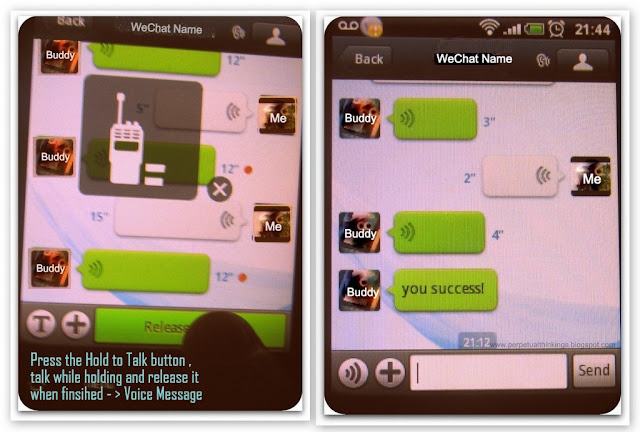
    Features WeChat’s interface is something that will take getting used to. On the homescreen you will find all your contacts who use the application. You can start a conversation with them by simply tapping on their name. You can convert the conversation into group chat by clicking on the face icon on the right hand corner at the top of the screen. Clicking on the keyboard icon will allow you to type a message. This keyboard icon also alternates as the speaker icon to send voice chat when the keyboard is in use. To send a voice message press on the ‘Hold to Talk’ button, you will have to keep it pressed till you are done with the message, simply release to send. Currently you can send messages up to one minute long. You can cancel the recording by an up swipe movement.
    Pros: Apart from the novelty this app offers ,this app has a sound presence with its novelty in chatting as briefed above.To use the best of this app from the android market, you and your friends has to use WeChat and then no one is going to stop you.The speed is fast and sitting from UK , you can send a faster message to Turkey.And if you have connected your FB friends, then be ready for a typing war.It also offers the convince of grouping your friends/family together and then do a group chat. A well designed app for conversation at great speed l. A new feature Video which has been added recently lets you to group video chat. The mobiles in -build camera works at its best for you and you can talk roaming around with just a click on the go. A cool app which is totally free offers you ads-free HD Video Chat.

    Sharing Files and Chatting through PC
    Extendability
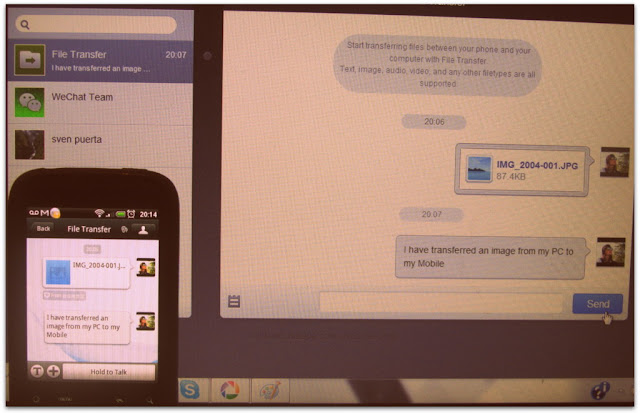
    of using WeChat even from PC through the browser is by scanning the code displayed in web.wechatapp.com .One addition here is “File Transfer” where we can transfer files (text, image, audio, video, and any other file types) between my phone and my computer with File Transfer. We can also to the same with our contacts in WeChat.

    Video Chat and Voice Messaging :
    Another great leap in this social app making it popularity grow very fast. Using this service, it is very easy to send and receive voice messages at greater speed as well as use web cam on the mobile to its best.

    From the above image you can see that to use Voice Messaging, you got to Press& Hold the button on the right side for sending your Voice Message. A sophisticated way of using free Voice Chat on Mobile/Tablet/IOS .
    Video Calling
    To use this free feature, just click on the add button on the lower bar of the app and choose Video Call (see Features and Addition Image above ) .

    Plugins
    With couple of plugins pre-installed plugins, WeChat offers more.Moments , a new plugins uses Face Book like feature with a WeChat cover and options for text ,photo as well video sharing (see “getting social ” image above).

    Cons : Being a Chinese social app , whenever you stumble upon someone or someone stumbles upon you he/she happens to be a Chinese.Rarely we happen to meet an English speaking one.Also, it also surprises you with a ping from unknown people cleverly using this app for inappropriate use and this personally doesn’t work for me.But still, being a part of “look around” and “shake“, it offers loads of fun for people who love to make new friends .If I have to offer one suggestion for improvement, it will be that there should exist a way to acknowledges this app as relevant to Face Book/Twitter and using them for proper use other than unknown flirting hiding their identity .

    Neutral View: As far as the privacy is concerned , unless we allow this app to post on your behalf on the FB wall when used Face Book to sign in, otherwise with use of We Chat ID’s and QR codes , this app is perfectly safe and fine chatting with new people with its Fact sheet

    • Protects user data by offering on-demand contact list backup and retrieval to/from our cloud-based service.
    • Provides a secure and robust social networking platform that emphasizes user privacy and fast response performance.

    When compared to other social apps giants like FaceBook , Twitter, Tango , Palringo , etc that flocks the Internet , Android Markets, Google Play and iTunes , WeChat offers the combined effects/results that all the above specified apps offers. WeChat apps multimedia communication flexibility and convenience offers hassle free text messaging, hold-to-talk voice messaging, Video/Audio calling, broadcast (one-to-many) messaging, photo/video sharing, location sharing, and contact information exchange at all in One.

    Conclusion

    Overall, WeChat is a good option that you can consider if you are looking for a networking app. But considering that there are several other networking apps that have quite established their presence, convincing your friends to switch to WeChat could be challenging. However, the video calling feature is something that can give it an edge over others. And while the app offers the necessary features to network, there are some that you can do without, especially if you are concerned about privacy. Thankfully, you can disable these features and still be able to use the app without a problem. You will however need to get used to the interface. Lastly, even though the app is free it is devoid of ads.

    Click here to download WeChat for Android

    Click here to download WeChat for iPhone

    Click here to download WeChat for BlackBerry

    Click here to download WeChat for Windows

    Click here to download WeChat for Symbian

  • How To Install Android On Your Laptop/Netbook

    How To Install Android On Your Laptop/Netbook

    Install Ice Cream Sandwich, the latest version of Android, on your netbook. Whether you want to play with Google’s mobile operating system or give new life to an otherwise discarded device, Android-x86 gives everyone a way to install Android on Intel netbooks.

    It’s fast. Even better: the latest version of Android-x86 comes with access to the Android Market, something almost impossible to set up on older Intel versions of the software. This means you can try out Android apps before you decide to buy an Android device.

    Heck, your netbook could end up becoming your Android device.

    I showed you how to install Chrome OS on unsupported computers, but some of you complained that it’s little more than a browser. Of course, that’s all Chrome OS is supposed to be, but I understand the disappointment. Android, I think, is a little more exciting. With access to thousands of apps it’s versatile, and its integration with the Google eco-system is much deeper than that of Chrome OS.

    It’s not terribly complicated to install, especially if you’ve installed some form of Linux in the past. Let’s walk through the process, then briefly explore Android on the netbook.


    Step One: Download Androidx86

    To get started, head to the Androidx86 project page. You’ll find the download here, but make sure you download the latest version: 4.0, better known as Ice Cream Sandwich.

    install android on netbook

    There are a few different versions of 4.0 offered. Grab the version that best fits your netbook. Not sure what this is? Google your computer’s model along with “Androidx86″ and see what other people have had luck with. If you own an EEE PC like me, however, you’re in luck: everything works perfectly with the “eeepc” ISO.

    Desktop users: it’s probably not worth trying.


    Step Two: Copy To A Flash Drive

    Now that you found the ISO file you need, it’s time to write it to a USB drive so you can boot from it. There are two main programs for doing this: UNetBootIn, which is cross platform, and Linux Live, which is only for Windows but very straightforward.

    Use whichever you prefer; just copy the contents of the ISO to a flash drive. It doesn’t need to be huge: 1 GB should do it.

    Step Three: Install

    Now that you’ve got your USB drive, it’s time to boot from it. You’ll see this boot screen:

    install android on netbook pc

    If you just want to try out Android, go ahead and select the LiveCD mode. You won’t be able to save any customizing you do, of course, but it’s a good way to see how well Android works on your system.

    If you’d rather get straight to installing Android, go ahead and pick the “Install” option. There’s not a lot of options for dual-botting built into the installer, so be warned: getting that working might take some skills on your part. See the Androidx86 installation instructions for more information. If you don’t care about losing your current OS, though, installation is straight-forward.


    Optional: Install to SD Card

    There’s another way, of course: you can install Android to an SD card. This won’t affect whatever operating system you typically use on your netbook but still lets you keep your apps and settings in place.

    You’ll need a flash drive and an SD card to do this: the flash drive to install Android from and the SD card to install Android onto.

    The process is simple: run the installer, but select your SD card to install to instead of your hard drive. This won’t affect your netbook’s primary drive, giving you a clean dual-boot environment.


    Android on Your Netbook

    So how does it work? Quite well. You can set up your home screen to look however you like, just like on a phone or tablet:

    install android on netbook pc

    You can also browse every app installed on your computer:

    install android on netbook

    Many Google staples are included, along with a number of other utilities and games. The best part: AndroidX86 now comes with access to the Android Market. Not everything will work, but I got my favorites apps working: Dropbox, Evernote, Wunderlist and Toggl. I even found a remote for XBMC that I’ll surely be writing about later. With some help from Google Voice I even got SMS messaging up and running!


    Conclusion

    Why try this? First of all: because it’s fun. Sure, it’s not the same as buying a new Android tablet, but breathing new life into an otherwise idle netbook is cool.

    I’d consider writing a manual about this, if there’s an audience. Would you guys be interested? If so, let me know in the comments below. Also feel free to let me know about any Android apps I should try out on my netbook.

  • How To Make Android Faster: What Works, And What Doesn’t

    How To Make Android Faster: What Works, And What Doesn’t

    Everyone wants their devices to run faster and scammers prey on that. Recently, a scam app named Android Defrag Pro popped up on Google Play. Android doesn’t need defragmentation, but many users installed it anyway and left positive reviews. Android isn’t like Windows and doesn’t require as much maintenance — still, there are some things you can do to make your device perform faster.

    You may have heard that “Android fragmentation” is a problem, but this refers to the number of devices and versions of Android in the wild – fragmentation on Android’s file system is not a problem.


    What Works – The Basics

    These easy-to-follow tips will work for everyone, no rooting your device required:

    • Optimize Your Home Screens: Loading up your home screens with widgets and live wallpapers will slow things down a bit, particularly if you have an older, slower device. Trim the number of widgets you use and you may see a performance increase – of course, widgets may not slow things down too much, especially if you have a newer device. While animated wallpapers provide eye candy, they may cause your home screens to lag — not to mention the battery life hit.

    • Kill & Uninstall Misbehaving Apps: Task killer apps are unnecessary — we’ll get to that later — because Android normally does a good job of managing processes for you. However, in some cases, an app may misbehave, taking up a lot of CPU time and slowing your system. You can identify these apps from the Task Manager by their high resource usage. You can also use an app like Watchdog Task Manager, which watches for misbehaving apps. After you spot a misbehaving app, kill it. If it continues misbehaving, you should uninstall it.
    • Install a Different Browser: If you’re one of the majority of Android users stuck on an older version of Android, like Gingerbread, you could see a performance increase from installing a new browser. Android’s built-in browser is only updated with the operating system, which means that Gingerbread’s browser hasn’t been updated in a long time. The new Firefox app for Android runs on Gingerbread and seems significantly faster than the built-in browser, in my experience. Users of Android 4.0 Ice Cream Sandwich and above can also try Google Chrome for Android. Opera Mini is another good choice – Opera Mini renders pages on Opera’s servers before sending them to your device, saving your device’s processing power and reducing network usage. Opera Mini will help more with slower devices that take a while to load web pages.


    What Works – The Geekier Stuff

    These tips will require rooting your device or installing a custom ROM – not necessarily for the average user! That said, rooting your Android phone or tablet may be easier than you’d think.

    • Overclock Your Device: Just like with a desktop or laptop computer, you can overclock your Android phone or tablet to speed things up. However, this will require root access. SetCPU is a popular choice for overclocking your device’s CPU. Bear in mind that overclocking can be dangerous – an overclocked phone will generate more heat, and this could result in hardware damage. Overclocking will also decrease your device’s battery life.
    • Install Custom ROMs to Get a Newer Version of Android: Newer versions of Android perform better than older ones. For example, Android 4.1 Jelly Bean is significantly more responsive than older versions thanks to Project Butter, which aimed to dramatically reduce lag. While your phone may not have an official update to a newer version of Android, you can often upgrade by installing a custom ROM. A custom ROM is a new build of the Android operating system, customized for your device and developed by the community. One popular custom ROM that supports a variety of devices is CyanogenMod.

    • Manage Autostart Programs: If you’ve rooted your Android, you can also use an app like Autostarts to manage which apps have permission to automatically start with your device. This can speed up your boot process.

    What Doesn’t Work

    These things just don’t work, or may be counterproductive.

    • Defragment Your Android: For decades, Windows users have been told that defragmenting their hard drives will speed their computer up. With this in mind, it’s no surprise that scammers would create Android defragmenting apps. You don’t need to defragment Android for the same reason you don’t need to defragment a solid-state drive on a Windows computer. The SSD automatically manages where the data gets placed — defragmentation doesn’t speed anything up. In fact, defragmentation can actually harm things – SSDs have a limited amount of write cycles, so defragmentation can reduce the life of your Android’s storage.

    android defrag pro

    • Run a Task Killer: Task killer apps end processes and remove them from memory – this sounds like it should speed things up. However, it may actually slow things down. Android will manage processes for you – processes running in the background don’t use up resources like they do on Windows. While your memory may be full of processes, that’s a good thing – unused memory does nothing, and the apps in memory will load more quickly when you go back to them. When a task killer kills a process, the app will take longer to load next time – it may also start back up immediately, slowing things down. Let Android manage processes for you. The one exception to this is misbehaving processes, which you should kill and uninstall – see the information about that in the basics section above.

    How do you speed up your Android smartphone or tablet? Have you run into any other scams we haven’t mentioned here? Leave a comment and let us know!

  • MWC 2013: NVIDIA shows off 5 new Tegra 4 optimized games

    MWC 2013: NVIDIA shows off 5 new Tegra 4 optimized games

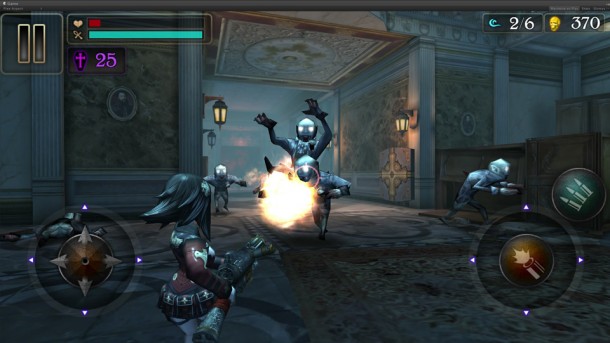
    With the announcement of the new Tegra 4 processor and devices, NVIDIA is looking to showcase what it is capable of by highlighting 5 new Tegra 4 optimized games in TegraZone. Burn Zombie Burn, Carie: Blood Mansion, CODEX: The Warrior, Dead on Arrival 2 and RU Golf have all been updated with enhanced graphics to show off just what makes Tegra 4 so much more appealing over other processors when it comes to playing games. NVIDIA is well known for partnering with game developers to release these high-end titles via the TegraZone, and these will kick it off for Tegra 4.

    More about Tegra 4

    Burn Zombie Burn

    Developer: Tick Tock Games

    Burn Zombie Burn blasts onto the mobile scene for the first time with fast-paced, console-quality action that has you striving to survive against a never-ending horde of zombies. With a slew of weapons available for your zombie-blasting pleasure, you’ll master the art of eradicating the undead.


    Carie: Blood Mansion

    Developer & Publisher: Neowiz

    Tegra device users will get an exclusive map in Carie: Blood Mansion, with even more immersive graphics on Tegra 4 devices. You’ll guide Carie through bloody battles in this action adventure title. Keep an eye on the high-res textures, enhanced physics simulations and optimized fire and smoke effects in the below video.


    CODEX: The Warrior

    CODEX: The Warrior.

    Head-to-head fighting in this RPG title shows off what Tegra 4 is capable of with HDR (High Dynamic Range) lighting throughout.


    Dead on Arrival 2

    Dead on Arrival 2.

    A follow-up to the original, Dead on Arrival 2 adds full map destruction and high resolution models.


    RU Golf

    Developer & Publisher: Nutgee

    RU Golf swung onto the mobile scene last year for Tegra 3-powered devices and will follow through with Tegra 4. Experience mano-a-mano multiplayer online battles with dynamic specular lighting, soft shadows, and bloom and lens flare effects. With various levels and character customizing features, get ready to tee off with RU Golf.

    As you can see from the games above, there’s a lot to look forward to. Now we’ll just patiently (or impatiently) wait for Tegra 4 devices to arrive so we can promptly throw our cash at these upcoming titles!