Category: Tech

  • Microsoft’s Xbox One launched with Kinect and Live Tv

    Microsoft’s Xbox One launched with Kinect and Live Tv

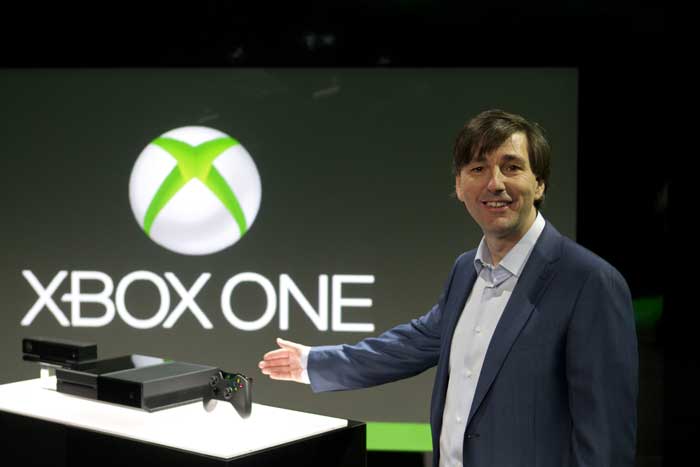
    Eight years, after the launch of the Xbox 360, Microsoft has launched its successor the Xbox One, which it claims is “the all-in-one entertainment console”. The company says that it will be available for sale by the end of this year but it has not yet revealed the price.Microsoft staked a claim to the Internet Age living room with an eagerly awaited Xbox One console touted as a home entertainment hub that goes far beyond games.
    “Today, we put you at the center of a new generation in the living room,” said Don Mattrick, head of Microsoft’s interactive entertainment business, unveiling the new version of the popular game console.

    The Xbox One’s hardware specs:

    While Microsoft said very little during the unveiling itself, the information we do have seems to confirm that the Xbox One is powered by an 8-core x86 AMD CPU, and a GPU that’s very similar to the Radeon 7790. There’s 8GB of DDR3 RAM (shared between the CPU and GPU), 32MB of very fast SRAM on the graphics die, and a total of 200GB of memory bandwidth (more on that later). There’s also some new silicon in Kinect 2.0, which will come with the Xbox One as standard. Rounding out the hardware, there’s a Blu-ray drive, 500GB hard drive, 802.11n WiFi (with WiFi Direct), HDMI in and out, Gigabit Ethernet (yay!), and USB 3.0. There’ll be three 802.11n radios, so that the console can connect to your gamepads (WiFi Direct), mobile devices, and home network without added latency.

    Features:

    Kinect: Kinect sensor has seen some serious upgrades in terms of the the camera and voice control, body movement detection etc and its bundled with the console now. The camera resolution is 1080p and is capable of capturing wide angles. It can also capture video at 60 frames per second. Oh, and the sensor can also read your heartbeat as you exercise, and tell whether you’re smiling or not.You can use the voice control on the Kinect to carry out tasks on the Xbox One such as setting up profiles and even turning the console on. You can also dictate activities to Xbox One. There’s also gesture recognition tech for controlling the system with your hands.

    Snap Mode: This will let you run two activities simultaneously. Skype has also been introduced to Xbox universe and you can make Skype calls while running another activity on the Xbox. The Xbox One also has a distinct Windows 8 user interface, along with the Xbox OS and you can switch between the two.

    New Xbox controller: Not much has changed as far as the controller is concerned, though unlike the Xbox 360 controller which used AA batteries, this will use integrated rechargeable batteries. According to ExpertReviews, the start and the select buttons are gone, replaced two new buttons with which look like they will trigger a menu and multi-tasking respectively.

    Xbox Live:  It comes with a TV guide which users can navigate by voice commands. The TV guide has a trending section that displays the most popular shows among your friends and the entire Xbox community. Instant Switch feature will you make the switch from gaming to Tv with just a voice command as well.

    The console also has deeper Smartglass support, which will let you use your smartphone or tablet on the gaming console to perform secondary functions such as changing channels, etc. There’s also a dedicated game Digital Video recorder to capture and share your winning moments with friends during a game.
  • Intel Haswell : 4th Gen. core CPUs

    Intel Haswell : 4th Gen. core CPUs

    The fourth generation of Core i3, Core i5 and Core i7 CPUs has now been released. Or at least detailed in an official capacity. Oddly enough, the mobile lineup hasn’t been fully detailed, although Intel did share the core features, which we’ll explore separately. The desktop collection has been fully listed, however. There are fourteen chips in the line if we’re reading things right, all but one quad-cores.
    Of those, eight are sure to ship through retail, while the others could be OEM parts, sold only as part of already configured OEM PCs.

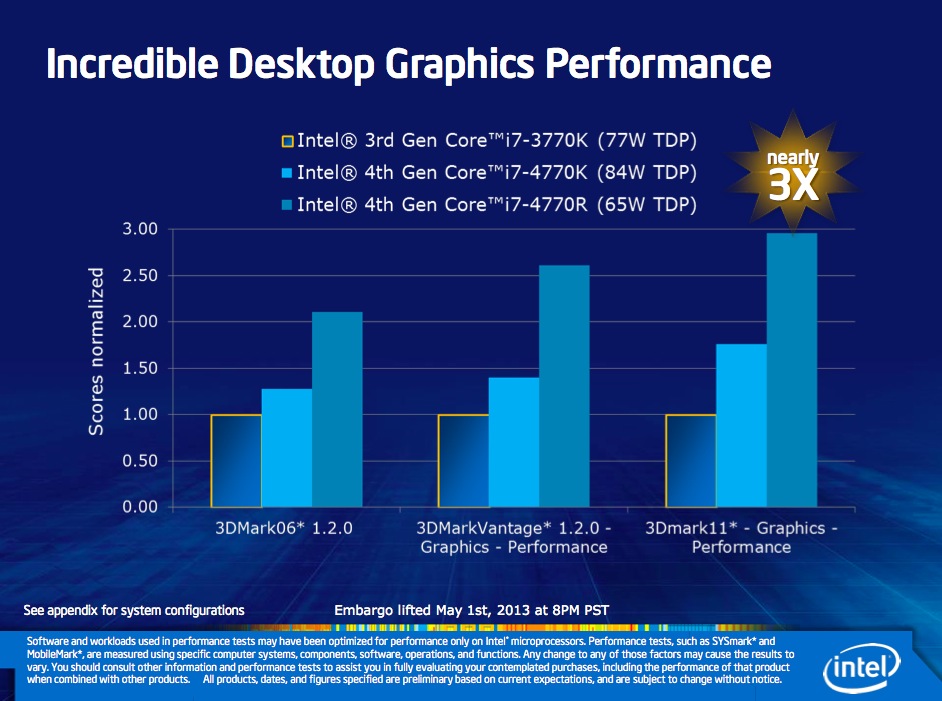
    One new Intel feature for folks wanting to hook up their PC to a quad resolution HD TV Intel’s 4K HDTV capability and an almost 2x improvement in 3D game graphics.  If you get confused over all these Intel generation chips, keep this simple guide in mind: Intel 2rd Generation processors have HD 3000 graphics (that shows up in the computer’s system information) while Intel 3rd Generation chips have HD 4000 graphics and the Intel 4th Generation processors have HD 4600 graphics.

    When combined with Intel’s desktop motherboard DZ87KLT-75K, the new Intel 4th Generation Core i7-4770K 3.5 GHz processor becomes the equivalent of turbo charging every part of your car. The two work in tandem for not just being faster than last year’s 3rd Generation 3770K 3.5 GHz Core i7 processor but also pushing the limits on overclocking (speeding up the frequency) of the CPU (general processing) GPU (graphics performance including video handling) and the system’s RAM memory. I used Kingston’s Hyperx/fb-dimm 2400MHz 16GB kit that let me overclock the RAM from the standard 1333MHz to almost 2400MHz. I was able to overclock this 4th Generation evaluation system to just under 4.5 GHz before my test PC became unstable. I know I know…too geeky. It is what it is!

    As odd as it may sound, only three chips have Hyper-Threading technology (double the number of logical cores vs. physical ones). The big names are Core i7-4770K and Core i7-4770 (quad-core, 8 threads). At the opposite end of the spectrum there is that lone dual-core we have mentioned, Core i5-4570T.All newcomers possess GT2 integrated graphics of varying performance, from 1.15 GHz to 1.25 GHz.
    Speaking of clock speeds, the x86-64 cores themselves range from 2 GHz to 3.5 GHz (base) and 3 GHz to 3.9 GHz (Turbo Boost).
    For those who don’t know, the GT2 graphics chip is also called HD 4600 and has 20 execution units. Other features that all CPUs share include a PCI Express 3.0 controller, 8 MB L3 cache, a dual-channel memory controller and, for the K-series, unlocked multipliers (good for overclocking).

    Haswell is the sort of CPU upgrade we’ve come to expect from Intel: a whole bunch of incremental improvements over last year’s model, all delivered basically on-time and as promised. Again, we’ll need to have test systems in hand to verify all of the lofty claims that the company is making here. But at least on paper, Haswell looks like a big push in the right directions. It increases GPU power to fight off Nvidia and AMD, and it decreases overall power consumption to better battle ARM.

    Unfortunately, the parts that will actually be doing battle with ARM haven’t even been announced yet. Powerful quad-core chips are all well and good, but if you’re waiting to see what Intel has in store for Ultrabooks you’re going to have to wait a bit longer. For our part, we’d guess that Computex will bring those CPUs along with a flood of accompanying Haswell Ultrabooks, convertibles, and tablets. Once we see those computers, we’ll have a better idea of what Haswell can do that Ivy Bridge couldn’t.

    Exact retail availability for the processors has not yet been announced, but expect that information to be available in the coming weeks.

  • Try out the new Future Fox : Australis

    Try out the new Future Fox : Australis

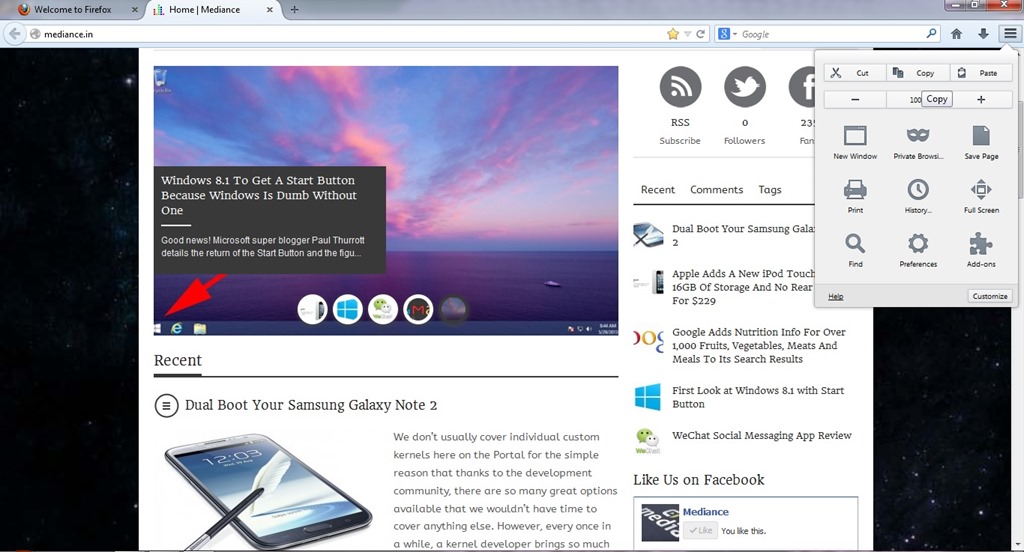
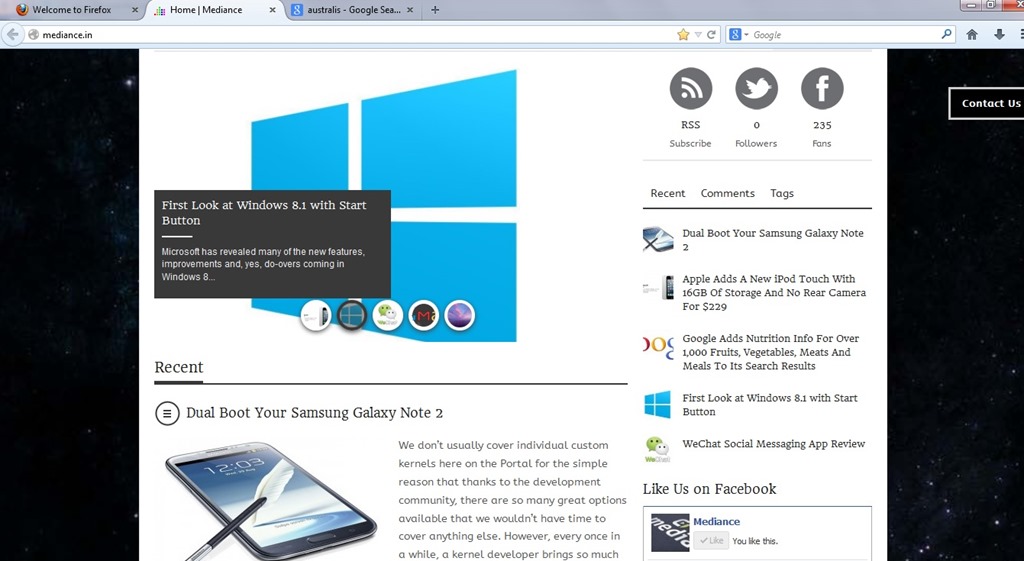
    The new Australis theme has been looming around the heads of the Firefox community for a very long time. Most of what we – that is the public – know about the theme is that it will modify how Firefox looks as it will replace the current default theme when it is released. What many Firefox users may not be aware of though is that Australis is more than just a theme replacement as it will affect the way we customize the browser.
    Australis

    The project that has been guiding Mozilla’s exploration of what a modern browser should look like is Australis (because Mozilla apparently likes to name projects after star systems) and the fruits of this project will soon find their way into the Firefox release channels, starting with Nightly once it hits version 25 soon. After that, it will make its way through the usual release channels, though Nightingale told me that the team may hold it back from the stable channel a bit longer to ensure that everything works smoothly.

    If you feel really adventurous, you can already install a version of Firefox from Mozilla’s relatively obscure UX branch and test it in its current state (but don’t blame us if it crashes a lot or shreds your hard drive).

    firefox1While the main Australis theme won’t land in the stable channel before October. The combined stop/load/reload button in Firefox, for example, came out of this group. So did the new download manager and the fact that Firefox now doesn’t show the forward button anymore when there is no page to go forward to. The customization and tools menu now also uses icons in a three-by-three arrangement and dedicated buttons for copy, select and paste, as well as for increasing font sizes instead of just using a regular drop-down text menu.

    Australis is not just about the design, though. One area that’s also changing with Australis is how you customize the look and feel of your browser. Mozilla currently offers quite a few tools for this, but the team believes they are hard to find and not “fun” enough to use. As Mozilla’s Gavin Sharp told me, the idea here was to get users to enjoy customizing their browsers for the way they use it. Unless users can find these features, though, they could just as well be left out, so the team is working on ways to make it a bit more obvious that users can rearrange and remove virtually all the parts of the Firefox interface to suit their needs.

    ff2Now that Firefox is on a rapid-release schedule, the team obviously can’t change the user interface with every update, so the current thinking is to roll some things out together once they are ready and, where it makes sense, roll others out individually. This means that while we’ll see Australis and its curvy tabs in the nightlies of Firefox 25 very soon, it may not actually land in the stable version of Firefox 25.

  • First Look at Windows 8.1 with Start Button

    First Look at Windows 8.1 with Start Button

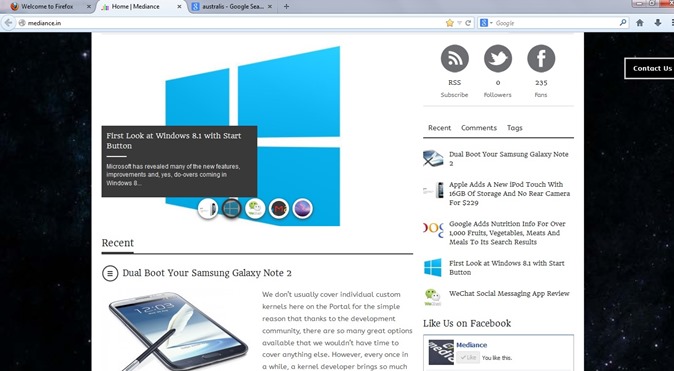
    Microsoft has revealed many of the new features, improvements and, yes, do-overs coming in Windows 8.1, the first major upgrade to Windows 8. Formerly called “Windows Blue,” Windows 8.1 has three main themes: making the user interface more friendly, adding new abilities and — perhaps most important — including support for smaller-screen devices.

    The update, which Microsoft is showing off in a preview today, remains touch-forward, while making more concessions to keyboard and mouse users. It’s designed to work better on smaller screens, and large desktop displays as well. It makes much greater use of features like Search and SkyDrive, and tries even harder to be a truly Internet-driven platform. But it also makes getting to your installed apps easier, and swapping from the desktop to the Start screen a more grounded experience. The Start button is back (sort of) but there’s no Start Menu.

    So, what are the Improvements !!

    Finally, Start Button Returns: Perhaps the biggest change, at least philosophically, is the return of the Start button in the desktop environment. Windows 8 famously killed off the Start button when it built the new operating system around the Start screen, which is basically a supercharged Start menu with a touch-first user interface. Users protested, though, and Microsoft has brought the button back in Windows 8.1, although it’s simply a visual cue for how to get back to the Start screen.

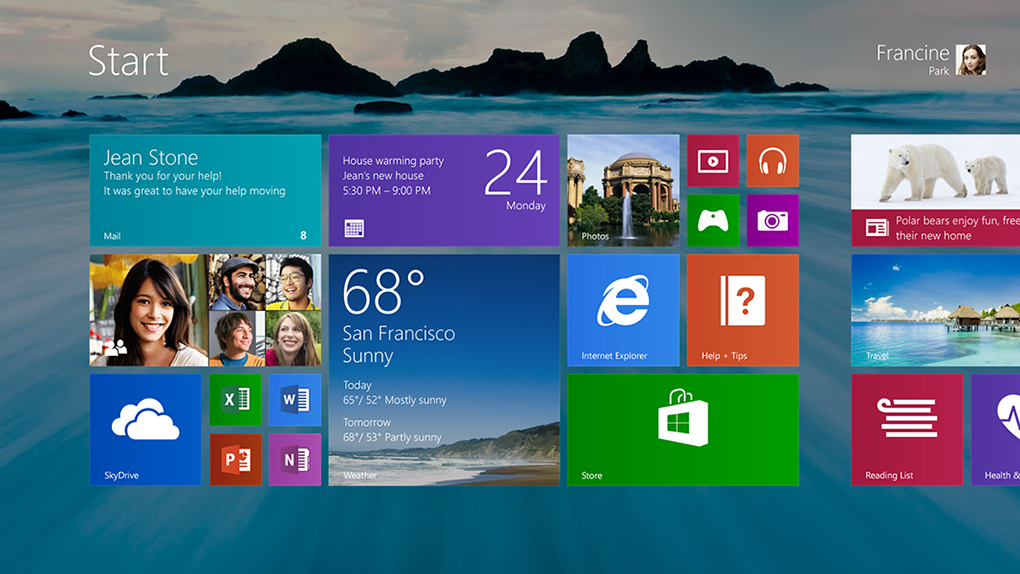
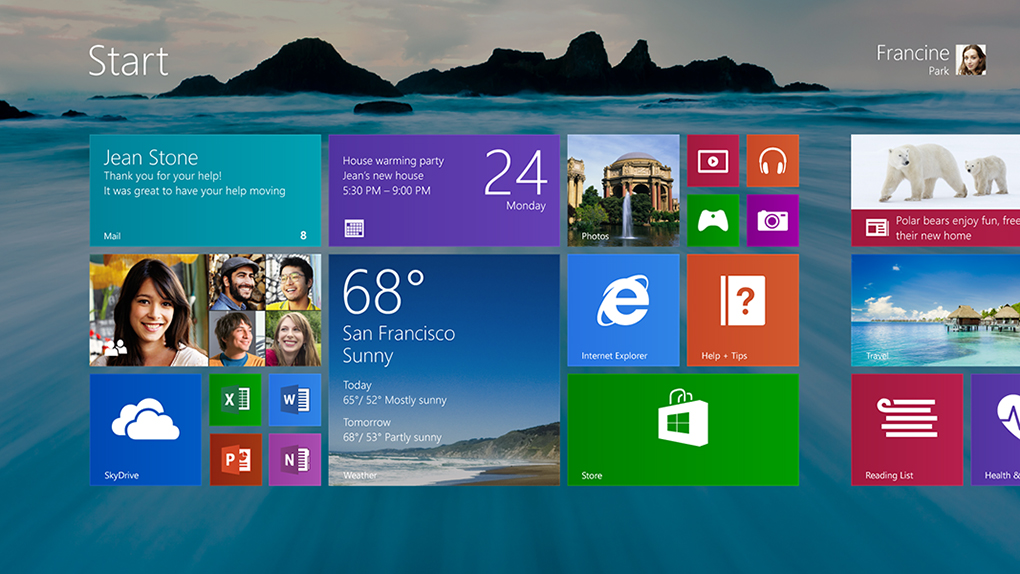
    New Live Tile Sizes: Windows 8.1 will offer users both an extra-small and extra-large size for live tiles (see below). The extra-large size is intended for apps that a user opens the most, or simply wants to see more information on the tile. For example, the weather app will show more forecast data in the extra-large size, which takes up the same room as two large tiles. Microsoft expects power users will like the tiny live tile. It allows users to fit four app icons in the same space where there used to be just one. Since Windows 8 doesn’t have “folders” for the Start screen, the extra-small tile is a decent substitute.

    Downloaded Apps No Longer Pin to Start: In Windows 8, apps automatically pin themselves to the Start screen. In Windows 8.1, that will no longer happen, which will theoretically lead to a neater Start screen for most users. Microsoft said the automatic pinning often led to a morass of downloaded-and-forgotten apps populating the center of many users’ Start screens.

    All Apps Gesture: Going hand-in-hand with the “no pinning” change, there’s now a fast way to see the All Apps screen — just swipe up. From there, it’s easy to find an app and pin it with new sorting tools that let you list apps by name, category or most recently downloaded.

    Auto Updates: No more manual app updates! With Windows 8.1, all your apps will simply update themselves in the middle of the night when downloads are available.

    Boot to Desktop: In Windows 8.1, users will now be able to change settings to save them the single click they needed to perform in Windows 8 to take them to the desktop environment.

    More Colors, More Textures: Whereas Windows 8 gave the user a very limited selection of color themes, Windows 8.1 allows a much wider variety of options. There are many more textures, too.

    Desktop Background Image on Start: The Start screen in Windows 8.1 can now mirror the background image from the desktop environment, which should help reassure some users that the new UI isn’t an alien world that’s completely separate from the desktop.

    New Features included !!

    Global Search: Microsoft has greatly enhanced the device’s built-in search, one of the most-used functions in the Charms menu. In Windows 8.1, it’ll function more like an omnibox, incorporating apps, documents as well as web content in results.

    Snap Upgrade: Snap is what allows two apps to run on the screen at the same time, with one of the apps off to the side in a window that takes up 25% of the display. That percentage is much more flexible in Windows 8.1 (see below), letting users split the screen up any number of ways — 50/50, 60/40, 70/30, or anything in between.

    Better Multi-Monitor Support: A new Settings app, with moves several functions from the desktop to the modern UI, includes more options for multi-monitor setups and allowing users to set the resolution of secondary monitors manually if they wish.

    Reading List: In any app with content (including Internet Explorer), users will be able to save that content to a Reading List. It works with news apps like The New York Times and Microsoft’s home-grown ones as well as web pages.

    IE Improvements: IE in Windows 8.1 supports unlimited tabs. Also, your open tabs will sync across devices, and you can make live tiles out of websites — real live tiles, with updating content — as long as the developer has included them.

    Active Lock Screen: The lock screen supports an intelligent slide show that can do things like display photos from exactly a year ago. You’ll also be able to take a Skype call without unlocking the device.

    App Syncing Across Devices: When you log into a second Windows 8.1 device, the same apps you have on your first one will automatically download and sync. Similar to iOS, you’ll be able to opt individual apps and devices out of syncing.

    Deeper SkyDrive Integration: SkyDrive becomes the default for saving all documents. Any and all files stored in SkyDrive can be made available offline by mirroring the content to your PC.

    Photo Editing: The Photos app gets basic photo editing in Windows 8.1.

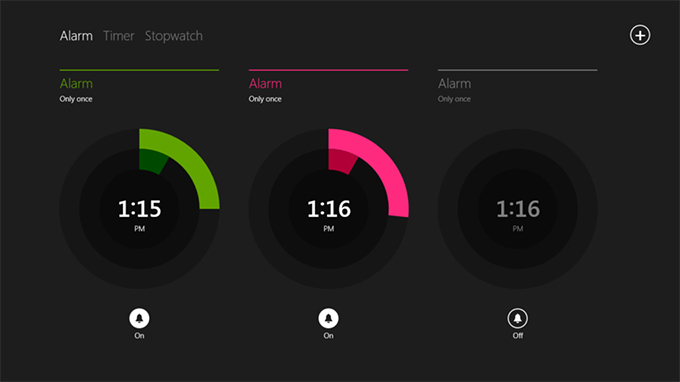
    New Microsoft Apps: Windows 8.1 introduces new Microsoft apps including a Calculator, and Alarm, Food & Drink (which has a nifty hands-free recipe mode that lets you wave your hand to advance to the next step) and Health & Fitness (with a WebMD-esque symptom tracker).

    Apps Enhancements: The Xbox-branded apps for Music, Video and Games all introduce new features that bring you to the content you interact with the most. News and Sports have similar enhancements, including customized sections and making stories and stats on your favorite teams more prominent.

  • WeChat Social Messaging App Review

    WeChat Social Messaging App Review

    Networking apps are good to have for connecting with friends while on the go. They are not only easy to use and convenient but also add in an element of fun. While there is no dearth of social applications that allow you to connect with friends, one that has been garnering a lot of attention is WeChat. We decided to find out how good the application was and if it was worth downloading?

    HomeScreen

    Developed by Tencent , the largest Internet company in APAC , We Chat is the only Social Messaging App to offer Video/Audio calling and voice messaging with about 200 million users worldwide. It is a free mobile communication and social networking app for Smart phones with features like Video/Audio Calling, Push-to-Talk Voice Messaging, Group Chat-text & voice (up to 40 people) and Location based friend-discovery social features.

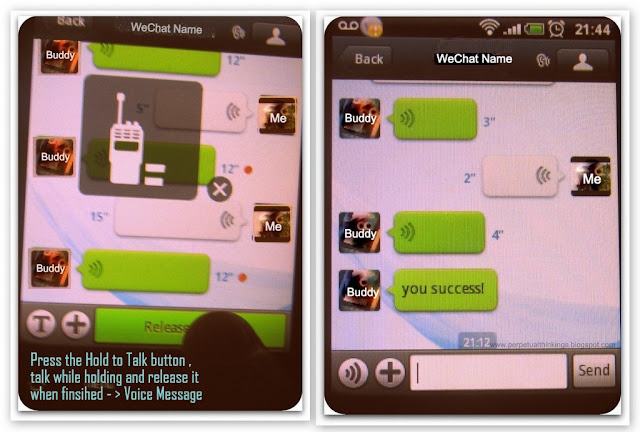
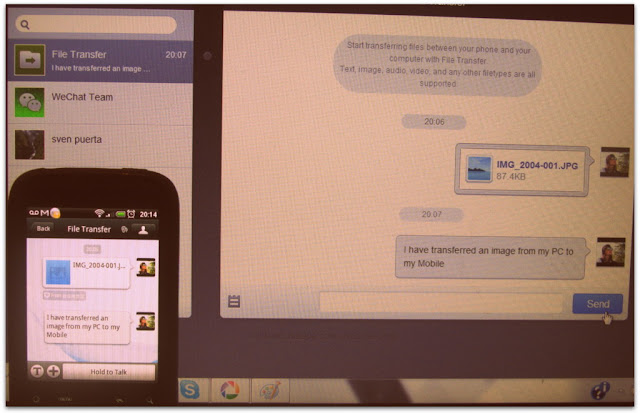
    Features WeChat’s interface is something that will take getting used to. On the homescreen you will find all your contacts who use the application. You can start a conversation with them by simply tapping on their name. You can convert the conversation into group chat by clicking on the face icon on the right hand corner at the top of the screen. Clicking on the keyboard icon will allow you to type a message. This keyboard icon also alternates as the speaker icon to send voice chat when the keyboard is in use. To send a voice message press on the ‘Hold to Talk’ button, you will have to keep it pressed till you are done with the message, simply release to send. Currently you can send messages up to one minute long. You can cancel the recording by an up swipe movement.
    Pros: Apart from the novelty this app offers ,this app has a sound presence with its novelty in chatting as briefed above.To use the best of this app from the android market, you and your friends has to use WeChat and then no one is going to stop you.The speed is fast and sitting from UK , you can send a faster message to Turkey.And if you have connected your FB friends, then be ready for a typing war.It also offers the convince of grouping your friends/family together and then do a group chat. A well designed app for conversation at great speed l. A new feature Video which has been added recently lets you to group video chat. The mobiles in -build camera works at its best for you and you can talk roaming around with just a click on the go. A cool app which is totally free offers you ads-free HD Video Chat.

    Sharing Files and Chatting through PC
    Extendability
    of using WeChat even from PC through the browser is by scanning the code displayed in web.wechatapp.com .One addition here is “File Transfer” where we can transfer files (text, image, audio, video, and any other file types) between my phone and my computer with File Transfer. We can also to the same with our contacts in WeChat.

    Video Chat and Voice Messaging :
    Another great leap in this social app making it popularity grow very fast. Using this service, it is very easy to send and receive voice messages at greater speed as well as use web cam on the mobile to its best.

    From the above image you can see that to use Voice Messaging, you got to Press& Hold the button on the right side for sending your Voice Message. A sophisticated way of using free Voice Chat on Mobile/Tablet/IOS .
    Video Calling
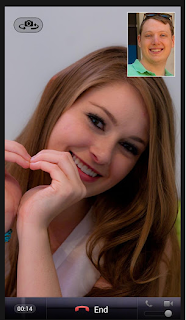
    To use this free feature, just click on the add button on the lower bar of the app and choose Video Call (see Features and Addition Image above ) .

    Plugins
    With couple of plugins pre-installed plugins, WeChat offers more.Moments , a new plugins uses Face Book like feature with a WeChat cover and options for text ,photo as well video sharing (see “getting social ” image above).

    Cons : Being a Chinese social app , whenever you stumble upon someone or someone stumbles upon you he/she happens to be a Chinese.Rarely we happen to meet an English speaking one.Also, it also surprises you with a ping from unknown people cleverly using this app for inappropriate use and this personally doesn’t work for me.But still, being a part of “look around” and “shake“, it offers loads of fun for people who love to make new friends .If I have to offer one suggestion for improvement, it will be that there should exist a way to acknowledges this app as relevant to Face Book/Twitter and using them for proper use other than unknown flirting hiding their identity .

    Neutral View: As far as the privacy is concerned , unless we allow this app to post on your behalf on the FB wall when used Face Book to sign in, otherwise with use of We Chat ID’s and QR codes , this app is perfectly safe and fine chatting with new people with its Fact sheet

    • Protects user data by offering on-demand contact list backup and retrieval to/from our cloud-based service.
    • Provides a secure and robust social networking platform that emphasizes user privacy and fast response performance.

    When compared to other social apps giants like FaceBook , Twitter, Tango , Palringo , etc that flocks the Internet , Android Markets, Google Play and iTunes , WeChat offers the combined effects/results that all the above specified apps offers. WeChat apps multimedia communication flexibility and convenience offers hassle free text messaging, hold-to-talk voice messaging, Video/Audio calling, broadcast (one-to-many) messaging, photo/video sharing, location sharing, and contact information exchange at all in One.

    Conclusion

    Overall, WeChat is a good option that you can consider if you are looking for a networking app. But considering that there are several other networking apps that have quite established their presence, convincing your friends to switch to WeChat could be challenging. However, the video calling feature is something that can give it an edge over others. And while the app offers the necessary features to network, there are some that you can do without, especially if you are concerned about privacy. Thankfully, you can disable these features and still be able to use the app without a problem. You will however need to get used to the interface. Lastly, even though the app is free it is devoid of ads.

    Click here to download WeChat for Android

    Click here to download WeChat for iPhone

    Click here to download WeChat for BlackBerry

    Click here to download WeChat for Windows

    Click here to download WeChat for Symbian

  • An A-Z of Linux – 40 Essential Commands You Should Know

    An A-Z of Linux – 40 Essential Commands You Should Know

    Linux is the oft-ignored third wheel to Windows and Mac. Yes, over the past decade, the open source operating system has gained a lot of traction, but it’s still a far cry from being considered popular. Yet though that may be true, Linux still earns new converts every day. Will you join them?

    The learning curve of Linux is what deters most users from even trying it in the first place. It can be a traumatic experience having to go from a GUI-based operating system like Windows or Mac to one that requires command line fiddling. But if you can get over that initial hump of difficulty, you may find that Linux is surprisingly robust.

    If you want a crash course on all that is Linux, we’ve got a great Linux newbie’s guide that will teach you all you need to know. For the rest of you who just want a brief overview of some important commands you ought to know, the following list is all you’ll need.

    Newbie Commands

    cd – Changes the current working directory in the command line console.

    exit – Exits out of the current program, terminates the current command line terminal, or logs you out of a Unix network depending on the context.

    kill – Terminates the specified running process. The Linux version of Windows’ “End Process” in the task manager.

    ls – List all of the contents of a specified directory. If no directory is specified, it will use the current directory.

    man – There’s a running gag in the Linux community that man is the only command you need to know. It stands for manual, and it will give you detailed information on commands and aspects of Linux.

    pwd – Displays the current working directory for the command line terminal. Good for when you’ve lost track of where you are in your system.

    reboot – Immediately stops all running processes, shuts down the system, then reboots.

    shutdown – Stops all running processes and shuts down the system. Parameters can be specified to issue a delayed shutdown or a shutdown at a particular time.

    sudo – Runs commands as root, which means no limitations due to permissions.

    System Information

    date – Prints out the current system date and time. Specified parameters can change the format of the output.

    df – Reports the disk space usage for the file system.

    hostname – Displays the name of the current host system.

    ps – Displays information about all of the processes currently running on the system.

    quota – Displays disk limits and current disk usage for a specified user. Useful when there are multiple users assigned to a particular system.

    top – Displays all of the top processes in the system, by default sorted by CPU usage.

    uptime – Reports how long the system has been running since last boot. Extremely useful for servers.

    File Manipulation

    bzip2 – Compresses specified contents into a .bz2 archive or extracts from a .bz2 archive depending on parameters.

    chmod / chown – Changes the access permissions of one or more files (chmod) or changes the ownership of a particular file to a new user (chown). Only users with permission or ownership of a file can change that file’s permissions or ownership.

    cp – Copies files to a new location with a new name depending on the parameters. Can copy directories too, whether recursively (includes all subdirectories) or not.

    find / locate – Searches the system starting at a specific directory and matching all files within that location to a set of conditions laid out by the command parameters. Very useful for quickly finding certain files.

    grep – Searches through all of the files in a specified location trying to find files that contain lines that match a given string. Returns a list of all the files that scored a match.

    install – Used in conjunction with Makefiles to copy files from one location to the system. Not to be confused with installing packages from a software repository.

    mkdir / rmdir – Creates a directory (mkdir) or deletes a specified directory (rmdir). Directories can only be created and deleted within directories that you have permission in.

    mv – Moves files and directories to another location. Can be used to rename files and directories by keep their source and destination locations the same.

    open – Opens a specified file using the default system application for files of its type.

    rm – Remove and remove directory. Used to delete files and directories from the system, whether one at a time or in batch.

    tar – Creates a .tar archive or extracts from a .tar archive depending on specified parameters.

    zip / unzip – Creates a .zip archive or extracts from a .zip archive depending on specified parameters.

    Other Noteworthy Commands

    apt-get – Advanced Packaging Tool. Use this command to install, remove, and configure software packages on your system. For a menu-based version, use aptitude command. Available on Debian-based Linux distributions.

    ftp / sftp – Connects to a remote FTP server in order to download multiple files.

    wget – Downloads files from the Internet at the specified URL to your system.

    yum – Yellowdog Updater, Modified. An open source package manager used to easily install software packages from repositories. Available on RPM-compatible Linux distributions.

    emacs – One of the most well-known text editors on Unix-like systems.

    nano – A newbie-friendly command-line text editor that uses keyboard shortcuts to simulate menus.

    vim – Vim is the successor to Vi, both of which are command line text editors for Unix-like systems. Though Vim is popular, it doesn’t use menus or icons for its interface so it has a reputation for being newbie-friendly.

  • Geeky One-Liners to geek the laugh out !

    Geeky One-Liners to geek the laugh out !

    Whether you’re a nerd, a geek, a programmer, or just a regular person interested in technology, you should enjoy some serious humor, otherwise this world is very sad.

    With this article you can also do something for your abs and burn off the excess Christmas treats. Start the New Year with a broad grin and lots of laughter. It’s healthy and contagious.

    Infect yourself with 50 hilarious geeky one-line jokes.


    Logical

    • There are only 10 types of people in the world: those that understand binary and those that don’t.
    • Computers make very fast, very accurate mistakes.
    • Be nice to the nerds, for all you know they might be the next Bill Gates!
    • Artificial intelligence usually beats real stupidity.
    • To err is human and to blame it on a computer is even more so.
    • CAPS LOCK  Preventing Login Since 1980.

    funny one line jokes


    Browsing

    • The truth is out there. Anybody got the URL?
    • The Internet: where men are men, women are men, and children are FBI agents.
    • Some things Man was never meant to know. For everything else, there’s Google.

    Operating Systems

    • The box said “Requires Windows Vista or better”. So I installed LINUX.
    • UNIX is basically a simple operating system, but you have to be a genius to understand the simplicity.
    • In a world without fences and walls, who needs Gates and Windows?
    • C://dos
      C://dos.run
      run.dos.run
    • Bugs come in through open Windows.
    • Penguins love cold, they wont survive the sun.
    • Unix is user friendly. It’s just selective about who its friends are.
    • Failure is not an option. It comes bundled with your Microsoft product.
    • NT is the only OS that has caused me to beat a piece of hardware to death with my bare hands.
    • My daily Unix command list: unzip; strip; touch; finger; mount; fsck; more; yes; unmount; sleep.
    • Microsoft: “You’ve got questions. We’ve got dancing paperclips.”
    • Erik Naggum: “Microsoft is not the answer. Microsoft is the question. NO is the answer.”
    • Windows isn’t a virus, viruses do something.
    • Computers are like air conditioners: they stop working when you open Windows.
    • Mac users swear by their Mac, PC users swear at their PC.

    one line jokes

    Programming

    • If at first you don’t succeed; call it version 1.0.
    • My software never has bugs. It just develops random features.
    • I would love to change the world, but they won’t give me the source code.
    • The code that is the hardest to debug is the code that you know cannot possibly be wrong.
    • Beware of programmers that carry screwdrivers.
    • Programming today is a race between software engineers striving to build bigger and better idiot-proof programs, and the Universe trying to produce bigger and better idiots. So far, the Universe is winning.
    • The beginning of the programmer’s wisdom is understanding the difference between getting program to run and having a runnable program.
    • I’m not anti-social; I’m just not user friendly.
    • Hey! It compiles! Ship it!
    • If Ruby is not and Perl is the answer, you don’t understand the question.
    • The more I C, the less I see.
    • COBOL programmers understand why women hate periods.
    • Michael Sinz: “Programming is like sex, one mistake and you have to support it for the rest of your life.”
    • If you give someone a program, you will frustrate them for a day; if you teach them how to program, you will frustrate them for a lifetime.
    • Programmers are tools for converting caffeine into code.
    • My attitude isn’t bad. It’s in beta.

    one line jokes


    Ad Absurdum

    • Enter any 11-digit prime number to continue.
    • E-mail returned to sender, insufficient voltage.
    • All wiyht. Rho sritched mg kegtops awound?
    • Black holes are where God divided by zero.
    • If I wanted a warm fuzzy feeling, I’d antialias my graphics!
    • If brute force doesn’t solve your problems, then you aren’t using enough.
    • SUPERCOMPUTER: what it sounded like before you bought it.
    • Evolution is God’s way of issuing upgrades.
    • Linus Torvalds: “Real men don’t use backups, they post their stuff on a public ftp server and let the rest of the world make copies.”
    • Hacking is like sex. You get in, you get out, and hope that you didn’t leave something that can be traced back to you.

    Calculations

    • There are three kinds of people: those who can count and those who can’t.
    • Latest survey shows that 3 out of 4 people make up 75% of the world’s population.
    • Hand over the calculator, friends don’t let friends derive drunk.
    • An infinite crowd of mathematicians enters a bar. The first one orders a pint, the second one a half pint, the third one a quarter pint I understand, says the bartender and pours two pints.
    • 1f u c4n r34d th1s u r34lly n33d t0 g37 l41d.

    What is your favorite geek one-line joke?

  • How To Install Android On Your Laptop/Netbook

    How To Install Android On Your Laptop/Netbook

    Install Ice Cream Sandwich, the latest version of Android, on your netbook. Whether you want to play with Google’s mobile operating system or give new life to an otherwise discarded device, Android-x86 gives everyone a way to install Android on Intel netbooks.

    It’s fast. Even better: the latest version of Android-x86 comes with access to the Android Market, something almost impossible to set up on older Intel versions of the software. This means you can try out Android apps before you decide to buy an Android device.

    Heck, your netbook could end up becoming your Android device.

    I showed you how to install Chrome OS on unsupported computers, but some of you complained that it’s little more than a browser. Of course, that’s all Chrome OS is supposed to be, but I understand the disappointment. Android, I think, is a little more exciting. With access to thousands of apps it’s versatile, and its integration with the Google eco-system is much deeper than that of Chrome OS.

    It’s not terribly complicated to install, especially if you’ve installed some form of Linux in the past. Let’s walk through the process, then briefly explore Android on the netbook.


    Step One: Download Androidx86

    To get started, head to the Androidx86 project page. You’ll find the download here, but make sure you download the latest version: 4.0, better known as Ice Cream Sandwich.

    install android on netbook

    There are a few different versions of 4.0 offered. Grab the version that best fits your netbook. Not sure what this is? Google your computer’s model along with “Androidx86″ and see what other people have had luck with. If you own an EEE PC like me, however, you’re in luck: everything works perfectly with the “eeepc” ISO.

    Desktop users: it’s probably not worth trying.


    Step Two: Copy To A Flash Drive

    Now that you found the ISO file you need, it’s time to write it to a USB drive so you can boot from it. There are two main programs for doing this: UNetBootIn, which is cross platform, and Linux Live, which is only for Windows but very straightforward.

    Use whichever you prefer; just copy the contents of the ISO to a flash drive. It doesn’t need to be huge: 1 GB should do it.

    Step Three: Install

    Now that you’ve got your USB drive, it’s time to boot from it. You’ll see this boot screen:

    install android on netbook pc

    If you just want to try out Android, go ahead and select the LiveCD mode. You won’t be able to save any customizing you do, of course, but it’s a good way to see how well Android works on your system.

    If you’d rather get straight to installing Android, go ahead and pick the “Install” option. There’s not a lot of options for dual-botting built into the installer, so be warned: getting that working might take some skills on your part. See the Androidx86 installation instructions for more information. If you don’t care about losing your current OS, though, installation is straight-forward.


    Optional: Install to SD Card

    There’s another way, of course: you can install Android to an SD card. This won’t affect whatever operating system you typically use on your netbook but still lets you keep your apps and settings in place.

    You’ll need a flash drive and an SD card to do this: the flash drive to install Android from and the SD card to install Android onto.

    The process is simple: run the installer, but select your SD card to install to instead of your hard drive. This won’t affect your netbook’s primary drive, giving you a clean dual-boot environment.


    Android on Your Netbook

    So how does it work? Quite well. You can set up your home screen to look however you like, just like on a phone or tablet:

    install android on netbook pc

    You can also browse every app installed on your computer:

    install android on netbook

    Many Google staples are included, along with a number of other utilities and games. The best part: AndroidX86 now comes with access to the Android Market. Not everything will work, but I got my favorites apps working: Dropbox, Evernote, Wunderlist and Toggl. I even found a remote for XBMC that I’ll surely be writing about later. With some help from Google Voice I even got SMS messaging up and running!


    Conclusion

    Why try this? First of all: because it’s fun. Sure, it’s not the same as buying a new Android tablet, but breathing new life into an otherwise idle netbook is cool.

    I’d consider writing a manual about this, if there’s an audience. Would you guys be interested? If so, let me know in the comments below. Also feel free to let me know about any Android apps I should try out on my netbook.

  • How To Make Android Faster: What Works, And What Doesn’t

    How To Make Android Faster: What Works, And What Doesn’t

    Everyone wants their devices to run faster and scammers prey on that. Recently, a scam app named Android Defrag Pro popped up on Google Play. Android doesn’t need defragmentation, but many users installed it anyway and left positive reviews. Android isn’t like Windows and doesn’t require as much maintenance — still, there are some things you can do to make your device perform faster.

    You may have heard that “Android fragmentation” is a problem, but this refers to the number of devices and versions of Android in the wild – fragmentation on Android’s file system is not a problem.


    What Works – The Basics

    These easy-to-follow tips will work for everyone, no rooting your device required:

    • Optimize Your Home Screens: Loading up your home screens with widgets and live wallpapers will slow things down a bit, particularly if you have an older, slower device. Trim the number of widgets you use and you may see a performance increase – of course, widgets may not slow things down too much, especially if you have a newer device. While animated wallpapers provide eye candy, they may cause your home screens to lag — not to mention the battery life hit.

    • Kill & Uninstall Misbehaving Apps: Task killer apps are unnecessary — we’ll get to that later — because Android normally does a good job of managing processes for you. However, in some cases, an app may misbehave, taking up a lot of CPU time and slowing your system. You can identify these apps from the Task Manager by their high resource usage. You can also use an app like Watchdog Task Manager, which watches for misbehaving apps. After you spot a misbehaving app, kill it. If it continues misbehaving, you should uninstall it.
    • Install a Different Browser: If you’re one of the majority of Android users stuck on an older version of Android, like Gingerbread, you could see a performance increase from installing a new browser. Android’s built-in browser is only updated with the operating system, which means that Gingerbread’s browser hasn’t been updated in a long time. The new Firefox app for Android runs on Gingerbread and seems significantly faster than the built-in browser, in my experience. Users of Android 4.0 Ice Cream Sandwich and above can also try Google Chrome for Android. Opera Mini is another good choice – Opera Mini renders pages on Opera’s servers before sending them to your device, saving your device’s processing power and reducing network usage. Opera Mini will help more with slower devices that take a while to load web pages.


    What Works – The Geekier Stuff

    These tips will require rooting your device or installing a custom ROM – not necessarily for the average user! That said, rooting your Android phone or tablet may be easier than you’d think.

    • Overclock Your Device: Just like with a desktop or laptop computer, you can overclock your Android phone or tablet to speed things up. However, this will require root access. SetCPU is a popular choice for overclocking your device’s CPU. Bear in mind that overclocking can be dangerous – an overclocked phone will generate more heat, and this could result in hardware damage. Overclocking will also decrease your device’s battery life.
    • Install Custom ROMs to Get a Newer Version of Android: Newer versions of Android perform better than older ones. For example, Android 4.1 Jelly Bean is significantly more responsive than older versions thanks to Project Butter, which aimed to dramatically reduce lag. While your phone may not have an official update to a newer version of Android, you can often upgrade by installing a custom ROM. A custom ROM is a new build of the Android operating system, customized for your device and developed by the community. One popular custom ROM that supports a variety of devices is CyanogenMod.

    • Manage Autostart Programs: If you’ve rooted your Android, you can also use an app like Autostarts to manage which apps have permission to automatically start with your device. This can speed up your boot process.

    What Doesn’t Work

    These things just don’t work, or may be counterproductive.

    • Defragment Your Android: For decades, Windows users have been told that defragmenting their hard drives will speed their computer up. With this in mind, it’s no surprise that scammers would create Android defragmenting apps. You don’t need to defragment Android for the same reason you don’t need to defragment a solid-state drive on a Windows computer. The SSD automatically manages where the data gets placed — defragmentation doesn’t speed anything up. In fact, defragmentation can actually harm things – SSDs have a limited amount of write cycles, so defragmentation can reduce the life of your Android’s storage.

    android defrag pro

    • Run a Task Killer: Task killer apps end processes and remove them from memory – this sounds like it should speed things up. However, it may actually slow things down. Android will manage processes for you – processes running in the background don’t use up resources like they do on Windows. While your memory may be full of processes, that’s a good thing – unused memory does nothing, and the apps in memory will load more quickly when you go back to them. When a task killer kills a process, the app will take longer to load next time – it may also start back up immediately, slowing things down. Let Android manage processes for you. The one exception to this is misbehaving processes, which you should kill and uninstall – see the information about that in the basics section above.

    How do you speed up your Android smartphone or tablet? Have you run into any other scams we haven’t mentioned here? Leave a comment and let us know!

  • MWC 2013: Asus Fonepad

    Asus announced the Fonepad on Monday at MWC along with its third generation Padfone, a 7in tablet that can make phone calls.

    Following its announcement, all were confused, and questioned whether a 7in tablet should double up as a smartphone.

    The first thing that struck us about the Fonepad was its design, in particular its similarities to the Nexus 7 tablet built by Asus. From the front, you’d be forgiven for confusing the Fonepad for Google’s tablet, since its glossy black bezel and dimensions are almost identical to those of the Nexus 7.

    However, when you flip the device over the Asus Fonepad starts to show its uniqueness.

    The Asus Fonepad runs Android 4.2 Jelly Bean

    Unlike the plasticky Nexus 7, the Fonepad features a metallic back panel, which will be made available in both silver and gold hues. Although it’s not quite as easy to grip as the textured back panel of the Google Nexus 7, it certainly delivers a more high-end feel, despite the tablet’s budget price tag. Not to mention it looks great, especially the silvery hued model.

    A 7in 1280×800 screen sits within this metallic casing, and for us this is one of the device’s highlights. The IPS screen technology that Asus has used means that the device offers excellent viewing angles, and text was legible even when we held the device under the bright MWC lights.

    Not only that, the 7in multitouch display also delivers extremely vivid colours, and despite the similar screen specifications it easily outperforms the Nexus 7 display.The Asus Fonepad features a metallic design

    The Asus Fonepad is quite responsive too, thanks to the 1.2GHz Intel Atom processor under the bonnet. It”s not a fancy quad-core chip, but it certainly offers an all-around slick and fluid experience.

    The latest version of Google’s mobile operating system, Android 4.2 Jelly Bean is onboard too, which Asus has supplemented with its own custom software shell. However, unlike the user interface that you’ll find on a Samsung or HTC device, Asus’ skin is very stripped back, a feature that should appeal to those who prefer a vanilla Android experience.

    The Asus Fonepad features a 7in 1280x800 HD screen

    Of course, the most quirky feature Asus has added to the device is its ability to make calls. Much like the Samsung Galaxy Note 8.0, you can make calls straight from the device – a feature that will confuse some, including us. However, when we used the Fonepad’s dialpad we immediately recognised the the thought process behind it. Sure, we wouldn’t walk around London with a 7in tablet pressed against our face, but the device boasts a built-in speakerphone and can be used with headphones.

    There’s also the ability to make video calls, thanks to the Fonepad’s front-facing camera. This has a 1.2MP sensor, and while it doesn’t produce high quality images, its good enough for video calling.

    That’s not all the Asus Fonepad has to offer. It also comes with 16GB of internal storage expandable to 32GB via microSD, alongside a large 4,270mAh battery.